

The customer is sitting on the 6-digit code screen waiting for an SMS that isn't coming. The product has a route out of this: the OTP Check menu, a lookup for a backup OTP built for exactly this situation. You search by the customer's phone number or by RefCode and read them the code while they're still on the line. This article covers both how to do the lookup and what to confirm before you read a code out.
⚡ Quick Path: Account → OTP Check → enter the customer's phone number or RefCode (RefCode if the code went by email) → read the code from Search Result → give it to the customer verbally
Requirements before you start
- Access to the OTP Check menu — it's a sub-permission of the Account module, set per role. If you can't find the menu, check what each role covers in the "What each role can do" article and ask someone who has it.
- The phone number the customer entered on the registration screen — not the number they're calling you from. Those differ more often than you'd expect.
- Or the RefCode showing on the customer's screen — it works instead of the phone number, and it's the more reliable option when the customer isn't sure what they typed.
- A conversation in which you can verify who you're speaking to — because this ends with you reading out an identity-verification code.
⚠️ Watch out: an OTP proves someone owns that phone number. Giving the code to anyone other than the number's owner opens their account to that person. Read the identity section below before using this menu for the first time.
Have the customer try these 3 things first
Many cases resolve on the customer's side without a backup lookup, and a customer receiving their own code is always the safer outcome. All 3 together take under a minute.
1. Wait a full minute, then request a new code SMS can be slow when networks are busy. Tapping resend repeatedly doesn't speed it up.
2. Check the number they typed Have them read the number back to you digit by digit. It must be 10 digits starting with 0, such as 0812345678 — short of that, the OK button won't press.
3. Check signal and message storage Have them confirm they have phone signal, that their message storage isn't full, and that they don't have blocking of unknown senders switched on.
If the customer signed up with email, the code goes by email instead of SMS. Have them check the spelling of the address they entered, and look in their junk or spam folder. The email's subject starts with the brand name followed by Your Registration OTP Code or Your Login OTP Code.
If all 3 are clear and nothing has arrived, move on to the backup lookup.
Look up the backup OTP in 4 steps
1. Open the OTP Check menu
In the left sidebar, open Account. The submenu expands. Choose OTP Check.
The Account submenu holds several similarly named items — take only the one reading OTP Check. The others do different jobs, such as searching member details or awarding compensation points.
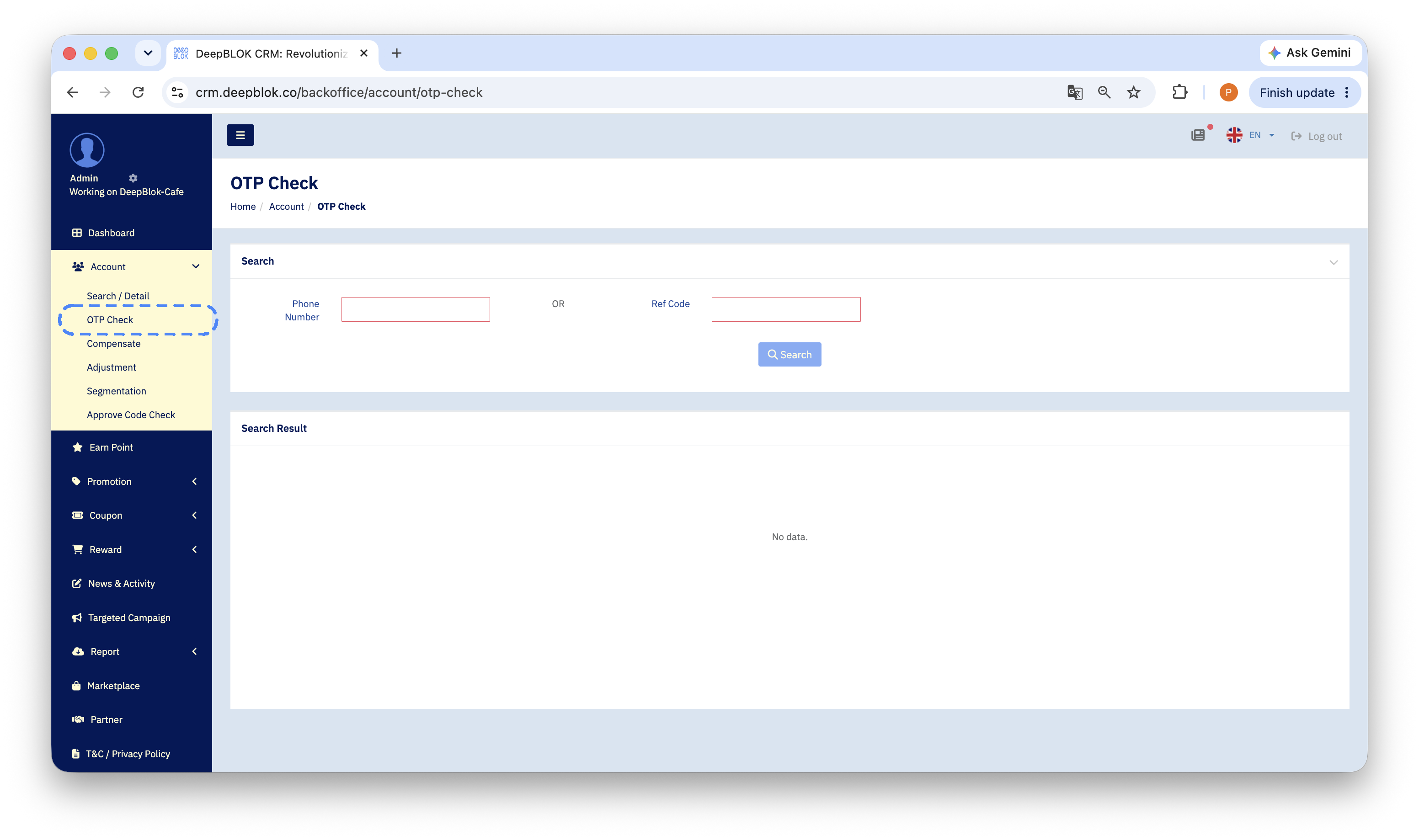
2. Enter the customer's phone number, or the RefCode
On the search page, enter one of the following and run the search.
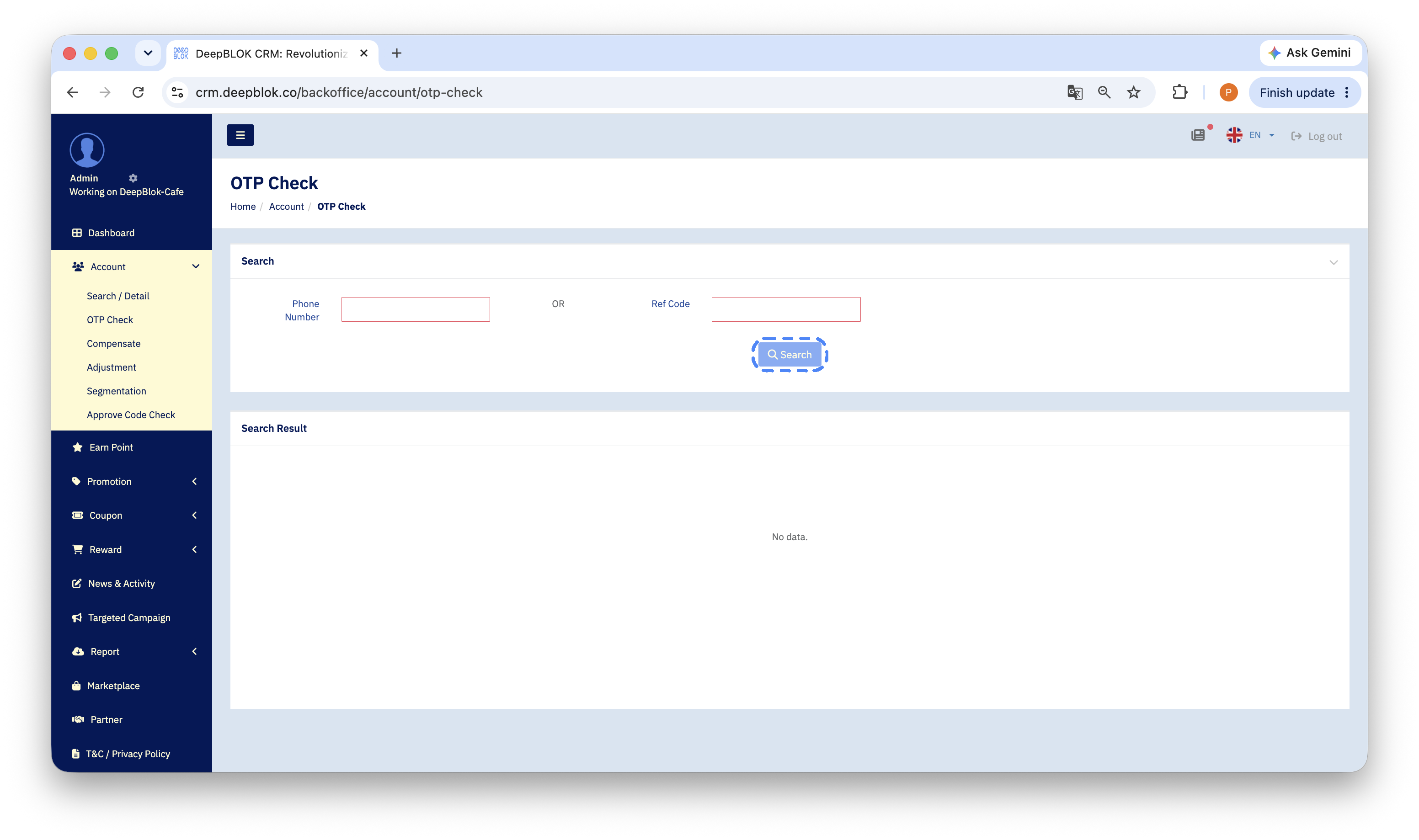
3. Read the result in Search Result
The OTP details appear in the Search Result section below the search box. Confirm 2 things before you read anything out.
- The destination in the result matches the number or email the customer gave you — if you searched by RefCode, compare what comes back against what they stated.
- If the result holds more than one entry, take the most recent — a customer who requested the code several times will have made the earlier ones unusable.