

When someone on your team changes duties, their access should change the same day. You do it on the Admin Edit page, and it takes under a minute. There's no need to delete the old account and build a new one — their work history and admin code stay exactly as they were.
⚡ Quick Path:
Settings→Admin Setting→ the gear icon in that row'sActioncolumn →Edit→Select Role→Save Changes
Changing a role affects access only. It doesn't touch their password, their email address, or any member data they've edited.
Requirements before you start
- An account that can open
Settingsand theAdmin Settingpage — in the permission table as configured,Adminis the role with the widest access. If you can't find the menu, ask someone with theAdminrole to make the change for you. - A decision on which role they should have — if you're not sure which one suits their new job, read the article on what each role can do first so you don't have to change it twice.
- Their email address or name — use the
Searchbox at the top right of the table to find the row quickly once you have dozens of admins. - A heads-up to the person themselves — menus they're used to may appear or disappear after the change. Telling them first avoids an unnecessary support message.
Change the role in 5 steps
1. Open the admin list page
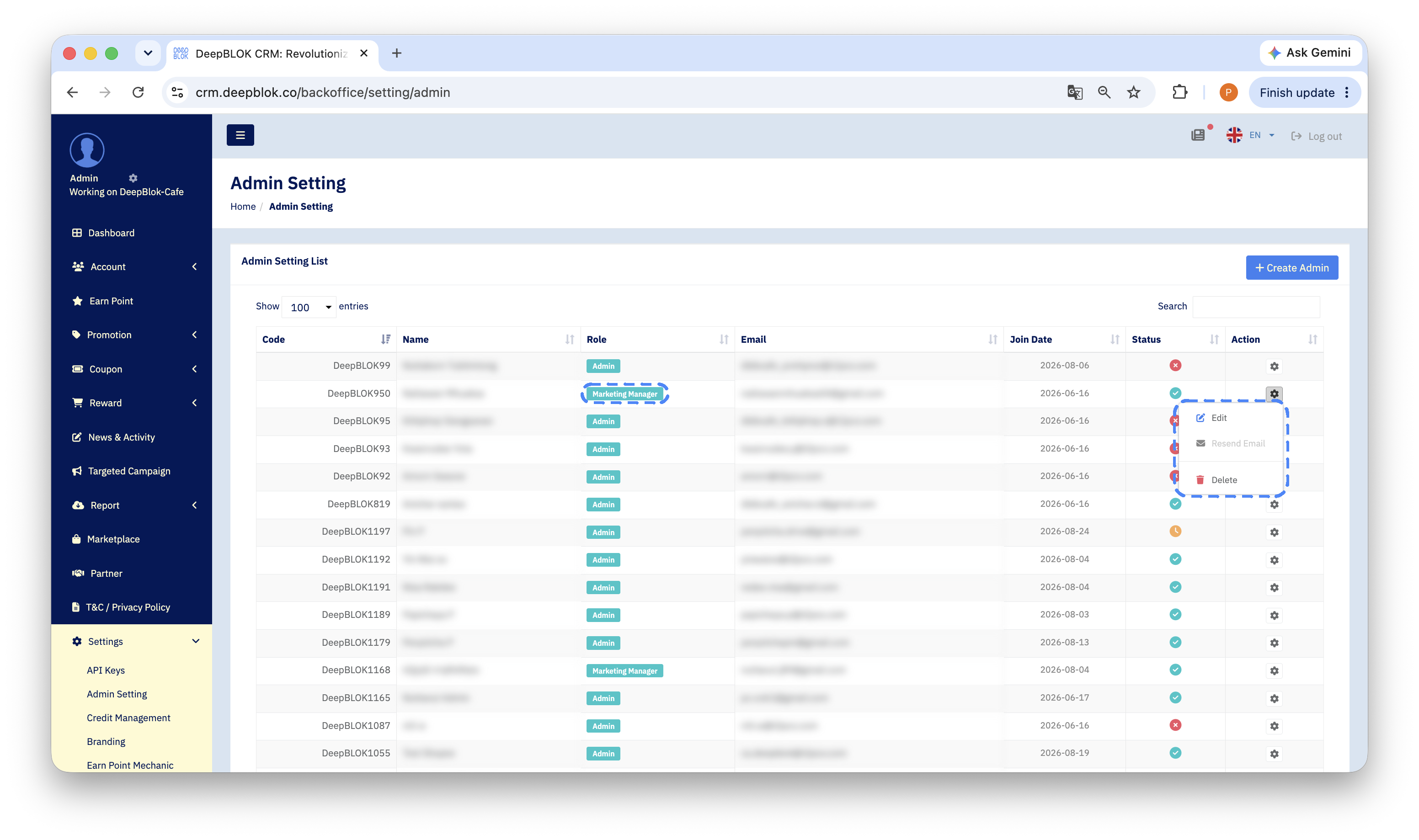
In the left menu, open Settings and choose Admin Setting. The Admin Setting List panel appears, with every admin in a table carrying the Code, Name, Role, Email, Join Date, Status and Action columns.
2. Find the person's row
Type their name or email into the Search box at the top right of the table, then confirm you have the right person from the Email column rather than the name — names can repeat, email addresses don't.
3. Open the edit page from the gear icon
In the Action column on the far right, click the gear icon. A menu of 3 items appears: Edit, Resend Email and Delete (in red). Choose Edit, and the Admin Edit page opens.
4. Pick the new role in Role Assignment
Scroll down to the Role Assignment panel and open the Select Role dropdown, then choose the role you want.
If you want to double-check what that role can do before you commit, click the green View Role Permissions Detail link next to the dropdown. The permission table opens in a window without taking you off this page.
While you're here, check the Brand Assignment field once. If your business runs several brands in one system, the right role with the wrong brand leaves the person unable to open the data they need.
5. Save, then check the result in the table
Click the blue Save Changes button at the bottom right of the page. The system takes you back to the admin list.
✅ Confirm it worked: find the person's row again and read the badge in the
Rolecolumn — it should now show the new role name. Then have them log out and back in once and open a menu that should have appeared or disappeared. Checking both layers proves the value saved and that the new permissions are live in practice.
A note on the buttons on the edit page: Reset Password is not part of a role change
There are 2 buttons on the Admin Edit page, and they do entirely different jobs.
📌 A note on the email field:
Email Addresson this page is read-only text with no input box, which is whyReset Passwordsits right beside it — it's there for password work specifically. If you came to this page only to change a role, scroll straight past it to theRole Assignmentpanel below.
If you do click Reset Password by accident, the confirmation window shows the destination email address in bold, and you can click Cancel as long as you haven't confirmed. If you've already clicked Send Email, tell the person they'll receive an email containing a temporary password, and that they should log in with it and change their password straight away.
Changing someone's role and changing a role's permissions are 2 different jobs
They sound alike but happen in different places, and knowing which is which gets the request to the right place first time.
- Changing which role a person holds — you do it yourself, here, in the 5 steps above.
- Changing what a role is allowed to do — the
Role Managementpage is read-only and carries a banner readingView Only: Only Super Admin (DeepBLOK) can edit role permissions.Changing a role's permission set goes to the DeepBLOK team that looks after your account.
So when someone says "I don't have enough access", start by asking what they can't do, then open the permission table and see whether another role already has it switched on. If one does, change their role as described here and you're finished in a minute. Only if nothing fits does the request need to go to DeepBLOK.
Common Problems
Frequently Asked Questions
Q: Does changing someone's role also change their password?
A: No. The role change happens in the Role Assignment panel and is saved with Save Changes. Passwords are a separate button — Reset Password — which you have to click deliberately and which always shows a confirmation window first. If you didn't click it, their existing password still works.
Q: Should I delete the old account and create a new one when someone moves teams?
A: No — changing the role on the existing account is both faster and safer, because the admin code and email address stay the same and the history that records who did what stays continuous. Deleting is for people who genuinely won't be using the system again, which is the article on deleting an unused admin account.
Q: Can one account hold more than one role at a time?
A: Select Role is a dropdown that takes a single value, so plan on one role per account. If someone's work straddles 2 roles, pick the one that covers their main job and tell the DeepBLOK team that looks after your account what permission set you need.
Q: Will reducing someone's access affect work they've already done?
A: Anything already saved into the system stays as it is. A role change affects what they can do from that point on. If you're narrowing someone's access, agree a time with them and let them finish anything in progress first.
Next Step
If the reason for this change is that someone is leaving the team, the next job is closing their account properly. An account left open with nobody using it is standing access that nobody is watching.
Read Next