

A customer calls to say their coupon will not open, the shop has already given them the discount by hand, and in the system that code still sits in its old state. This is not something you can put right directly. It has to go in as a request for someone else to review — which is what stops any one person changing the status of a live coupon. This article covers both sides, the requester's and the reviewer's. Submitting one takes under 3 minutes.
⚡ Quick Path:
Coupon→Coupon Request Change→Create Request→ enter the code → changeDate ExpireorUsed→ write aComment→Save & Request
📌 Good to know: if you are already looking at that code on the bucket's search page, press Request at the end of its row — it opens the same form in a new tab with the code already filled in. That button appears only on rows whose status is Distribute; a code not yet handed out has none.
Requirements before you start
- The code that is causing trouble — from the customer directly, or found on the bucket's search page.
- The story of what happened — it goes in the
Commentfield, which is all the reviewer has to go on. - The name of someone on your team who can approve — a submitted request sits waiting until someone reviews it.
The 2 sides of this job
The job is built for 2 people, so it helps to know which side you are on.
1. The requester Whoever took the call. They fill in what should change and why, then submit. The request's status becomes Waiting for review, and then they wait.
2. The reviewer Someone with Manage rights opens the same request and sees 3 buttons the requester never sees — Approve, Reject and Cancel Request — along with a record of who raised it and when.
The reason for the split is plain enough: changing a coupon's status affects something a customer is holding.
The system does not enforce it, though. Checked against the live screen on 29 Aug 2026: someone with Manage rights can raise a request and approve their own — all 3 buttons appear the moment it is submitted. Keeping the 2 sides apart is a team agreement, not something the product guarantees.
Submitting a request in 3 steps
Step 1 Open the request form
Open the Coupon menu and choose Coupon Request Change. The system shows the Request List table of every request raised so far; press the blue Create Request button at the top right and Request Coupon Detail opens, with a panel headed Coupon Request Change.
⚠️ Note on language: the Request Coupon Detail page has no Thai translation — every field label and button on it stays in English even with the system switched to Thai. The request list is translated only in part: the column headings turn Thai, but Review By and Date Review, the Create Request and View Detail buttons, and status values such as Waiting for review all stay English.
The quicker route: if you are already working through coupons on a bucket's search page, press Request at the end of the problem coupon's row.
Step 2 Enter the code and wait for the system to confirm it
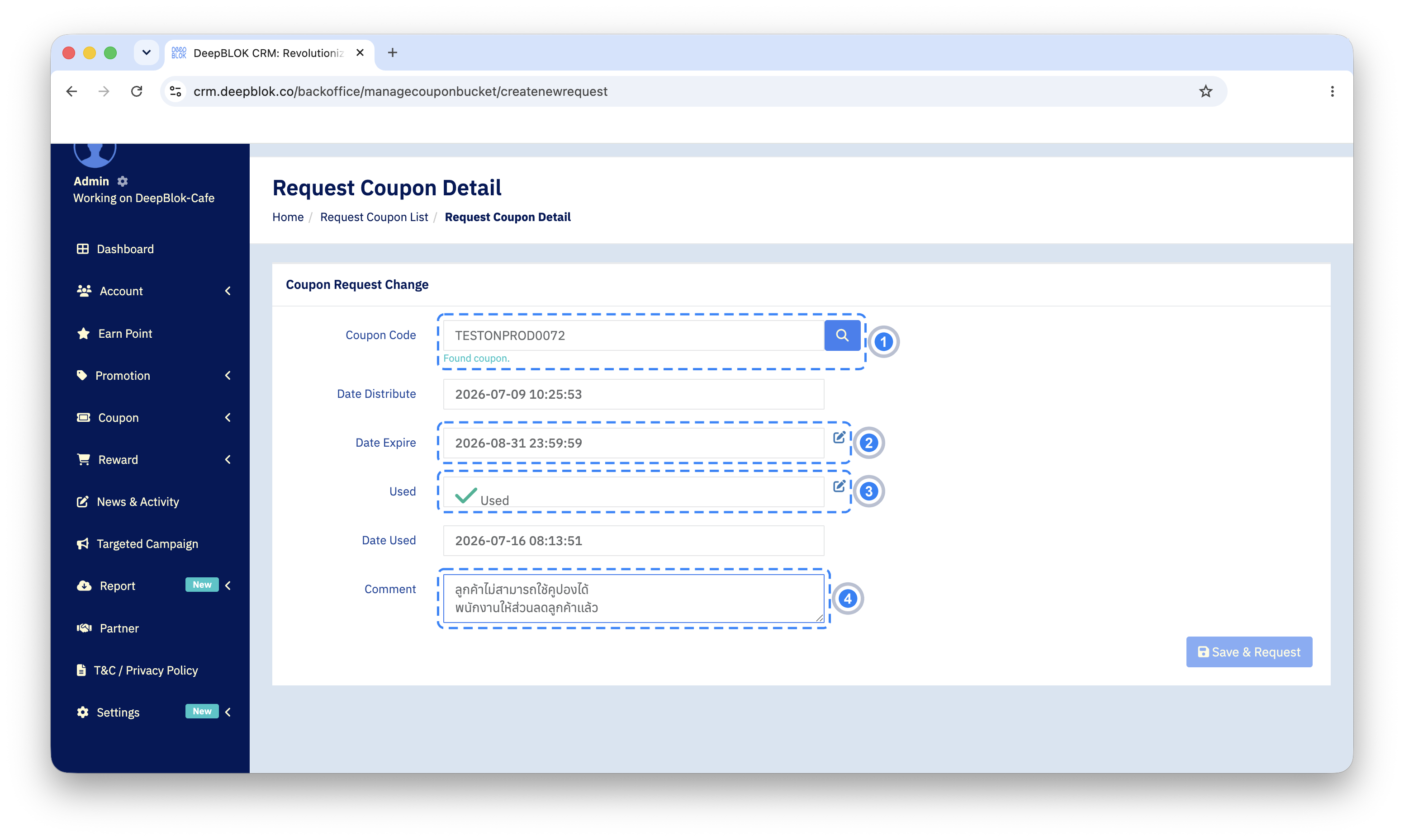
Type the code into Coupon Code. If it is not found the system says Coupon not found. instead, and leaving the field empty on submit shows a red Coupon code is required. If the system finds it, a green Found coupon. line appears beneath the field and the rest of the form fills itself in with that code's details.
That line is your first checkpoint. If it does not appear, the code is wrong or is not in the system — check it with the customer again before going further.
Step 3 Change what needs changing, say why, and submit
The form has 6 fields, but only 2 of them can be changed. The rest is that code's own information, filled in for context.
🚨 The most important trap in this form — Date Expire displays a different value from the one it writes. Tested against a test coupon on 29 Aug 2026: on opening, the field showed the value from the Gift expiry column, but once the request was approved the new value landed in the coupon's own expiry column instead, leaving the gift expiry untouched.
In practice that means a gift-distributed coupon that expired on its gift date stays unusable even after Date Expire is moved. Before telling anyone it is fixed, go back to the bucket's search page and check that the column actually causing the expiry has changed.
Pressing the pencil clears the field — you get an empty box with a red border, a calendar icon on its left and an orange revert arrow on its right that puts the old value back. The picker opens on the current month and past dates can be chosen; picking a day fills the time in as 23:59:59.
Write the Comment so the reviewer can decide without calling you. 3 things is enough: what the customer ran into, what the shop already did about it, and what you want changed. Then press Save & Request at the bottom right.
✅ Confirm it worked: back on the request list, the request you just sent should be there, and its the Request Status column should read Waiting for review, and RequestType says what was asked for — ChangeDateExpire, ChangeUsed, or both joined by a comma. View Detail at the end of the row reopens it. If it is not in the list, Save & Request was never pressed — go back in and press it.
The reviewer's side of the same page
When someone with Manage rights opens the same request, 3 things differ.
First, the top right of the panel carries 3 extra buttons, each a separate command rather than one button in 3 colours: Approve in blue, Reject in red and Cancel Request in orange. Second, a Request status line at the top, which holds one of 3 values: Waiting for review, Approved or Rejected. Third, a panel on the right traces the request's history — DateCreate and AdminCreate for who raised it and when, through to DateReview and AdminReview for who reviewed it.
On the reviewer's side the same page differs in 2 more ways. Used becomes a dropdown with an orange revert icon rather than a pencil, and the button at the bottom right reads Update & Request rather than Save & Request, which stays greyed out until at least one field has actually been changed.
The effect of pressing Approve
Tested against a test coupon on 29 Aug 2026:
The coupon changes immediately. There is no queue and no further step — the new value is already on the bucket's search page when you go back to it.
The request page turns read-only. Request status goes from Waiting for review to Approved with a green tick, the pencil icons disappear from both fields, and Approve, Reject and Cancel Request all disappear, along with Update & Request.
The history panel records the review side only. DateReview and AdminReview fill in with the time and the name of whoever approved. DateModify and AdminModify stay at 1970-01-01 07:00:00 and -.
An approved request cannot be undone from this page — no button is left. A correction needs a fresh request.
⚠️ Watch out: all 3 buttons act on a real customer's coupon the moment they are pressed. Before pressing any of them for the first time, try it on a test code and watch the result on the bucket's search page.
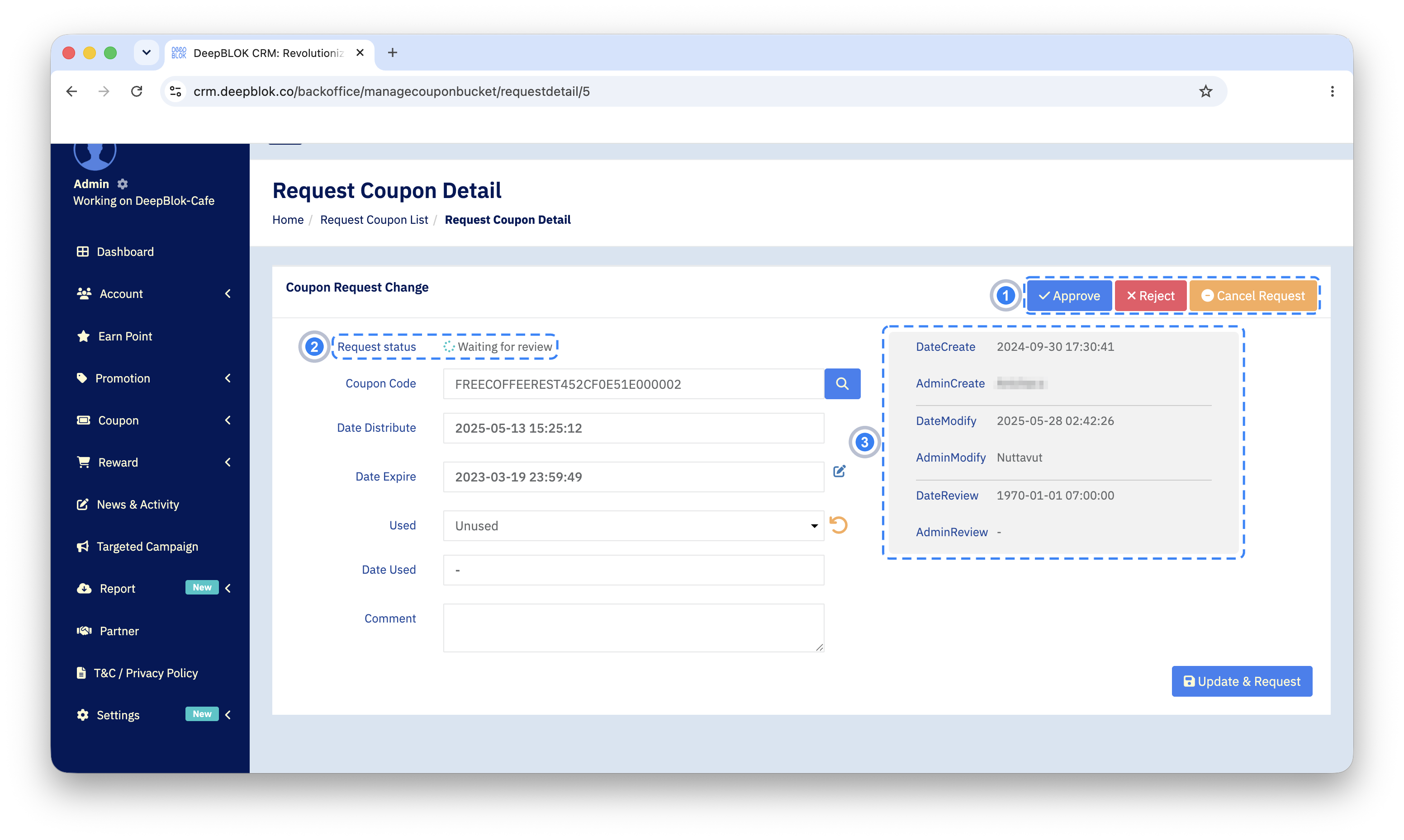
In that history panel, anything that has not happened yet shows a date of 1970-01-01 07:00:00 and a hyphen where a name would go. That is not a fault; it is how the system says nothing has happened. A request nobody has reviewed shows exactly that under DateReview.
Common Problems
Frequently Asked Questions
Q: Can a coupon's status be changed directly, without a request?
A: No — the flow always goes through a request, reviewed by someone with Manage rights. That is what stops a coupon's status changing without anyone knowing, and it means every change carries a record of who asked and who approved.
Q: Once Approve is pressed, can the customer use that coupon straight away?
A: We recommend trying it on a test code and watching the result on the bucket's search page before using it on a real customer's case.
Q: What should go in the Comment?
A: Enough for the reviewer to decide without coming back to you: what the customer ran into, what the shop already did, and exactly which value should change to what. The more specific it is, the faster it clears.