

How many times can one customer redeem this reward, how many redemptions does the whole campaign allow, and how long does a redeemed coupon stay usable? All 3 answers live in one tab — the same tab where the coupon bucket is chosen. Setting all of it takes about 5 minutes.
⚡ Quick Path:
Reward→Reward Group List→View Rewards→Editon the reward → theReward Settingstab → setCoupon bucket·Coupon expiry·Redemption quota→Save
📌 Good to know: everything in this article lives inside a reward that already exists. If you have not built the reward yet, build it first and come back. And if that reward carries a coupon, the coupon bucket has to exist already too. Links to both articles are in the last section.
Requirements before you start
- A reward that already exists — open it with the
Editbutton on its row, from the group'sReward Listpage - 3 numbers decided in advance — the total for the whole campaign, the number per period, and the number per customer. All 3 are set separately and can be on at once.
- The codes actually sitting in the bucket — you can read this number on the page itself, and it is the campaign's real ceiling no matter what quota you set
The coupon bucket and the codes actually in it
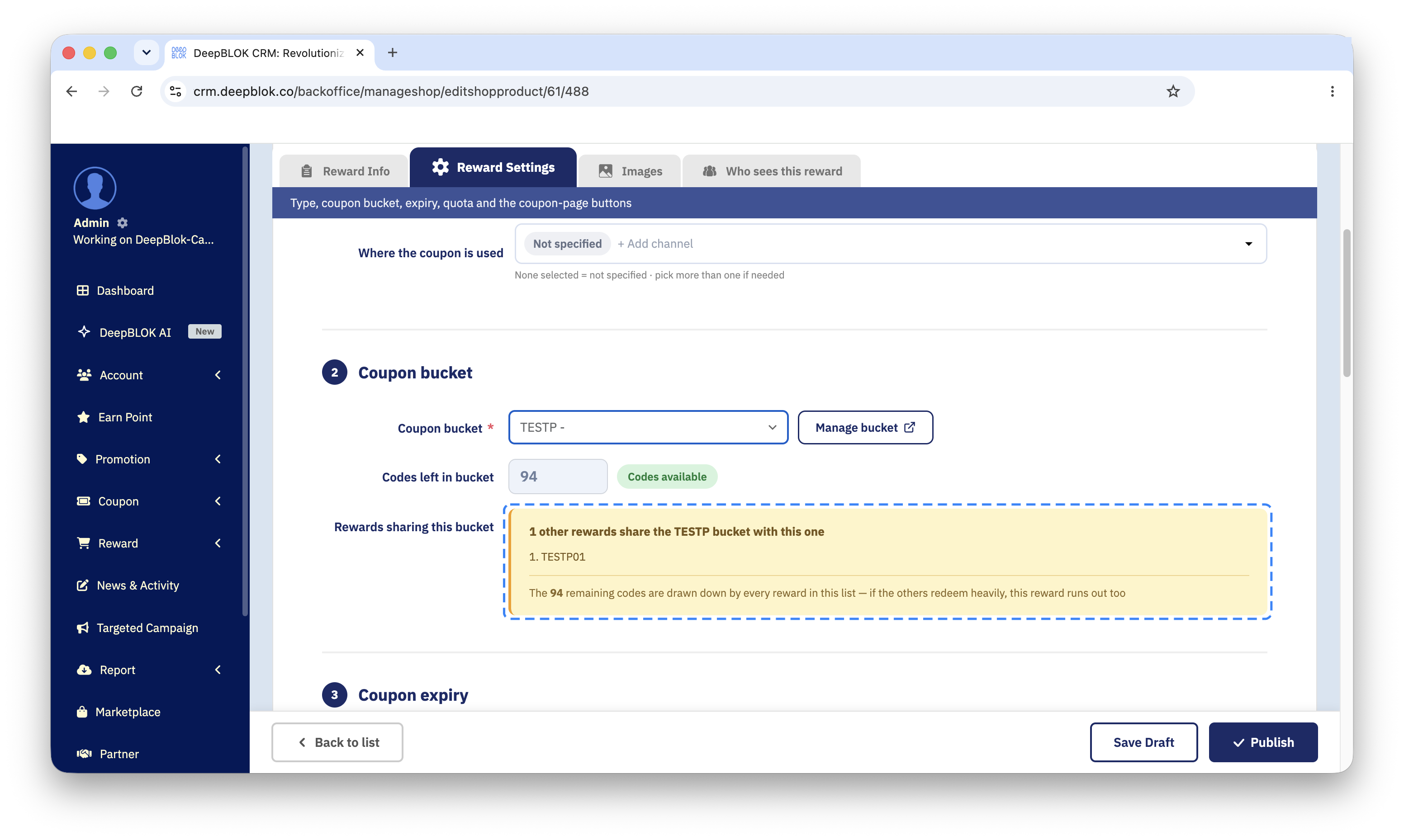
Coupon bucket is the second section of this tab. The field carries a red asterisk and is one of the things the publish gate checks. It starts on Please select a coupon bucket — the system does not pick one for you. Beside it is a Manage bucket button, which opens the coupon-bucket list in a new browser tab, so nothing you have typed into the form is lost; the button stays disabled until a bucket is chosen.
Pick a bucket and the system shows a Codes left in bucket row with a status badge — and there are only 2 badges, Codes available and Out of stock. There is no middle "running low" state, because no single number works for every brand: 500 codes left is plenty for a brand with a few hundred members and almost nothing for a large one. The number to read is the real count, not the colour of the badge.
When the bucket reaches 0, the system says customers cannot redeem this reward from now on and the bucket has to be topped up first. If that bucket is shared with other rewards, the message also says the other rewards in it cannot be redeemed either.
⚠️ One thing to watch: the publish gate checks whether a bucket has been chosen, not whether that bucket holds any codes. A reward pointing at an empty bucket therefore publishes fine, and the problem surfaces on the customer's side instead — they see the reward but cannot redeem it. So read Codes left in bucket with your own eyes every time, before you press Publish.
Below that, if the bucket you picked is shared, the system shows a Rewards sharing this bucket box listing those rewards. The codes left are shared across every reward in that list, not held for this one. Set a quota of 300 on each of 3 rewards drawing from one bucket and the bucket needs 900 codes, not 300. If you want this reward to have stock of its own, giving it its own bucket is clearer.
The 3 ways coupon expiry is counted
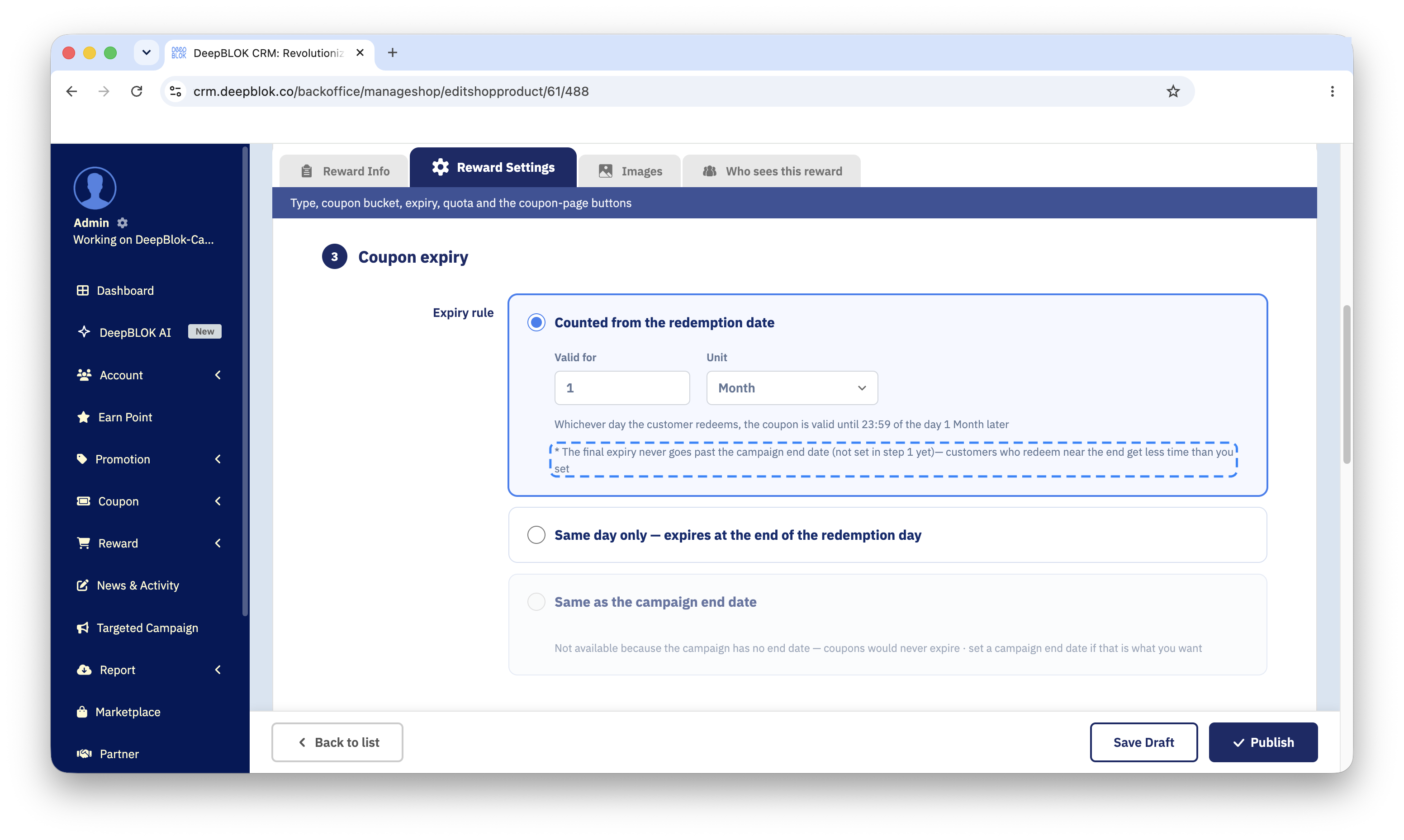
The Coupon expiry section holds an Expiry rule choice with 3 options. This value decides how long a coupon lasts after a customer has redeemed it, and has nothing to do with the date range over which the reward appears in the list.
Pick the first rule and a Valid for box and a Unit box appear, the unit being Day, Month or Year. A summary sentence under them updates as you type, which is a quick way to check you set what you meant, and a note points out that the final expiry never goes past the campaign's end date — so customers redeeming near the end get less time than you set.
The third rule cannot be picked when the campaign has no end date, because there is no closing date to inherit, so the card is greyed out. To use it, go back to the Reward Info tab and give the display date range an end date first.
The 3 redemption quotas, which can all be on at once
The Redemption quota section carries a note at the top of the section: all three can be on at once, and the strictest rule wins. So there is no need to choose just one.
1. Whole campaign Tick Limit total redemptions for the whole campaign and put a number in Quota. It is the ceiling across everybody. Beside it sit Redeemed and Remaining, both read-only and calculated by the system, and they read as an equation: the quota you set, minus what has been redeemed, equals what remains.
2. Per period Tick Limit redemptions per period, pick the period in the Per box — Day, Week, Month or Year — and set the Quota for that period. This item's Redeemed field names the period in its own label, and Remaining starts again when a new period begins. Use it to release entitlements gradually rather than all at once.
3. Per customer Tick Limit redemptions per customer, then set Times and pick Reset every. These 2 boxes always have to be read together, because the same number means different things with a different reset period. 1 with Never (whole campaign) means one redemption per customer for the life of the campaign · 1 with Month means once a month · 5 with Never (whole campaign) means 5 times in total. The reset options are Never (whole campaign), Day, Week, Month and Year.
This value has nothing to do with how many codes are in the bucket — it stops one customer taking many entitlements.