

Some campaigns give away things that are not yours — a voucher from a partner shop, say. You can hand those out through the system, but it needs to know whose they are first. Otherwise, when you look at where customers spent their points, there is no way to tell your own rewards from a partner's. This article covers creating a partner and the 2 places that name then turns up. One takes about 3 minutes.
⚡ Quick Path:
Partner→+ Create new brand→ fill in both names → switchStatuson →Submit
📌 Good to know: create the partner before the reward, because the reward's Brand / Partner field only offers names that already exist. Doing it the other way round still works — you just have to go back and edit the reward.
Requirements before you start
- Permission for the
Partnermenu — if it is missing from the sidebar, we recommend asking an administrator on your team to grant it first. - The partner's name in both languages — both fields have to be filled, and this is the name that turns up in reports later, so it is worth agreeing on it in advance.
- A logo, if you have one — under 1 MB, at a recommended 500 × 500 pixels, in
.pngor.jpeg.
A partner in this system
The Partner List table does not hold only other people's shops. Your own brand is in it too, alongside any partners added later. Another way to see it: this table is the register of everyone the system knows can own a reward.
That is why the field on the reward says Brand / Partner, not just Partner — it is asking whose reward this is, and the answer might well be you.
Creating a partner in 3 steps
Step 1 Open the partner list
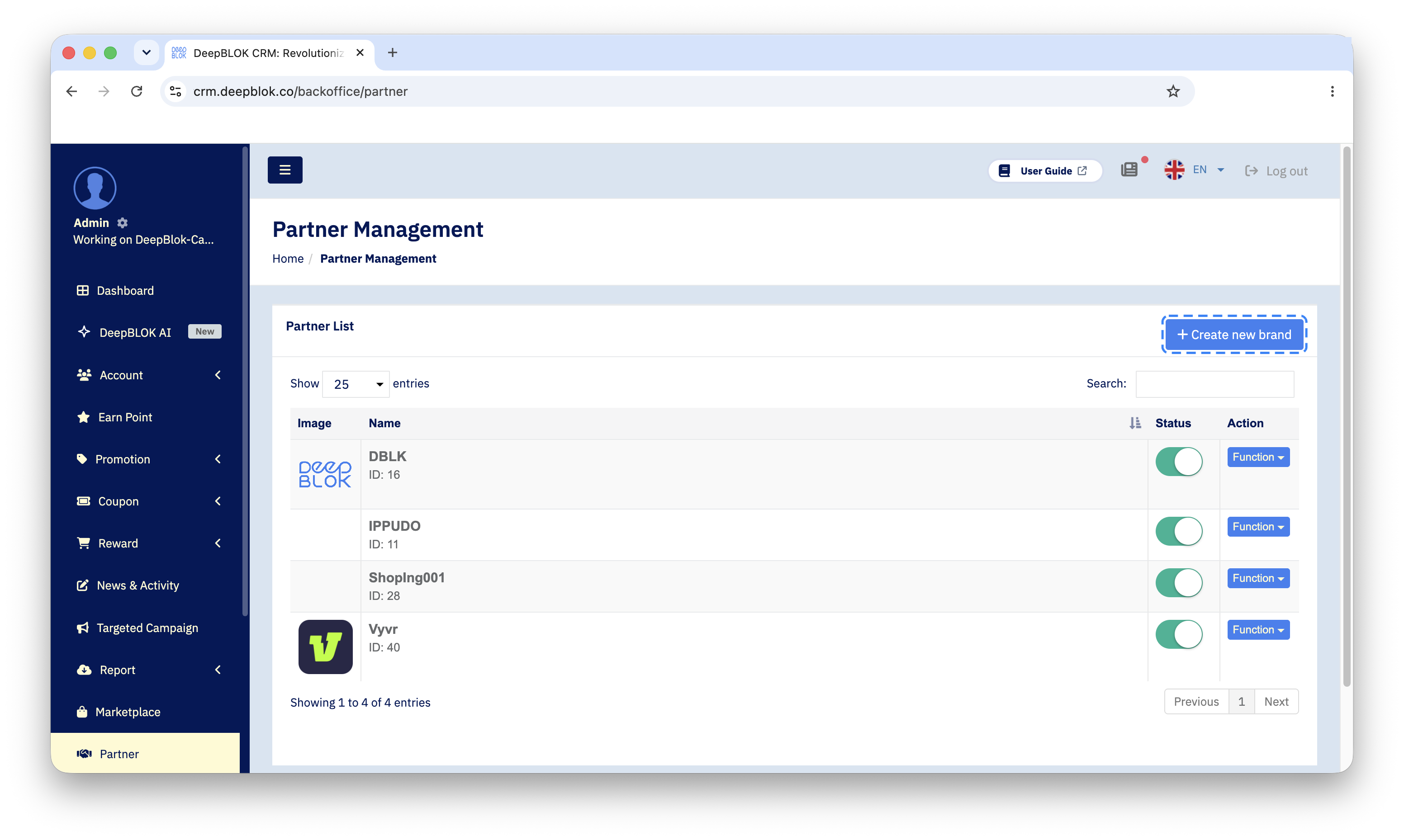
Press Partner in the sidebar. The system opens Partner Management with a Partner List table showing the names already there. Each partner's ID is printed under its name, and each row ends with a Function button for managing it.
Then press the blue + Create new brand button at the top right.
⚠️ Note on the naming: one job goes by a different word at almost every step — the menu says Partner, the page says Partner Management, the button says + Create new brand, and the page it opens is called Create Partnership. They all mean the same thing. If you are hunting for the create button, look for the blue button at the top right rather than for the word Partner.
Step 2 Fill in the Create Partnership page
The page that opens holds one panel, Input brand detail. Only the first 2 fields are required — both names, each carrying a * Required note under the field. Everything else can be left blank and filled in later.
Step 3 Press Submit
Press the blue Submit under the form. The orange Cancel beside it leaves without saving.
✅ Confirm it worked: back on the Partner List table, the new partner's row should be there with the ID the system assigned printed under its name and its Status toggle green, which it already is since the form arrives switched on.
The 2 places the name appears
Once saved, that name appears in 2 places, and those 2 places are the whole reason for creating it.
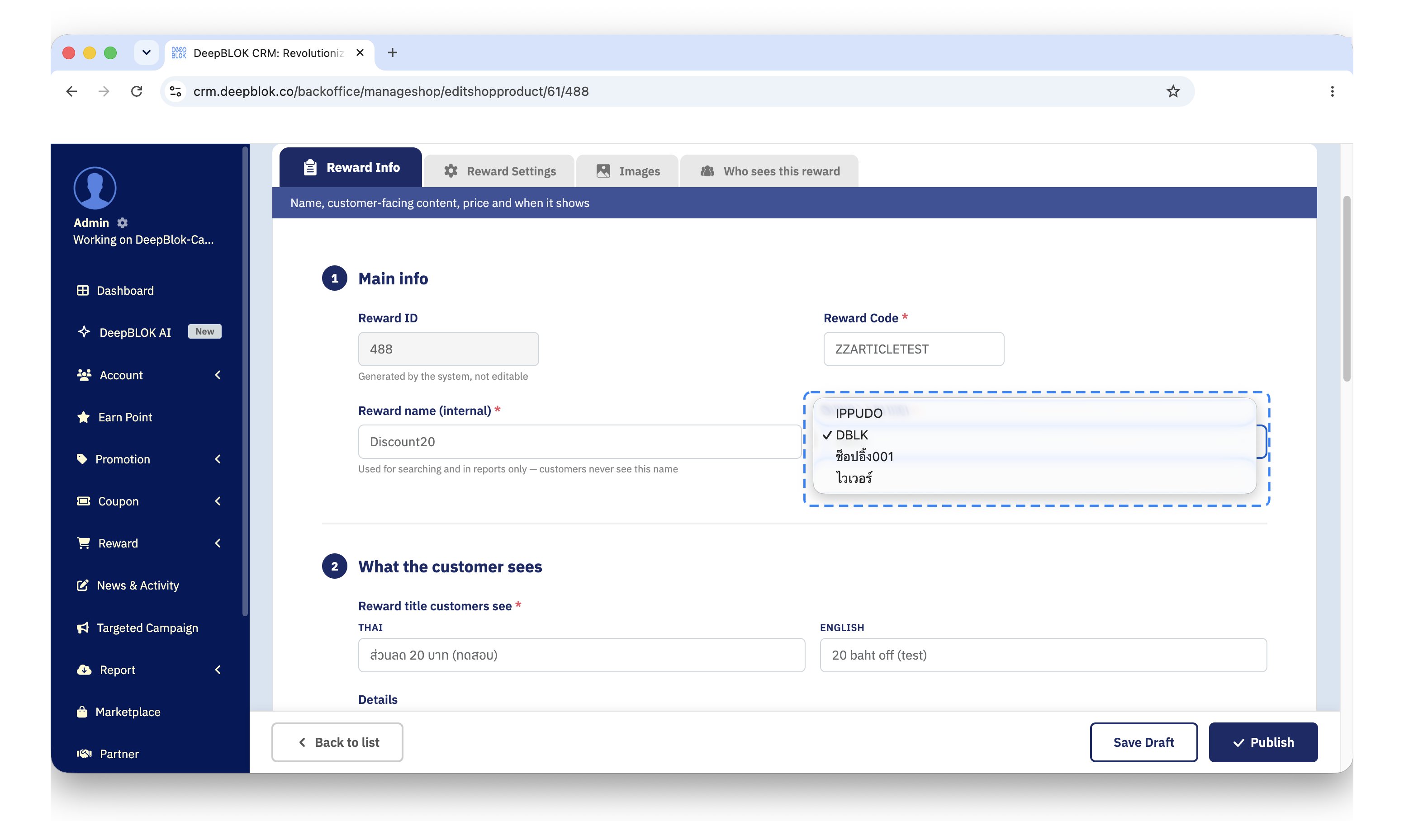
The first is the Brand / Partner field on a reward's edit page, in the Main info section of the Reward Info tab. Press it and every partner in the table is listed, your own brand included. Pick whoever actually owns that reward. The field carries a red asterisk and is required — a reward with no owner chosen will not even save as a draft.
⚠️ This list is not filtered by status. A partner with its Status switched off is still offered here — checked against the live screen on 29 Aug 2026 — so switching the toggle off is not a way to hide a partner from this field.
The second is the Brand column in the point-spending reports, which show what customers spent their points on. Whatever you chose in the field above follows through to that column, so you can tell which redemptions went to your own rewards and which to a partner's.
Common Problems
Frequently Asked Questions
Q: Does a partner always have to exist before the reward?
A: Not strictly, but it is much easier. The Brand / Partner field only offers names that already exist, and it is required from the very first draft save, so a new reward will not save at all until an owner exists to pick.
Q: Which of the 2 names do customers see?
A: Both fields are required. Fill in the Thai and the English name correctly in both.
Q: What happens to rewards tied to a partner when its Status is switched off?
A: Nothing changes in the Backoffice. Tested against the live screen on 29 Aug 2026: the reward stayed Active, its Brand / Partner field still named that partner, and the name was still offered in the picker. The toggle is a status label on the register, not a link that gets cut. To stop customers seeing that partner's rewards, switch off each reward instead.
Q: Can the Status toggle be switched off when a partnership ends?
A: Yes — press the toggle in that partner's row. It asks for no confirmation, reports Status updated successfully, and can be pressed straight back.
Q: What does the Function button at the end of each row offer?
A: Two commands: Edit, to go back into what you entered, and Delete, to remove that partner from the table. If the partner has ever had a reward tied to it, switch Status off rather than deleting — deleting takes the name out of the register for good.