

A campaign meant to land at 9am on Monday doesn't need anyone at a keyboard at 9am on Monday. The bar at the foot of the campaign editor carries a Schedule publish button that sets a future send date and time. It adds about 3 minutes to building a campaign, and works for both coupon and notification campaigns.
⚡ Quick Path: build the campaign in full as usual → on the bottom bar press
Schedule publishinstead ofPublish→ set the date and time → confirm → back onTargeted Campaign List, filter by theScheduledchip to check it's queued
Requirements before you start
- A campaign with every section filled in — scheduling is the last step, not a shortcut past the form. If you haven't built one before, start with the article on sending coupons to a customer segment for coupons or the article on sending a notification to a customer group for notifications.
- A date and time your team has agreed on — a campaign that's gone out can't be recalled.
- Confidence in the content — have a colleague read the copy and check the artwork before you schedule it, because nobody will be watching the screen at the moment it sends.
📌 Good to know: 3 things are worth checking before you schedule — the recipient count in
Target Reach, the coupon expiry inReward Expire date, and the button destination in the notification panel. None of them can be changed once the system has sent.
Schedule a send in 3 steps
1. Complete every section of the campaign first
The campaign editor unlocks top to bottom, so every section has to be saved: the name and objective, Target User, and Send notification if you're using it.
Don't touch the bottom bar until all the sections are saved — those buttons act on the whole campaign, not on any one section.
2. Press Schedule publish instead of Publish
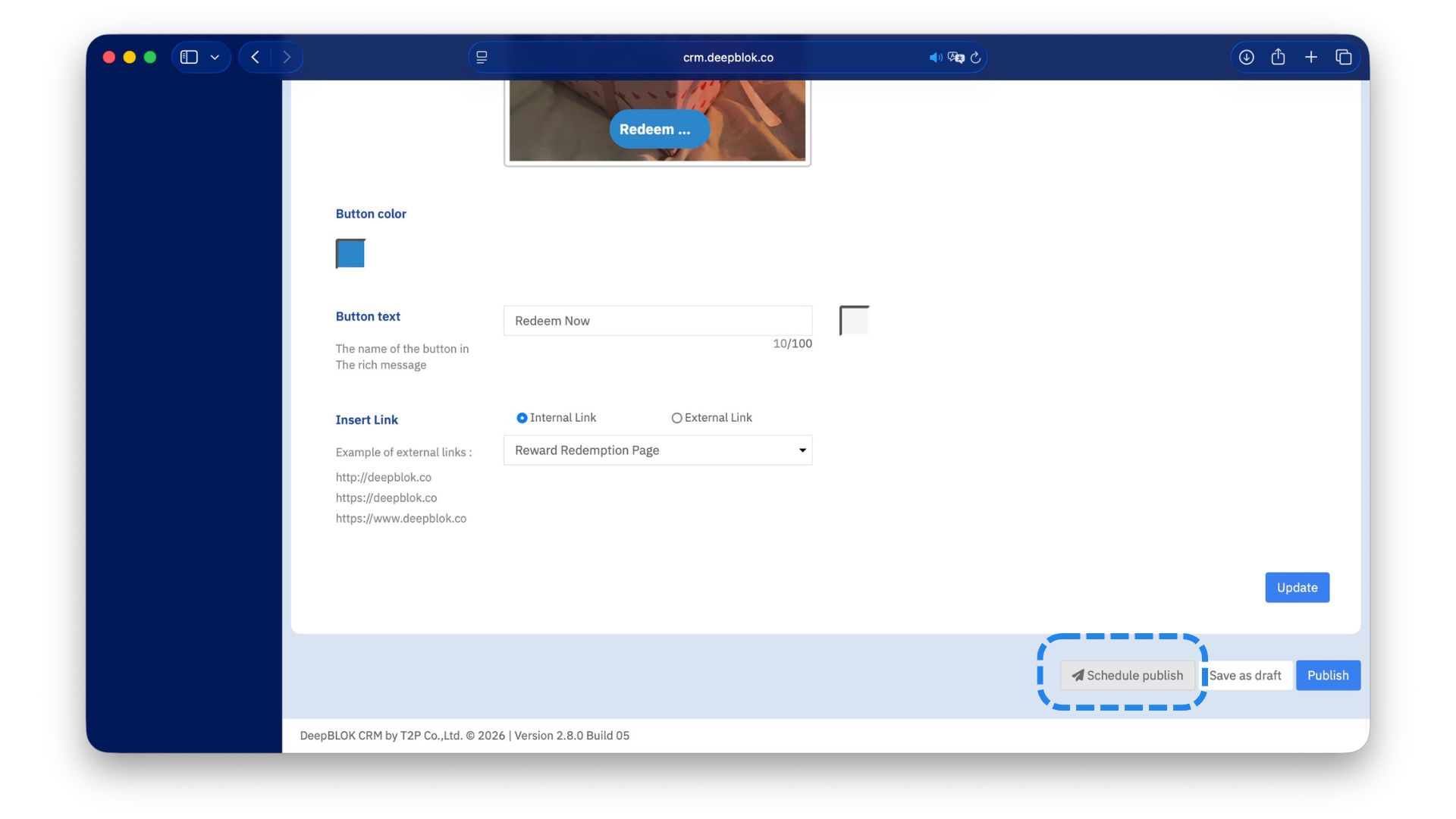
The bar at the foot of the page holds 3 buttons, right-aligned.
1. Schedule publish Marked with a paper-plane icon. Sets a future send date and time.
2. Save as draft Keeps the campaign in the list so you can come back to it. It does not schedule anything.
3. Publish The blue button. Sends immediately.
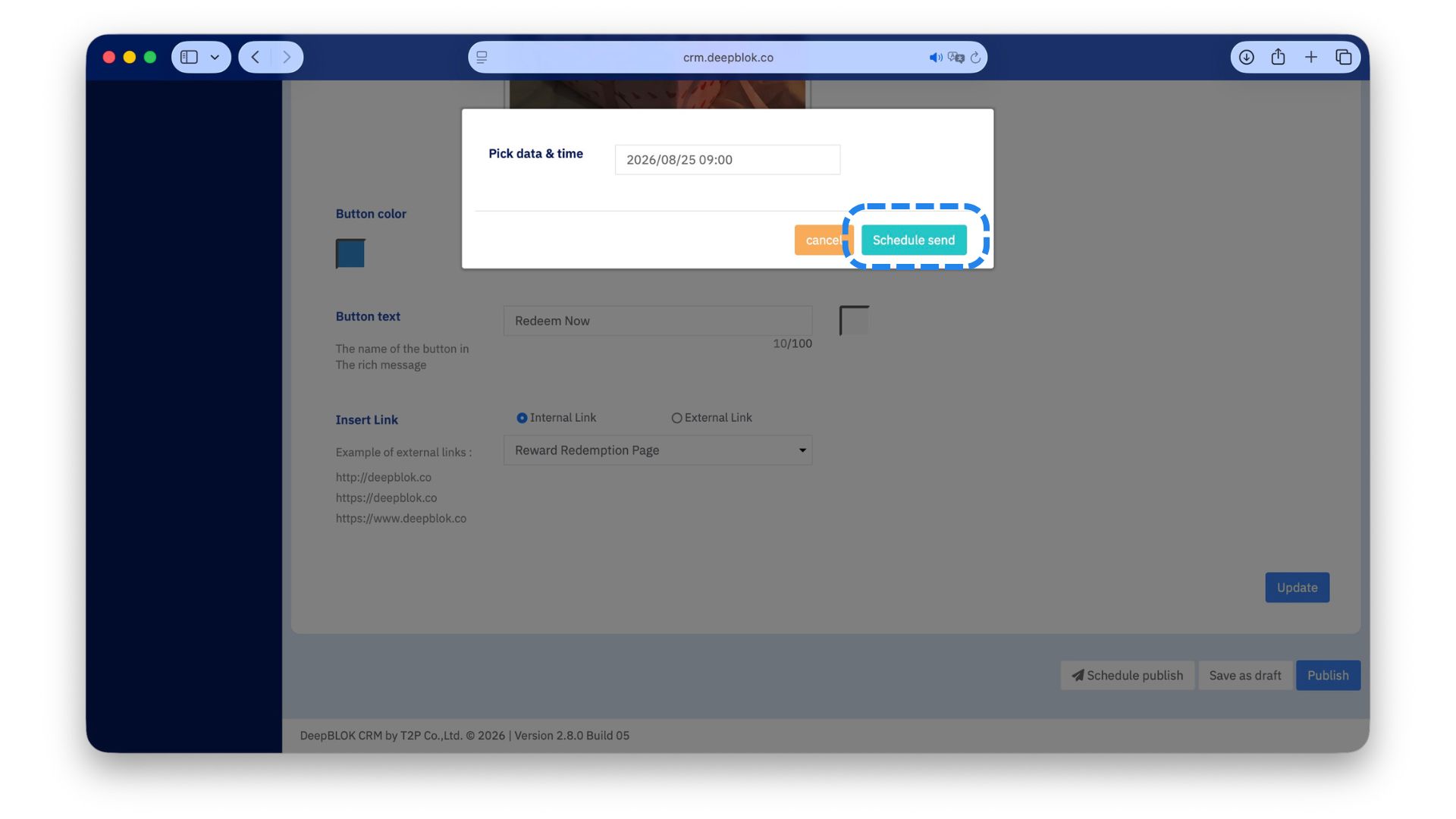
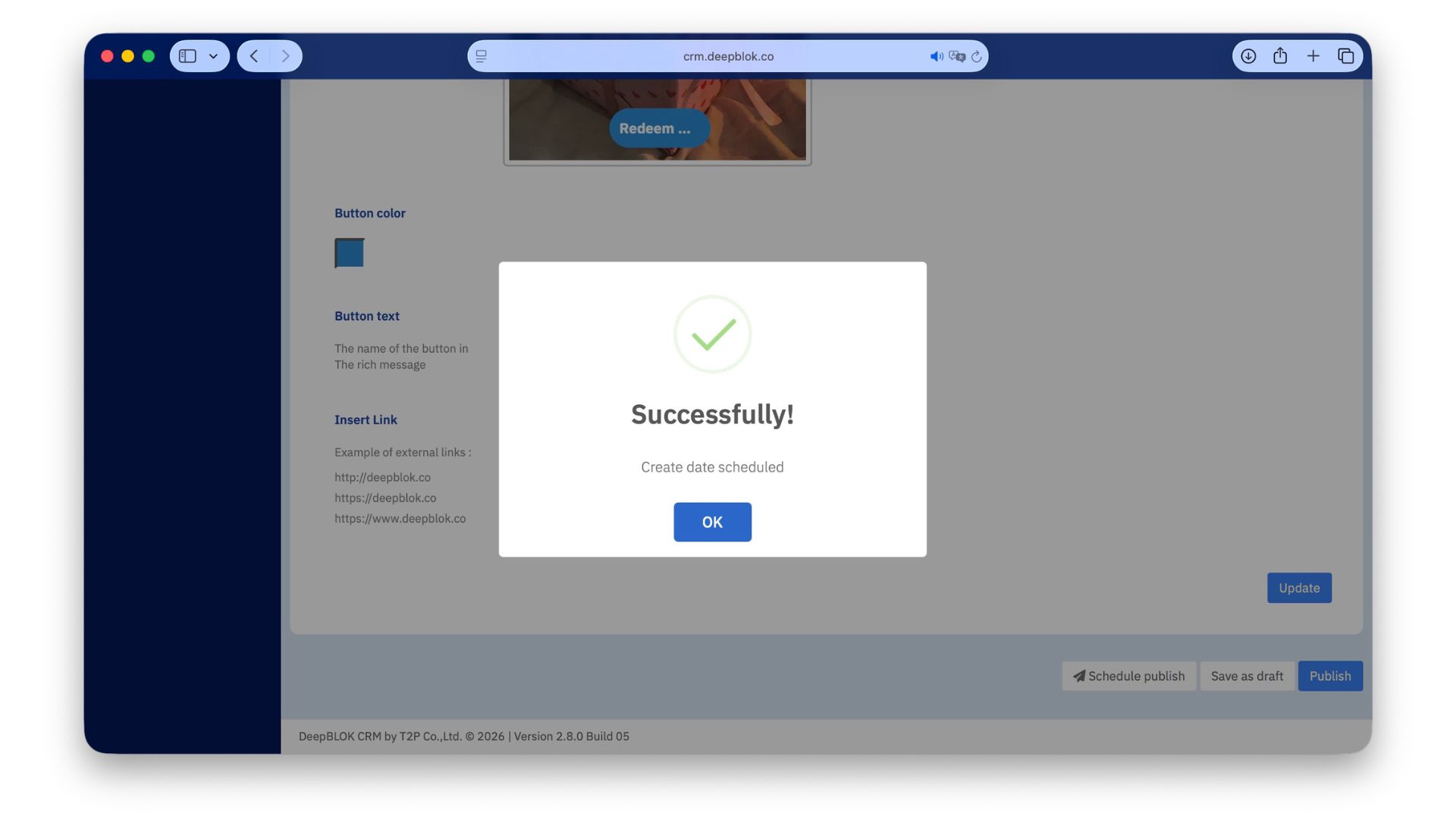
Click Schedule publish, set the date and time you want the system to send, and confirm.
3. Check the campaign is queued
Go back to Targeted Campaign List. Above the table sit 6 status filter chips, each carrying a count.
Click the Scheduled chip and look for your campaign.
✅ Confirm it worked: your campaign should appear under
Scheduled, and that chip's count should have gone up by one. If it turns up underDraftinstead,Save as draftwas pressed and nothing is scheduled — open the campaign and pressSchedule publishagain.
Note on 2 buttons side by side: a draft never sends itself
Schedule publish and Save as draft sit next to each other on the same bar, and do entirely different things.
Recommendation: until you've seen the campaign under the Scheduled chip, treat it as not scheduled. Pressing a button and closing the page is the single most common reason a campaign doesn't go out on time.
While the campaign sits in the queue: 3 things worth doing
Between the day you schedule and the day it sends, the situation around the campaign can still change — coupon stock moves, and colleagues add campaigns of their own. These 3 checks take under 5 minutes together and head off problems that can't be fixed after a send.
1. Check the linked reward's remaining coupon codes, at least a day before If another campaign uses the same reward and goes out first, the codes left may not cover your target group.
2. Open the Scheduled chip and read the whole queue 2 campaigns with overlapping audiences scheduled close together means one customer gets several messages in a day — which is exactly what gets a brand's LINE account blocked.
3. Read the content once more on a phone The button label and the rich-message image especially: what's comfortable on a desktop can be unreadable on a small screen, and nothing can be recalled after it sends.
Common Problems
Frequently Asked Questions
Q: Can I cancel a scheduled campaign?
A: The screen is explicit that the items editable and deletable from the Action column are the Draft ones. For a campaign already in the queue, contact the DeepBLOK team who look after your brand as soon as you realise — don't wait for the send time.
Q: Can several campaigns be scheduled at once?
A: Yes — the Scheduled chip shows how many are queued. But if 2 of them share target customers, one person gets several messages close together. Look through what's under that chip before scheduling anything new.
Q: What time of day should I send?
A: The best answer is in your own brand's data. Look at the Clicked column for past campaigns on Targeted Campaign List and compare it against each one's send time. The article on tracking campaign results covers reading those figures.
Q: When does a scheduled campaign take coupons out of stock?
A: The screen doesn't state whether codes are reserved at scheduling time or drawn at send time. The safe practice is to re-check the reward's remaining code count the day before, particularly if another queued campaign uses the same reward.