

This is one of the most common cases to reach a support desk, and it usually arrives with a customer waiting on the line. Most causes sit in that reward's own settings page, and all 5 checks take about 2 minutes.
⚡ Quick Path:
Reward→Reward Group List→View Rewards→Editon that reward → check the status badge →Display date range→Redemption quota→Codes left in bucket→ theWho sees this rewardtab
Information to gather from the customer first
- The phone number they registered with — it is the account's
Login Keyand what you search on in theAccountmenu. Verify the customer's identity following your team's process before opening their account. - The name of the reward they tried to redeem — every setting involved lives on the individual reward, not on a system-wide switch, so you need the exact one.
- What actually happened — the reward not appearing in the app at all, appearing but refusing to redeem, or redeeming fine but failing at the counter. These three come from different causes, and the customer's screen gives no reason for the failure — only that it did not go through — so their account of it is your starting point and the cause comes from the Backoffice.
- The date and time it happened — useful later for finding the entry in the customer's point history.
The scope of the problem, one customer or everyone
Before working through fields, establish whether this affects one customer or the whole reward. The fastest question to answer is whether several identical cases have come in today.
If it affects everyone, start with checks 1 to 4, because all four are settings that apply to every customer at once. If it affects only this customer, jump to the Per customer quota in check 3 and to check 5 for who can see the reward, since those two are the individual ones.
Working through the checks in 5 steps
Open that reward first: press Reward in the left sidebar, go to Reward Group List, press View Rewards on the card of the group the reward sits in, then press Edit on its row. Then work through all 5 checks in order.
Step 1 The reward's status and group
Look at the status badge beside the reward name at the top of the Edit Reward page. It answers the first question immediately, because customers only ever see rewards whose status is Published. A reward sitting in Draft or Unpublished is invisible to them, and this is the most common cause of "I built the reward but customers cannot find it" — because pressing Save Draft does not put a reward in front of customers.
Next, check which group the reward sits in, readable from the table heading on the Reward List page or from the breadcrumb. Only the All reward group is displayed on the customer privilege page. In the other 4, customers receive the reward through that module directly. So a reward built in Targeted Campaign or Promotion but expected to appear on the privilege page never will, no matter how correct everything else is.
Step 2 The dates and how often it shows
In the Reward Info tab, scroll to When the reward is shown and check 3 things.
Display date range — check today falls between the start and the end. A reward past its end date is invisible, and the Reward List page puts an Expired badge next to the status badge so it can be spotted from the table.
Which days customers see it — this controls how often the reward appears within the date range. Set to Only on certain weekdays, Only on certain dates, Only on the last day of the month or Only in the customer's birth month, the reward only surfaces on days that qualify and is absent on the rest. A summary sentence under the option spells out what the current setting does, which can be read straight against the date the customer gave you.
New members — if Show only to members who registered after a given date is ticked, any customer who registered before the Registered from date will not see this reward. This is the most direct explanation for "long-standing customers cannot see it but new ones can".
Step 3 The quota left
Open the Reward Settings tab and scroll to Redemption quota. There are 3 quotas here, they can all be on at once, and the strictest rule wins — so any of the three can be what is blocking the redemption.
Whole campaign — look at Remaining. At 0 the campaign is full and nobody can redeem. The Redeemed box between them confirms where the number came from.
Per period — limits redemptions within the period chosen in the Per box. When the current period is full, nobody can redeem until a new one starts, which explains "it worked yesterday, not today, and then worked again tomorrow".
Per customer — look at Times together with Reset every. If that customer has used their allowance for the current period, they cannot redeem until a new period begins. This is the number one cause of "other customers can redeem and this one cannot".
If you change a quota, the new value governs redemptions from the moment you save. Coupons already issued cannot be reversed.
Step 4 The codes in the bucket
In the same tab, scroll up to Coupon bucket. The Codes left in bucket row is read-only and shows how many codes remain in the bucket this reward points at, with one of 2 badges: Codes available or Out of stock. If it reads Out of stock, customers cannot redeem even with quota still left — and the system says so, adding that the bucket has to be topped up first.
This can happen to a reward that is published, because the publish gate only checks that a bucket has been chosen, not that the bucket holds any codes. A reward pointing at an empty bucket therefore reaches customers and fails at the moment they press redeem.
Below that, if the bucket is shared, the system shows a Rewards sharing this bucket box with the list. The codes left are drawn down by every reward in it, so another reward may have taken them all first.
For a closer look, open that bucket from the Coupon menu — How to Check Coupon Status and Stock covers how to read it.
Step 5 Who sees this reward
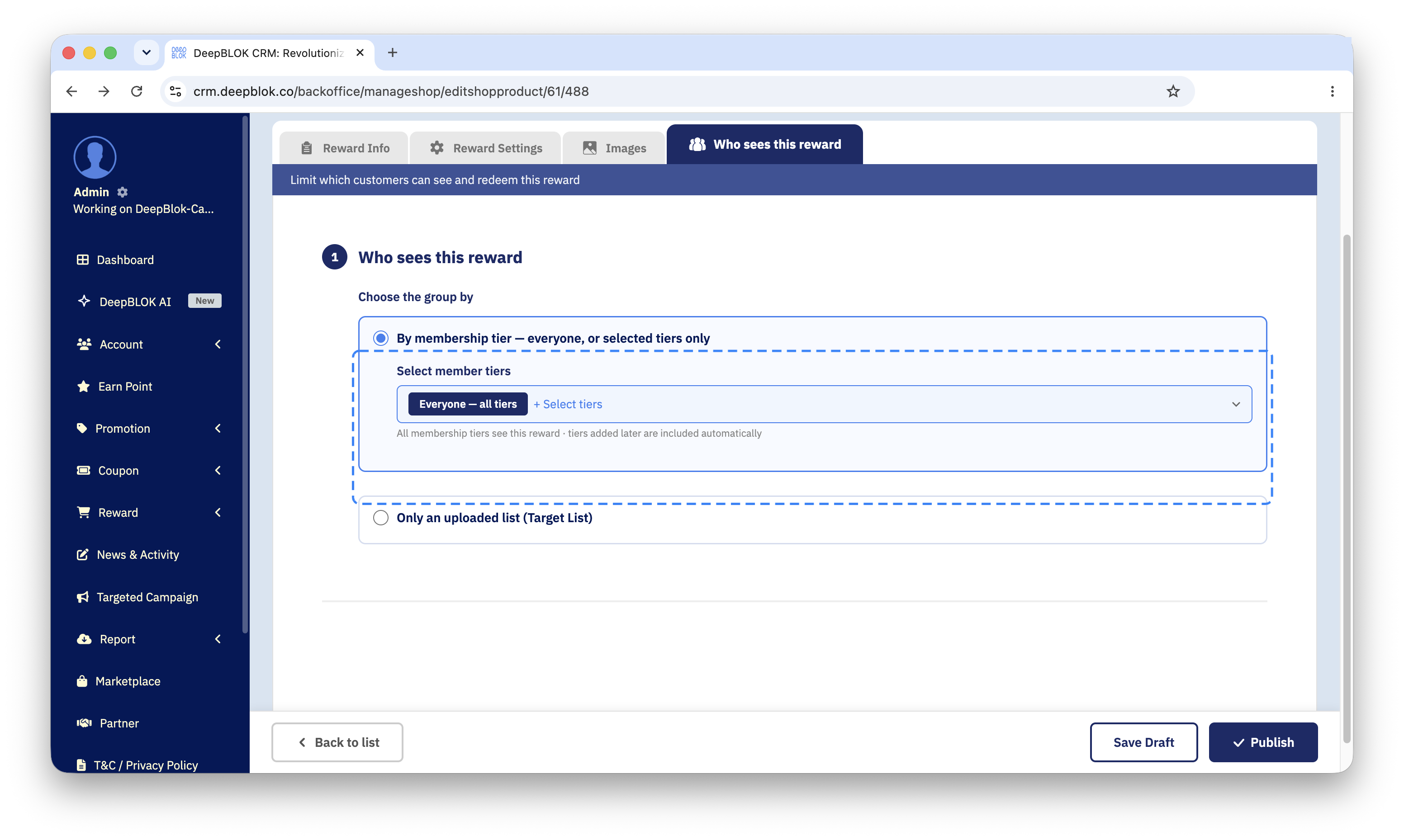
Open the Who sees this reward tab, the fourth one. The Choose the group by field has 2 options.
By membership tier — everyone, or selected tiers only — if the tier field shows an Everyone — all tiers chip, no tier restriction is in place and every tier can see the reward. But if specific tier chips sit in that field, any customer outside those tiers cannot see the reward at all, and the system spells that out in a line under the field. Setting Which Member Tiers See a Reward covers how to set it.
Only an uploaded list (Target List) — restricts the reward to the account numbers on the uploaded list; anyone not on it cannot see the reward whatever their tier, and the option carries a line saying tier is ignored. Check it on the Accounts on this reward sub-tab, which has a search box so that customer's account number can be looked up directly.
A customer's tier can be read on the Account Detail page, on the Loyalty Settings tab in the Account Type field, or on the Loyalty Performance tab in Current Tier.
✅ Confirm it worked: if all 5 checks come back normal and the customer still cannot redeem, this is not a reward-settings problem. Note down what each of the 5 checks showed, along with the customer's phone number, the reward name and the time it happened, and pass it to an administrator. That set of details makes the next stage of investigation far quicker.
Likely causes by symptom
Changing the status of a specific code
If the trail leads to one particular code — counted as used when the customer never used it, for instance — the system has a menu for requesting a status change, at Coupon Management then Coupon Request Change.
The form takes the Coupon Code plus supporting detail: Date Distribute, the date the customer received the code; Date Expire, the expiry date, which is editable; Used, the usage status, also editable; Date Used, the date it was used; and Comment, where you set out the reason for whoever reviews it. Then press Save & Request.
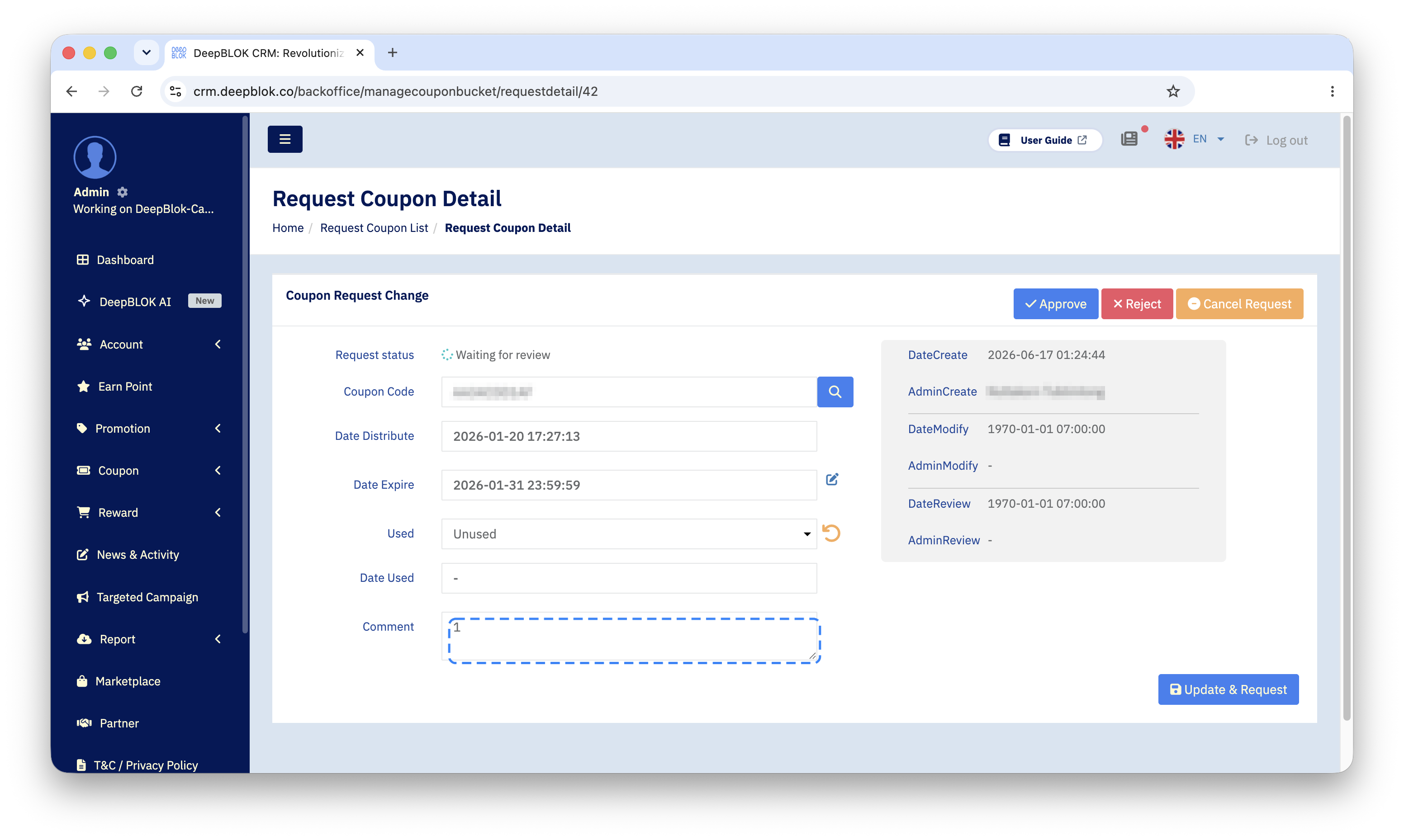
⚠️ Note on when this takes effect: the request does not change the status straight away. After Save & Request, the entry shows as waiting for review and waits for a user with Manage rights to act on it. So tell the customer you have submitted it for review, not that it is fixed — it saves having to walk the statement back later.
Frequently Asked Questions
Q: The customer says it worked yesterday and not today. What should I check first?
A: Start with Remaining on the Whole campaign quota and the Codes left in bucket row. Both fall as other customers redeem, and either can run out mid-day. The 2 other common cases are that the Display date range has just ended, and that the Per period quota for the current period is full.
Q: If I raise the quota, can the customer redeem straight away?
A: The new value takes effect from the moment you save it, so it governs redemptions from then on and a customer who has not yet redeemed can use the new allowance. If they do not see the change, have them close and reopen the page once. Coupons already issued and used cannot be reversed, so lowering a quota does not claw back an allowance already spent.
Q: Can points be returned to a customer whose redemption failed?
A: Coupon Request Change only changes a code's status. Returning points is a separate matter on a separate menu, so it has to be handled apart from the coupon's status.
Q: All 5 checks look normal. What now?
A: Write down what each of the 5 checks showed, along with the customer's phone number, the reward name and the date and time. Sending all of that at once removes an entire round of back-and-forth with whoever picks the case up.