

A customer calls to say they bought something and no points arrived. The first thing to establish is whether the system recorded the transaction at all, because the answer splits the problem in 2 immediately — if the row is there but the points are zero, the promotion conditions weren't met; if there's no row at all, the transaction was never tied to a member account. This article puts the 5 checks in order, and they take a couple of minutes with the customer still on the line.
⚡ Quick Path:
Account→Search / Detail→ find the customer →Point History→ match the date, time and amount against the receipt
Requirements before you start
- Details from the customer's receipt — date and time, branch, and net amount. Those 3 are what you compare against the system. If the customer has no receipt, get at least the date and the branch.
- The customer's phone number or member account number — the number they registered with, not the number they're calling from.
- Access to the Account menu — your role needs
Search / Detailon the Account module. If you can't open the member search page, check what your role covers in the "What each role can do" article. - Access to view promotions — used in step 3 to check the conditions that should have awarded the points. Without it, pass what you found in steps 1 and 2 to whoever owns promotions.
📌 Good to know: all 5 checks are read-only — nothing in them changes the customer's balance. Points are only awarded in step 5, and that always goes through an approval first.
The 5 Checks
1. Open the customer's Point History and see whether a row exists
Go to Account in the left sidebar, open Search / Detail, find the customer by phone number or member account number, open their record, then open Point History.
The page has 4 parts. Read them in this order.
1. Account Balance The current points balance, with Last Updated — the date and time the points data was last refreshed. If Last Updated is older than the time on the receipt, nothing has come in since.
2. Search and Filter Filters the history by Log ID, Request No., Brand or Branch. Filtering by the branch the customer bought from gives you the picture fastest.
3. Point History Table One row is one points transaction. Look for the row whose date and time match the receipt.
4. The button in the View Detail column Opens the Billing History for that transaction. Use it to confirm the amount the system recorded matches the receipt.
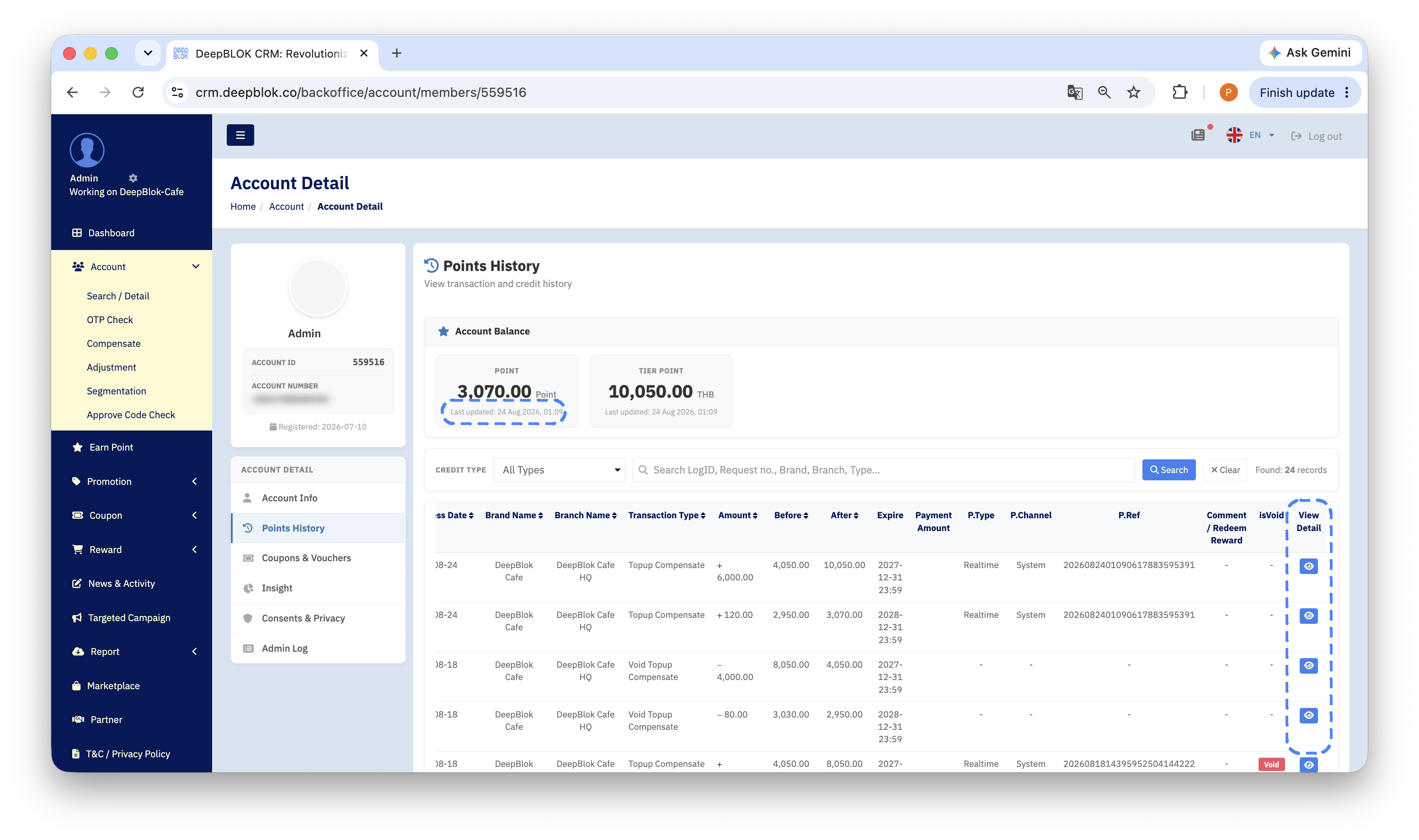
What you see here splits the rest of the work in two.
2. If there's no row at all, check whether the purchase was tied to the account
When nothing matches the receipt, that purchase never reached the system in this customer's name. Work through these 4 questions.
- Did the customer give their number or scan their membership at the counter? — paying without identifying themselves leaves the transaction with no owner.
- Is the number they gave the number they registered with? — search again with the number the customer states. If a different account comes up, the points may have landed there.
- Did their registration actually complete? — if no account is found at all, the sign-up never finished.
- Is the branch they bought from connected? — filter the
Point Historytable by that branch. If the customer has rows from other branches but never from this one, pass it to whoever manages branch connections.
If all 4 answers confirm the purchase should have been tied to their account, skip check 3 and go straight to check 5 — there's no transaction to test promotion conditions against.
3. Check the conditions of the promotion that should have awarded the points
If the row exists but no points came with it, the answer is in the promotion conditions. Open Promotion and find the promotion that should cover this transaction, then check 4 things in order.
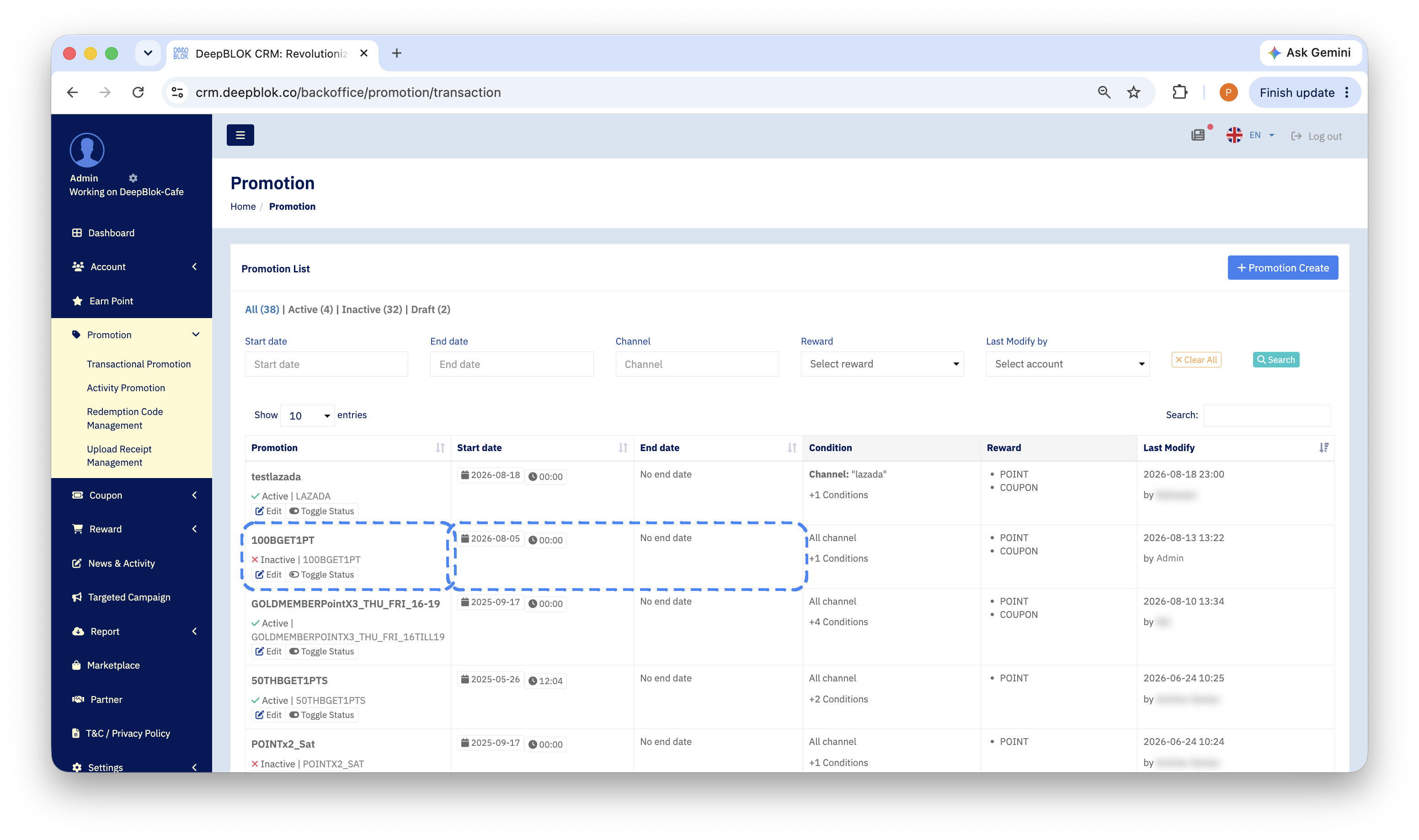
The case that generates the most calls. A promotion is set so that spending 50 baht earns 1 point, and spending 1 baht earns 1 SP Point (the tier point), both within the same promotion.
- The customer spends 40 baht — they receive neither points nor
SP Point, because the amount is under that promotion's minimum. - The customer spends 100 baht — they receive 2 points and 100
SP Point.
📌 Good to know: below the minimum the customer gets no
SP Pointeither, not just no points. That sentence is the clearest way to answer a customer asking why absolutely nothing appeared after their purchase.
4. If the customer used a redemption code, have them scan it again to read the reason
When a customer earns points by scanning a redemption code with their phone camera, the system states the reason itself on a second scan. Tell the customer to scan the same code again and read what appears on screen. There are 4 reasons.
- Points from this code have already been claimed — check
Point Historyper step 1 to see when the row came in. One code can be used once. - The code has expired — past the expiry date set when the code was created.
- The code has been cancelled — that batch of codes was cancelled from the back end.
- A technical issue — capture the customer's screen, then pass it to the DeepBLOK team looking after your brand.