

Whether you have just received your Backoffice account or you have been using it for a while and want a stronger password, you can change it yourself from the Profile menu — no need to contact support. It takes under a minute, and the new password applies only to your own account. Your member data and campaign settings are untouched.
⚡ Quick Path:
Your user name, top-left→Profile→Change Password(the grey button under the blue Update Profile) → enter current + new + confirm →Change Password
Requirements before you start
- An Admin account you can currently log in with. (If you cannot log in, skip to "If you're locked out" below.)
- Your current password — the form requires it before it will let you set a new one. If you can't remember it, use the "locked out" method instead.
- A new password that meets the system's rules — see the full list below. Deciding it in advance is faster than working it out at the form.
- Works for every Role (Admin, Marketing Manager, Call Center Manager, Call Center), because you are editing your own account. No extra permission needed.
Change your password in 4 steps
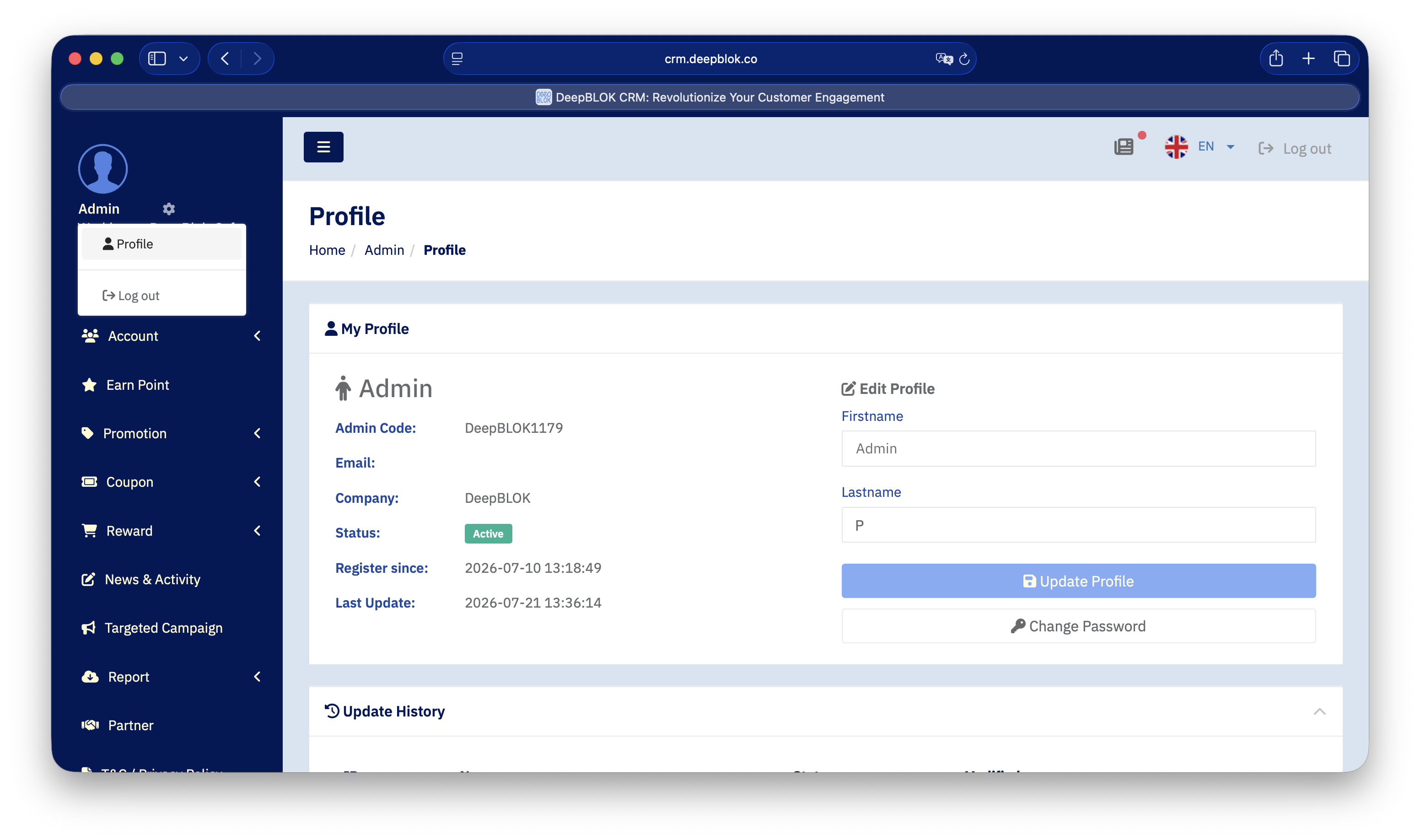
Step 1: Open the Profile menu
In the top-left corner of the screen, click your user name (or the ⚙️ gear icon beside it). A 2-item menu appears: Profile and Log out. Click Profile.
Step 2: Click Change Password
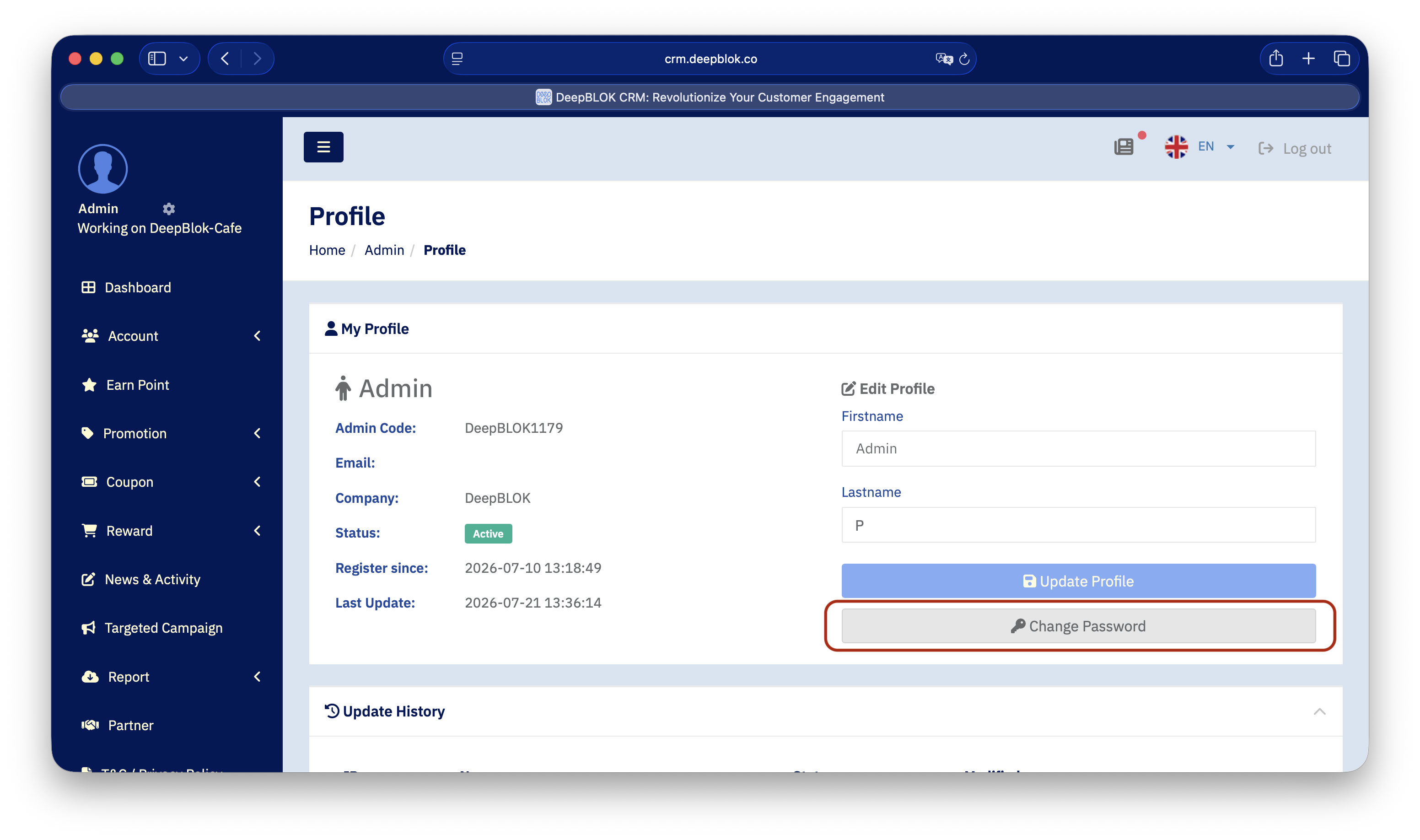
On the Profile page, look at the right-hand column, in the Edit Profile panel. Below the Firstname and Lastname fields sit 2 stacked buttons:
- The blue 💾 Update Profile button (top)
- The grey 🔑 Change Password button (below it) ← click this one
Step 3: Enter your current, new, and confirmed password
You are taken to a standalone Change Password page (no sidebar). Fill in all 3 fields:
Below the fields, a "Password must have:" box lists 6 rules. Each one flips from ✗ to ✓ live as you type — satisfy all six before the submit button will work.