

You created an account for a teammate, but the team says the email never arrived — or the password the team was given no longer works. You can resend the invitation yourself from Settings > Admin Setting, without creating a second account. It takes under a minute, and the team's existing account, Role and brand assignment all stay exactly as they were.
⚡ Quick Path:
Settings→Admin Setting→ find the team's row → gear icon in theActioncolumn →Resend Email
Requirements before you start
- An account with the Admin Role — you need access to
Settings > Admin Setting. - The team's email address, confirmed correct. Ask the team to read it back to you before you click, because if the address is wrong, resending it a hundred times won't help.
- Knowing whether the account has ever been logged into (step 2 shows you how to check).
If you haven't created the team's account yet, this isn't the right article — start with the How to create an Admin account for your teammate article.
Resend the invitation in 3 steps
Step 1: Open Admin Setting
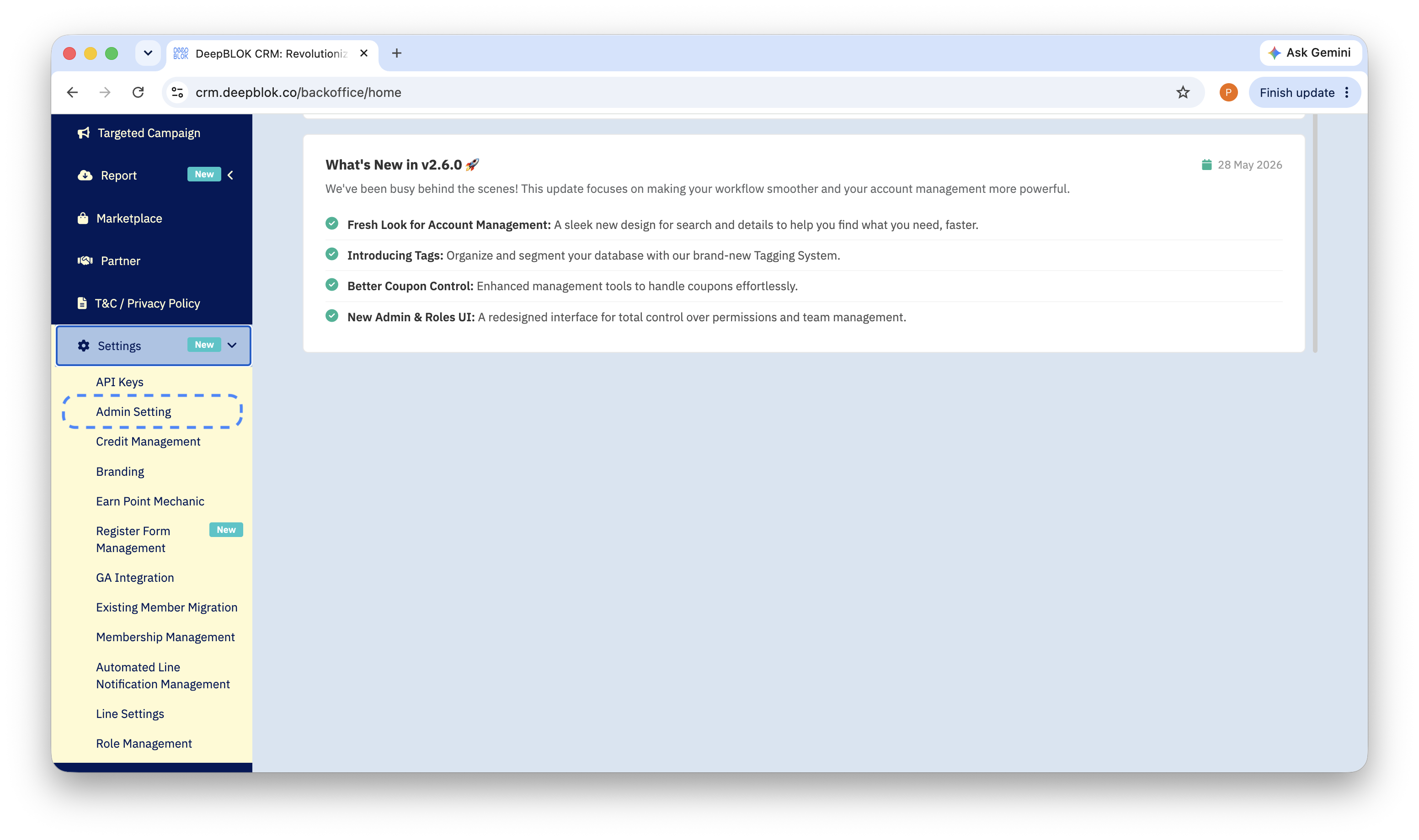
In the left sidebar, click Settings. The submenu expands with a pale-yellow highlight. Click Admin Setting.
The Admin Setting List page opens, showing every admin account on your brand.
Step 2: Find the team's row and check 2 things
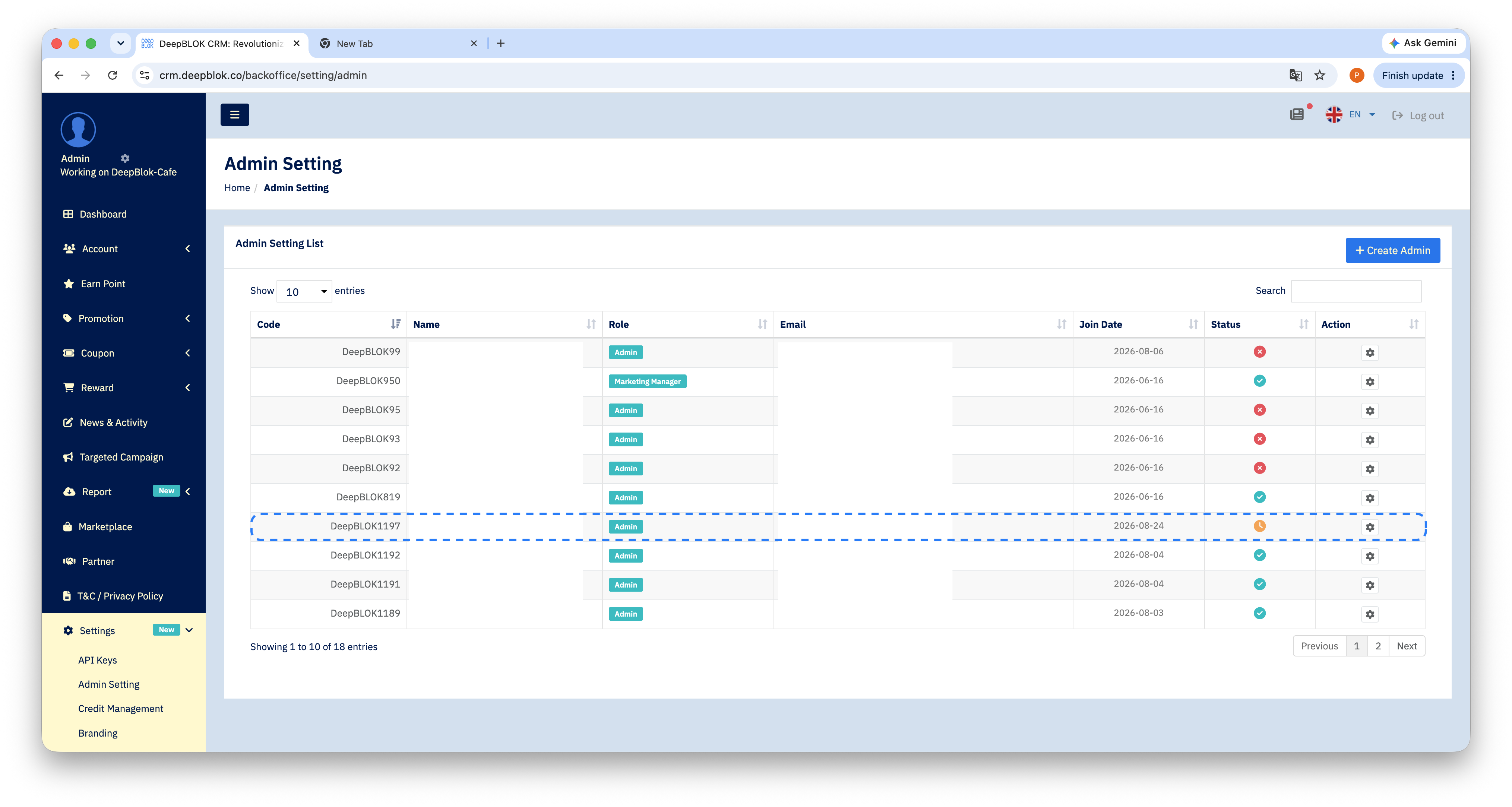
Type the team's name or email into the Search box at the top right of the table to jump to that row. Then check these 2 things.
If the email is misspelled, don't resend yet — it will simply go to the same wrong address again. Note that the Email Address on the Admin Edit page is read-only: there's no input box to type over it. What to do depends on the account's status.
- Never logged in (orange clock) — the quickest fix is to click the gear icon, choose
Delete, and create the account again with the correct address. Nothing is lost: nobody has used the account and no activity history is attached to it yet. (The creation steps are in the How to create an Admin account for your teammate article.) - Already logged in (green check) — don't delete it, or you'll lose the team's activity history too. Contact DeepBLOK support with the account's Admin code (the
Codecolumn, e.g.DeepBLOK1747) and the correct address.
Step 3: Click the gear icon, then Resend Email
In the Action column at the end of the team's row, click the gear icon ⚙️. A 3-item menu opens:
- ✏️ Edit — change the account details
- ✉️ Resend Email — what you want
- 🗑️ Delete (red text) — delete the account
Click Resend Email. The system sends the email again to whatever address is in that row's Email column.
✅ Confirm it worked: don't close the page yet. Call or message the team right away and ask the team to check the inbox within a few minutes — including the Junk / Spam folder. Once the team confirms being logged in, come back to the table: the status icon on that row should have changed from the orange clock to a green check.