

Backoffice is the web app your team uses for member data, points and every campaign. It lives at https://crm.deepblok.co/backoffice/login and runs in a desktop browser — there's nothing to install. Getting in takes 3 steps: your email and password, a 6-digit code sent to that email, then the home page. Under 2 minutes. The system asks for a verification code every time you log in, because what's behind it is customers' personal data under Thailand's PDPA.
⚡ Quick Path:
crm.deepblok.co/backoffice/login→ type your invited email inUsernameand your password →LOGIN→ open your email for the 6-digit code → fill all 6 boxes →Verify
Requirements before you start
- The email address you were invited with — that address is your username. If you haven't been invited yet, ask an Admin on your team to create the account, per the article on creating an Admin account for your teammate.
- Your password — on a first login, use the temporary password from the invitation email. The system asks you to set your own once you're in.
- That mailbox open and reachable right now — the 6-digit code goes to your email, not by SMS, so you need to read it during step 2.
- A computer and a browser — Backoffice is built for a desktop screen. Counter work on a phone belongs in the Merchant App instead.
📌 Good to know: the login page has an
EN/THtoggle at the top right. Switch it before you log in, and switch again afterwards from the language dropdown in the top bar of the home page.
Log in in 3 steps
Step 1: Enter your email and password on the login page
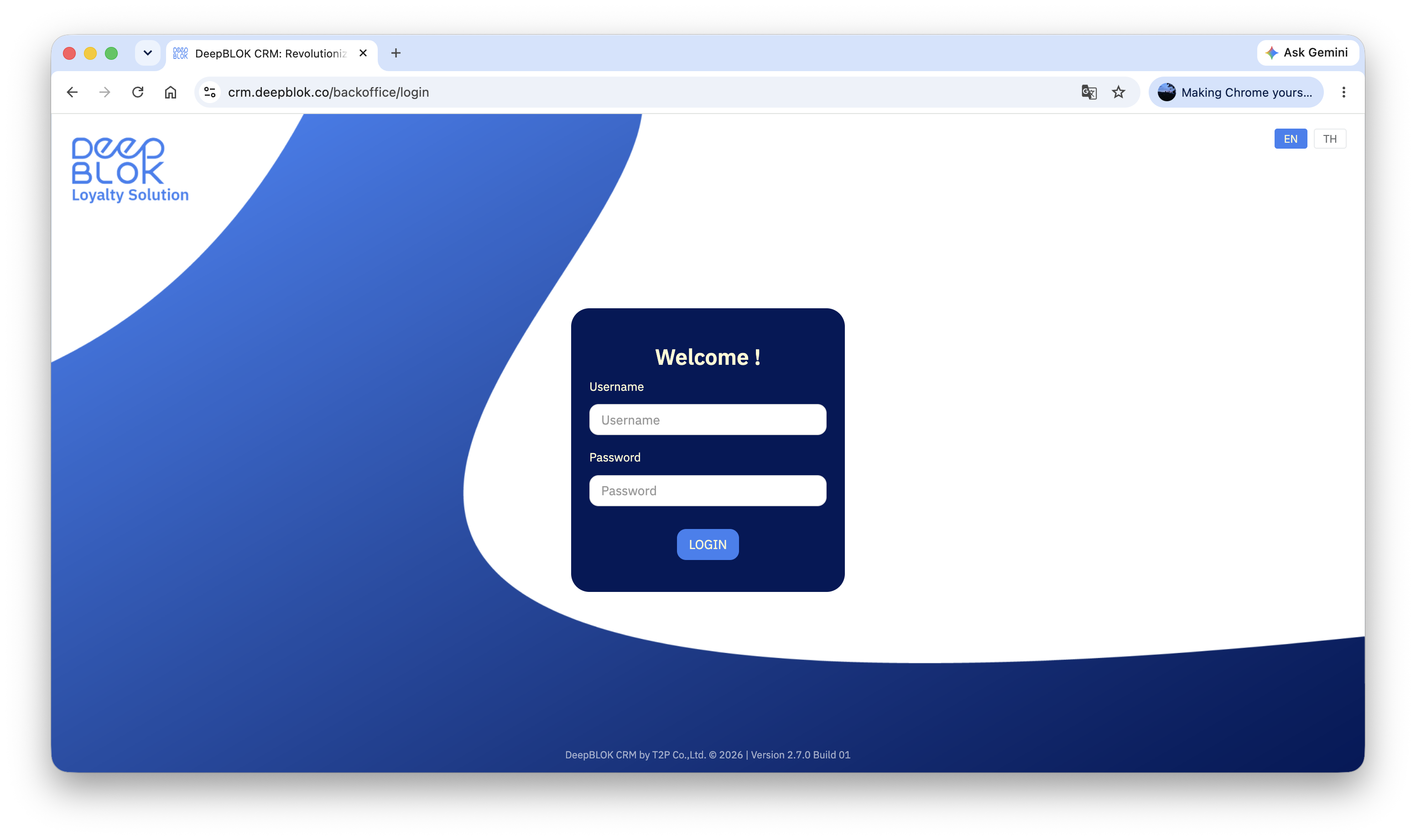
Open https://crm.deepblok.co/backoffice/login. A dark navy card sits in the middle of the page, headed Welcome !, with 2 fields.
1. Username Type the email address you were invited with.
2. Password Your password. On a first login, the temporary one from the invitation email.
Press the blue LOGIN button below the password field.
At the foot of the page runs a version line — for example DeepBLOK CRM by T2P Co.,Ltd. © 2026 | Version 2.7.0 Build 03. It's worth noting when you report a problem to support, because it tells them which build you were looking at.
Step 2: Verify with the 6-digit code sent to your email
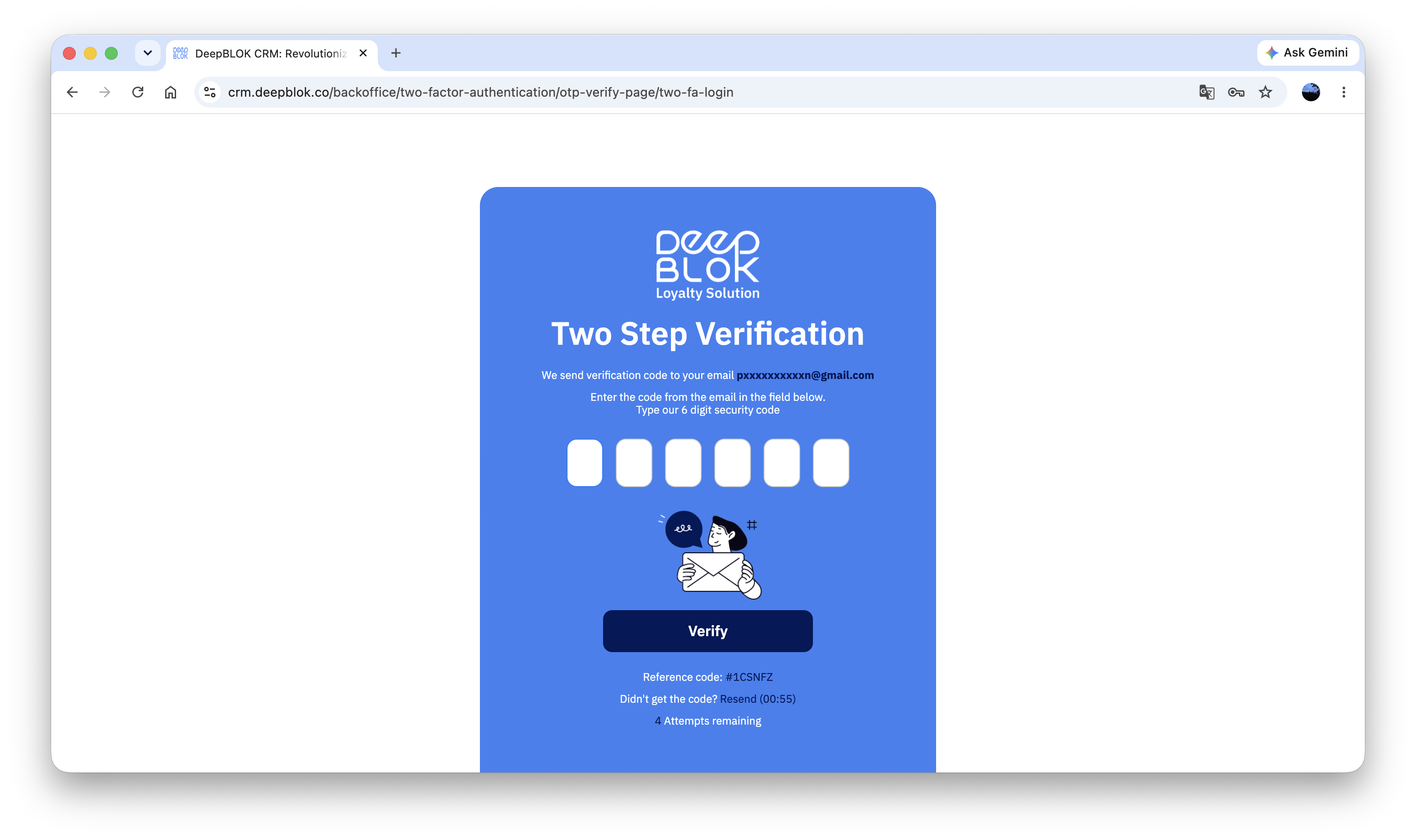
You land on Two Step Verification — a blue screen with 6 boxes in a row. Above them, the system prints the destination email address, partly masked, so you can see where the code went.
Open that mailbox, find the 6-digit code, type it across the 6 boxes, then press Verify.
Below the button sit 3 more pieces of information.
1. Reference code An identifier for this verification attempt. Quote it if you have to tell support which attempt failed.
2. Didn't get the code? with a Resend button Requests a fresh code. A countdown runs beside it; the button becomes usable once the countdown ends.
3. Attempts remaining How many more times you can enter a wrong code.
⚠️ Watch out: the code is sent to your email only, never by SMS — even if your username looks like a phone number. Go by the destination address on screen and open that mailbox. If it isn't there, check Junk and Spam before requesting a new code.
Step 3: Confirm you've actually reached the home page
With the right code, the system takes you to crm.deepblok.co/backoffice/home, the Backoffice home page.
3 things are worth finding on it.
1. The green welcome banner across the middle It reads Welcome back, followed by your name, with the brand you're working on underneath and a badge showing your role — Admin, for instance.
2. The left-hand menu Every menu your role can reach. At the top of the rail sits your name and a Working on line naming the brand.
3. The RELEASE NOTES section Cards summarising what changed in each version. A skim is enough the first time, but useful later when a screen looks different from what you remember.
✅ Confirm it worked: you should see your own name in the green banner, and the correct brand name underneath it. If the brand isn't one you look after, ask an Admin on your team to check your account's brand assignment before you touch any data — what you're seeing belongs to a different brand.