

When a customer calls to say a coupon will not work, or that they cannot find it in the app, the answer is on the Coupons & Vouchers tab of their profile. Every coupon they hold sits there as a card carrying its name, the date received, the campaign that issued it and its current state — readable by any login that can open a member profile.
⚡ Quick Path:
Account→Search / Detail→ search for the customer →person icon →
Coupons & Voucherstab
📌 Read this before you start — the whole page is safe to read, except for one button. Viewing coupons, filtering the list and opening a coupon's conditions are all read operations and change nothing. However, the foot of every coupon card holds a Reactivate button, which does change the coupon for real. It is worth knowing where that button sits before you start, so you do not press it by accident.
Requirements before you start
- The right customer's profile already open — the name on the card at the top left must be the customer you are speaking with. Searching for them and opening the profile are covered in the article on member search.
- Something that identifies the coupon — the coupon name or its code; either will do. Both can be searched on this page, and either will find the right card faster when the customer holds several.
- A clear idea of what the customer is stuck on — the coupon will not work, they cannot find it, or it has expired. Those three are answered from different parts of the card, so knowing which it is saves reading the whole page.
Checking the coupons in 3 steps
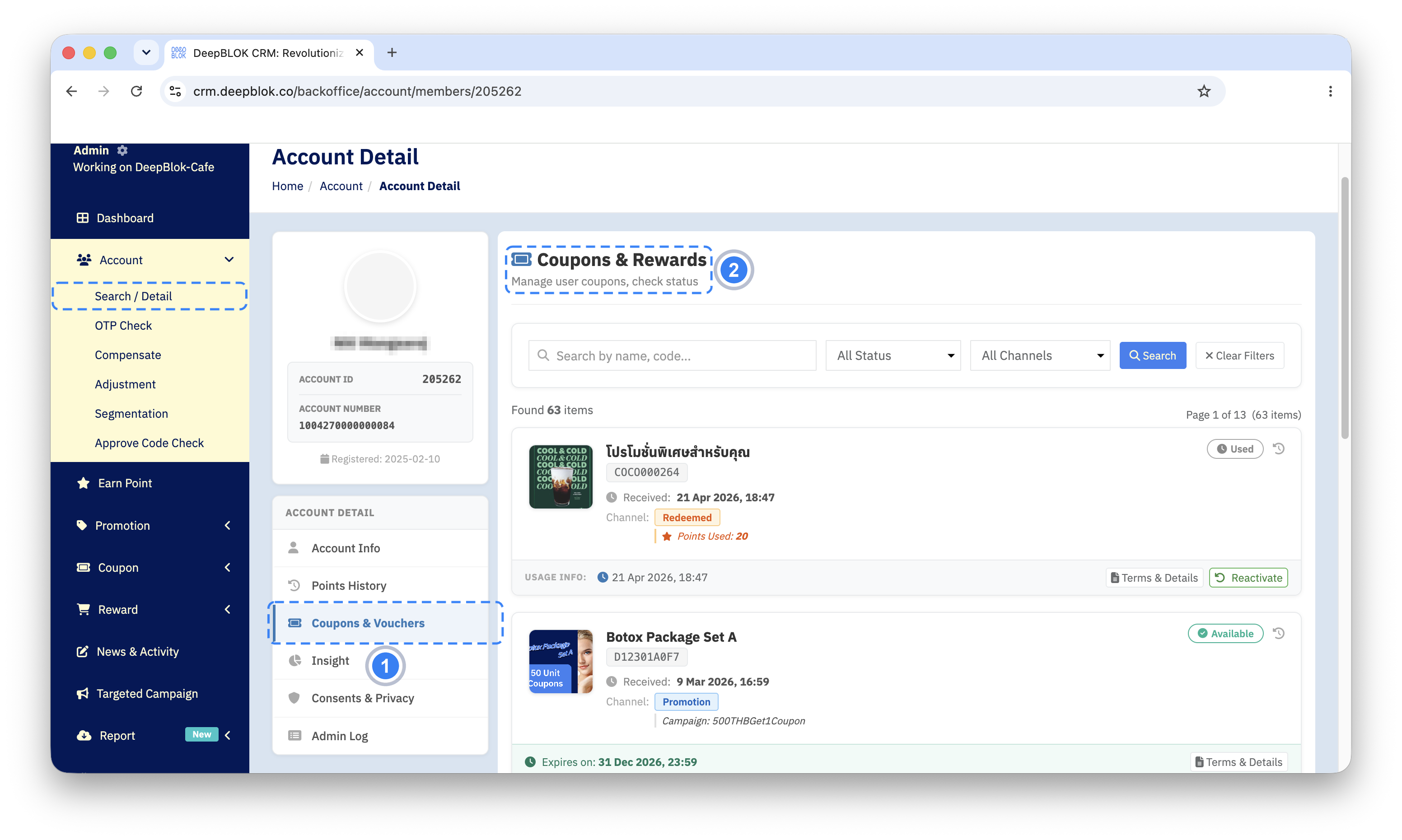
Step 1 Open the Coupons & Vouchers tab
From the customer's profile, click the Coupons & Vouchers tab in the list headed ACCOUNT DETAIL on the left. The tab you are on carries a blue bar.
Check the heading on the right to confirm you are in the right place: it reads Coupons & Rewards, with the line Manage user coupons, check status beneath it.
⚠️ Note on the two different names: the tab in the menu says Coupons & Vouchers while the page heading says Coupons & Rewards. They are the same place. If searching for one wording finds nothing, try the other.
Step 2 Read each coupon card
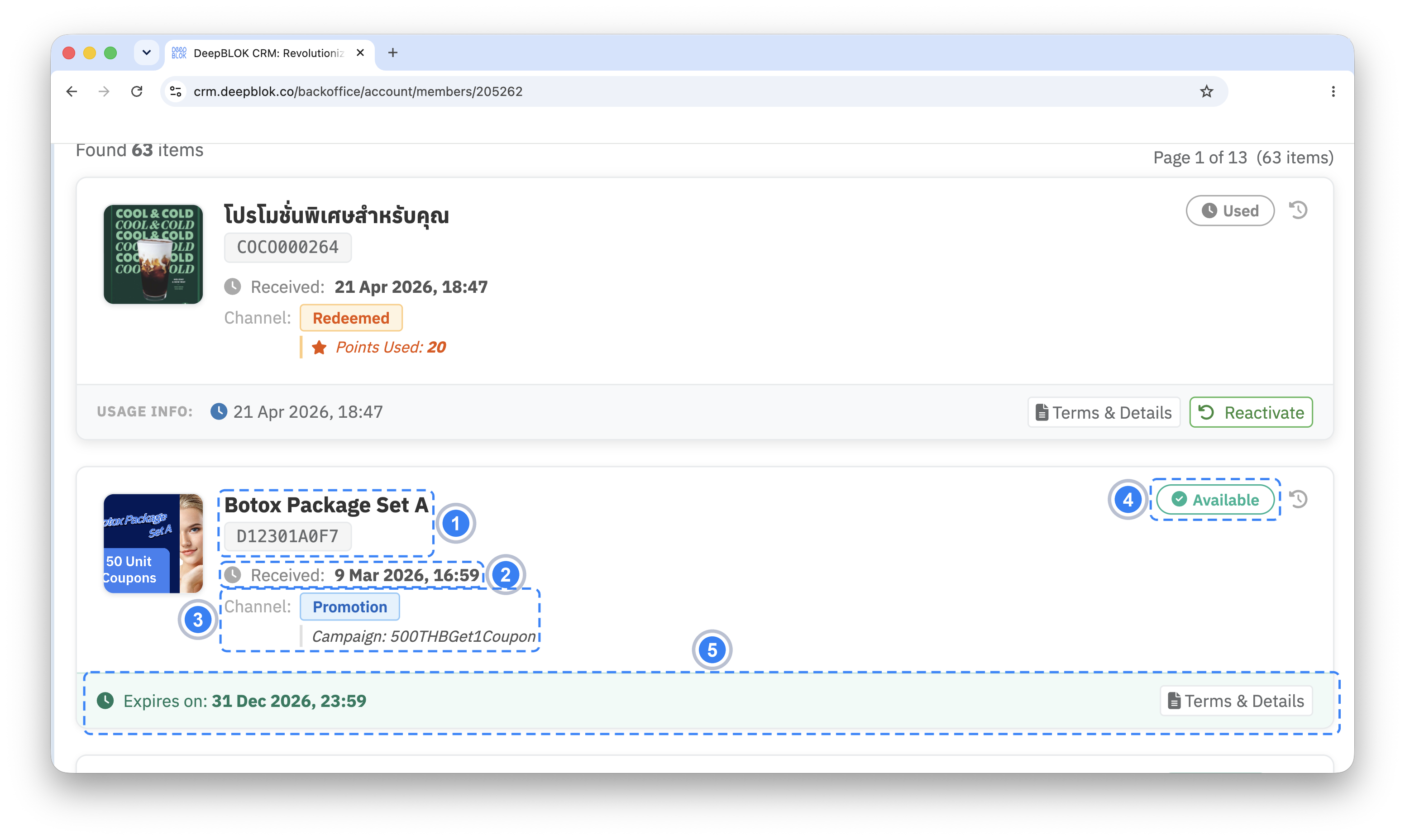
Each coupon appears as one card. Reading left to right and then down, you will find:
1. The coupon image The coupon's own artwork, at the left of the card. You can compare it directly with what the customer sees in the app.
2. The coupon name The name the customer sees, which is usually what they call it on the phone.
3. The coupon code Directly under the name, in a grey chip. It identifies that one coupon, and is the reference to quote to the support team.
4. Received: The date and time the customer received this coupon.
5. Channel: The channel the coupon was sent through, shown as a green badge.
6. Campaign: The campaign that issued the coupon, in italics under the channel line.
7. The status, top right A badge holding the coupon's current state — Expired, for example. Beside it sits a small clock icon button.
8. The strip at the foot of the card It gives a date and time, and holds 2 buttons on the right: Terms & Details and Reactivate.
The label in front of that date changes with the card's status, which makes this strip the quickest way to see what happened to a coupon:
📌 Good to know: one card carries 2 dates, and they mean different things. Received: is when the customer got the coupon; the date at the foot of the card is when the event named by its label happened. When a customer asks when a coupon was used, the answer is on the bottom line, not the middle one.
Step 3 Filter the list when the customer holds several coupons
Above the cards is a row for searching and filtering: a search field that takes a coupon name or code, then the All Status and All Channels dropdowns, and finally a ✕ Clear Filters button. Above the cards a counter reads Found, the number, and the word items.
If the customer gives you a coupon name, type it straight into the search field. To see only the ones still usable, choose Available in the status dropdown.
⚠️ One thing to watch: while a filter is still applied, the coupon the customer is asking about may not appear even though they really hold it. When a customer says they cannot find a coupon, we recommend pressing ✕ Clear Filters first, every time, then checking whether the number after Found changes.