The purchase detail page is called Billing History, and it opens from the button in the View Detail column of the point history table. It holds everything about one purchase: the date and time, the branch and the member of staff who served it, how it was paid, the products on the bill, the totals, and the points the customer earned from it. Reading it end to end takes about 2 minutes, and it works for any login that can open the point history.
⚡ Quick Path:
Account→Search / Detail→ search for the customer →person icon →
Points Historytab → scroll the table right →View Detail
📌 Read this before you start — this is one transaction's detail, and it only reads data. Every section on this page describes the single transaction you clicked into. Opening it affects neither the customer's record nor their points. We recommend reading with your eyes, and scrolling all the way down through every section before you answer the customer.
Requirements before you start
- The right customer's point history already open — opening it, and scrolling the table across to the
View Detailbutton, are both covered in the previous article on checking point history. - Knowing which transaction to open — if the customer has their receipt, the request number on it identifies the row most reliably, since one customer can have several transactions on the same day.
- Care with what this page shows — it displays the name of the staff member who served the transaction, the payment reference and the request's IP address. We recommend looking only at what the task needs, and not screenshotting the page into a team chat.
The route into Billing History
This page has no entry of its own in the left sidebar. There is only one route in:
- Open the customer's profile and go to the
Points Historytab - Scroll the table fully right so the
View Detailcolumn is visible, with its button on every row
 - Click the button on the row you want
Once you are there, the card header at the top must read Billing Detail, with a blue heading beneath it naming the transaction type, which changes with the kind of credit earned — Earn Point for the redeemable balance, Earn Tier Point for the tier balance. If both are present, you are on the right page.
⚠️ One thing to watch: this page is not the customer's whole purchase history. People often expect to see every receipt on one page, but this page shows the detail of the single transaction you clicked. To review several, we recommend going back to the point history table and opening them one at a time from the View Detail column.
The sections of the Billing History page, top to bottom
This page has no tabs. Every section is reached by scrolling down, in this order.
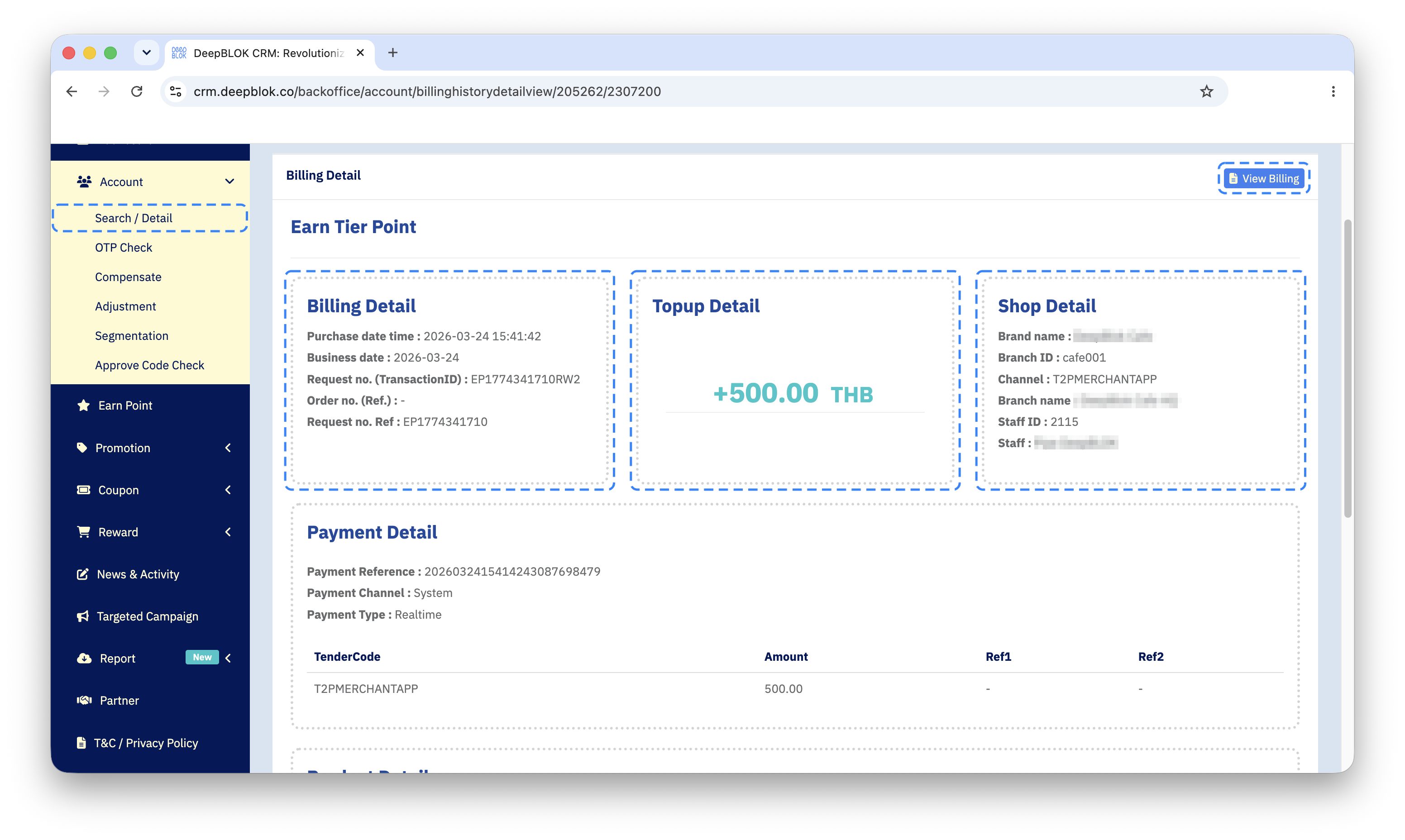
1. Billing Detail The bill's own details: Purchase date time, the date and time of the purchase · Business date, the accounting date · Request no. (TransactionID), the system's number for the transaction · Order no. (Ref.) and Request no. Ref, 2 further reference numbers you can match against the customer's receipt.
2. Topup Detail The middle card on the top row. It holds a single large teal figure followed by the word Points — the points this transaction earned the customer.
3. Shop Detail Where the transaction happened: Brand name · Branch ID and Branch name, the branch's code and name · Channel, the channel the transaction arrived through · Staff ID and Staff, the code and name of the staff member who served it. This is the section for a customer who says they bought at a particular branch.
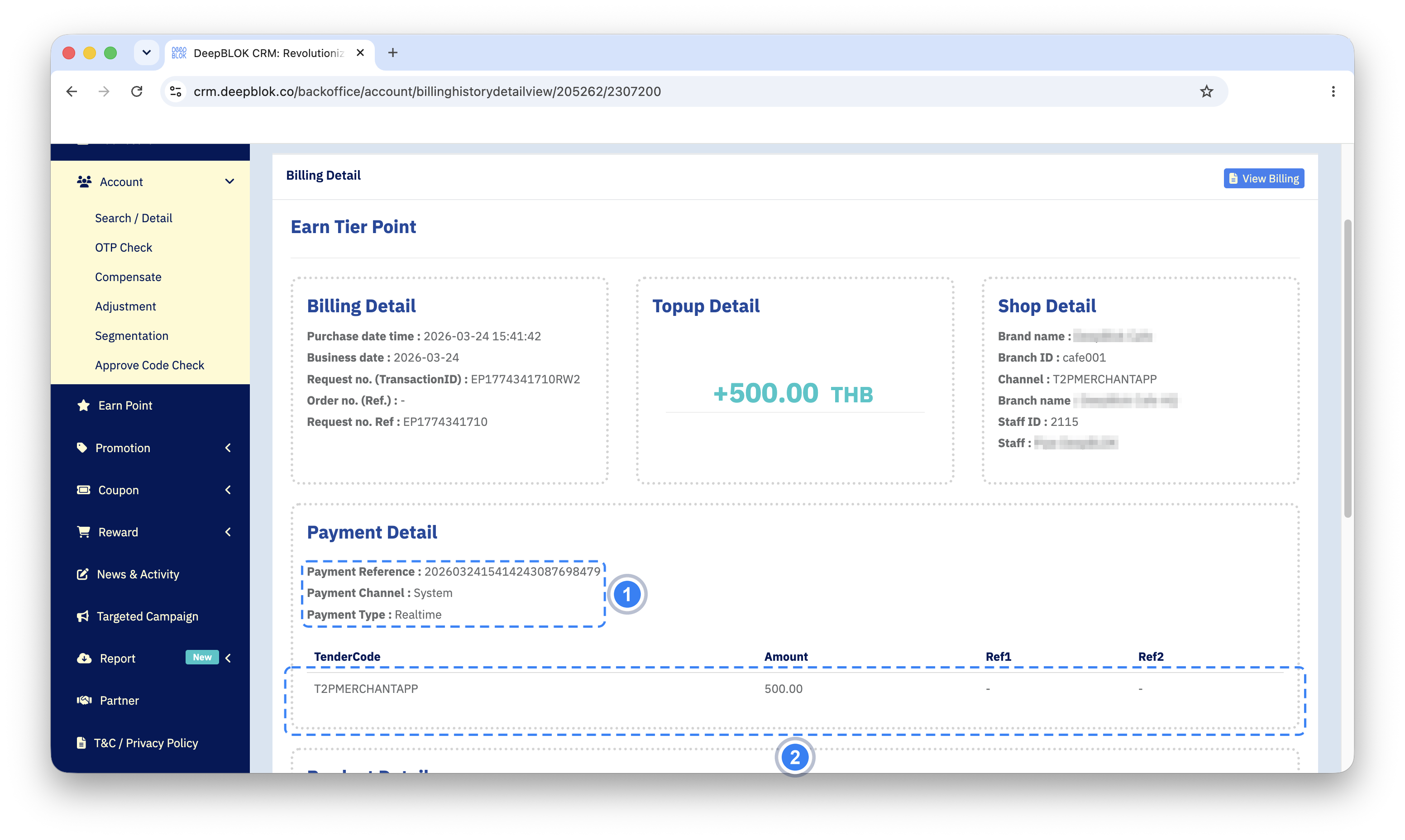
4. Payment Detail How it was paid: Payment Reference, the payment's reference number · Payment Channel and Payment Type, then a table with the columns TenderCode · Amount · Ref1 · Ref2. The figure in Amount is what was paid by that method.
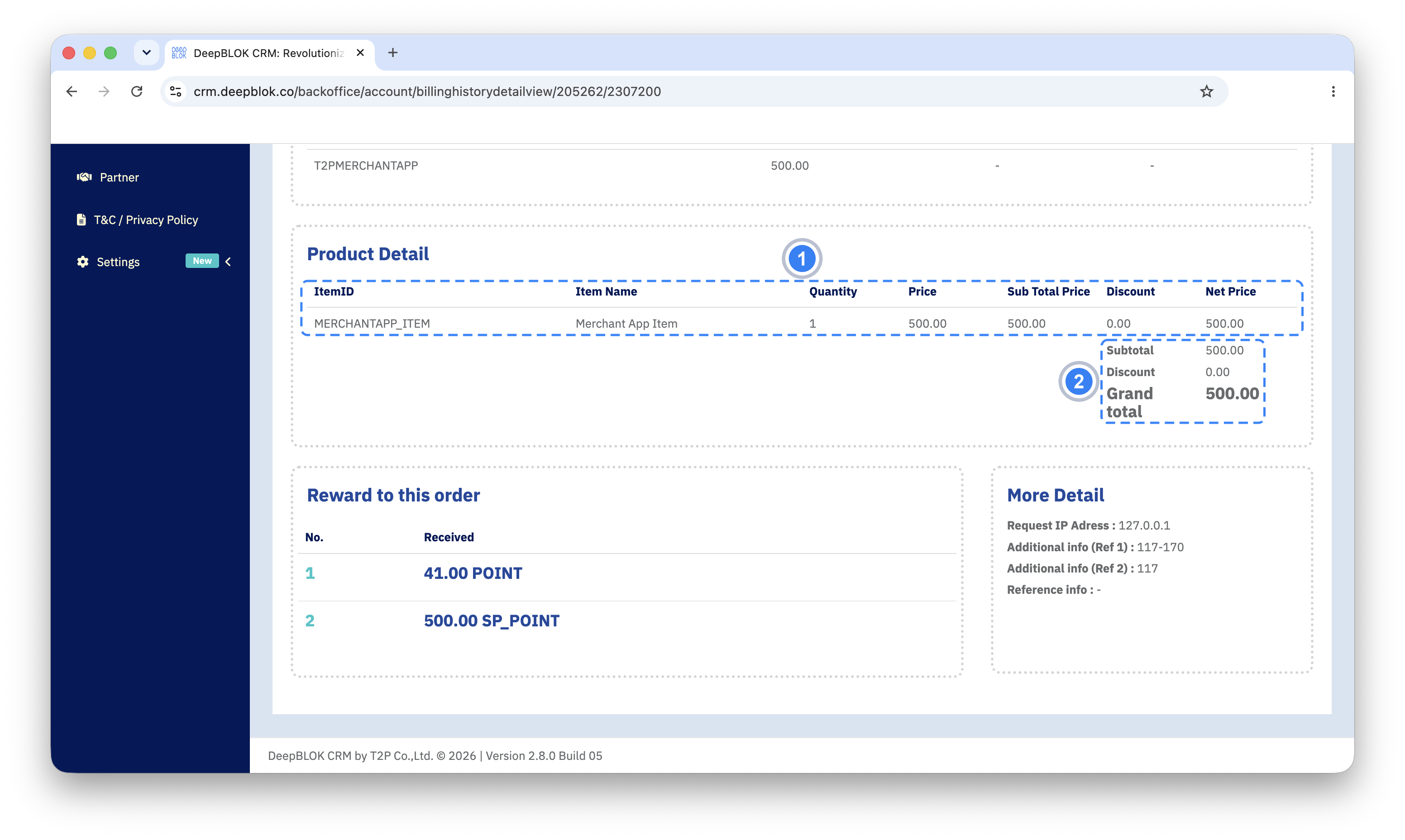
5. Product Detail What was bought, as a table with the columns ItemID · Item Name · Quantity · Price · Sub Total Price · Discount · Net Price. Beneath the table on the right are 3 summary lines: Subtotal, Discount and Grand total. This is the section that answers what the customer bought.
6. Reward to this order What the customer received from this transaction, as a table with the columns No. and Received. Each line is one thing received.
7. More Detail The transaction's technical details: Request IP Adress, the IP the request came from · Additional info (Ref 1) · Additional info (Ref 2) · Reference info. These four are for technical investigation; unless the customer has asked about them, they are not needed to answer a customer.