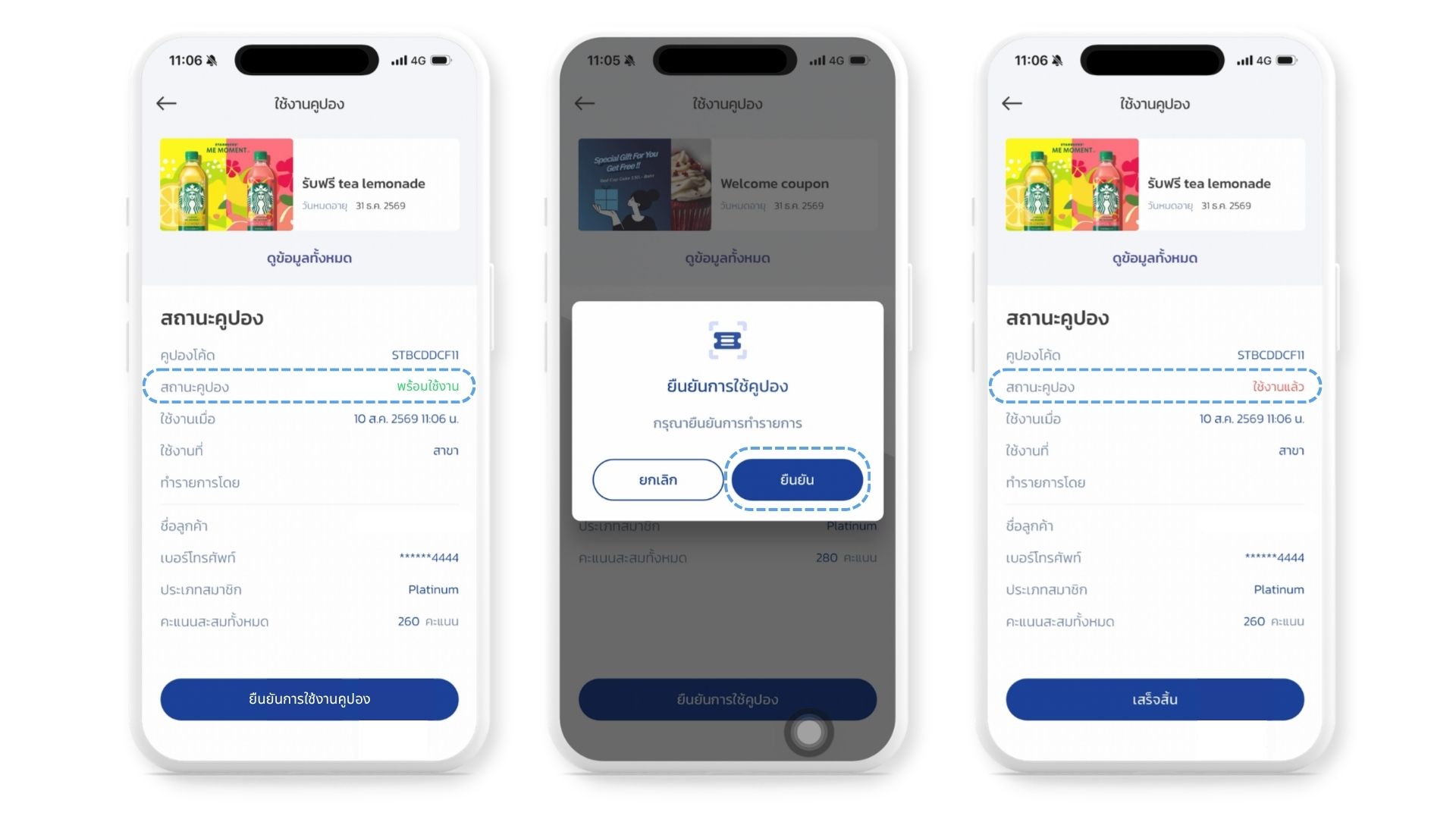
When a customer presents a coupon, your staff have to redeem it in the app rather than simply glancing at the customer's screen and applying the discount. A coupon that was never redeemed stays in the customer's account and can be presented again. This runs through a different menu from awarding points, and it always shows you a summary screen so you can check the coupon's status before anything is spent. Like the rest of the app, it is meant for when the web or your POS is unavailable — for everyday use, DeepBLOK still recommends working through DeepBLOK Backoffice.
⚡ Quick Path: Home →
Redeem Coupon→ scan the coupon QR code (or tapEnter codeand type the code) → checkCoupon StatusreadsActivein green →Confirm to mark use coupon→Confirmin the popup
📌 Good to know: the app runs in English or Thai — switch under
Setting→Change language, and the date picker switches to Gregorian years inEnglish. Every label below is the app's own English string. The one exception is the customer's own coupon page, which sits in their membership account rather than in this app. It is quoted in Thai in step 2 because that screen has not been captured in English mode yet.
Requirements before you start
- The Merchant App signed in on the shop phone — if you don't have an account yet, start with the article on opening a Merchant App account for your shop.
- The coupon open on the customer's phone, or the code read out to you — the app accepts both.
- The coupon's conditions checked against the bill — most coupons carry a minimum spend in their own name, e.g. ลดทันที 30.- เมื่อทานครบ 300.- ขึ้นไป (30 off on bills of 300 or more). Confirm the bill qualifies before redeeming.
- A working data connection — redemption is recorded immediately and there is no offline mode.
📌 Good to know: This menu both checks and redeems. If the customer only wants to know whether a coupon is still valid, scan it, read the status, and back out — nothing is spent until you confirm.
Redeem a coupon in 4 steps
Step 1: Open the coupon menu
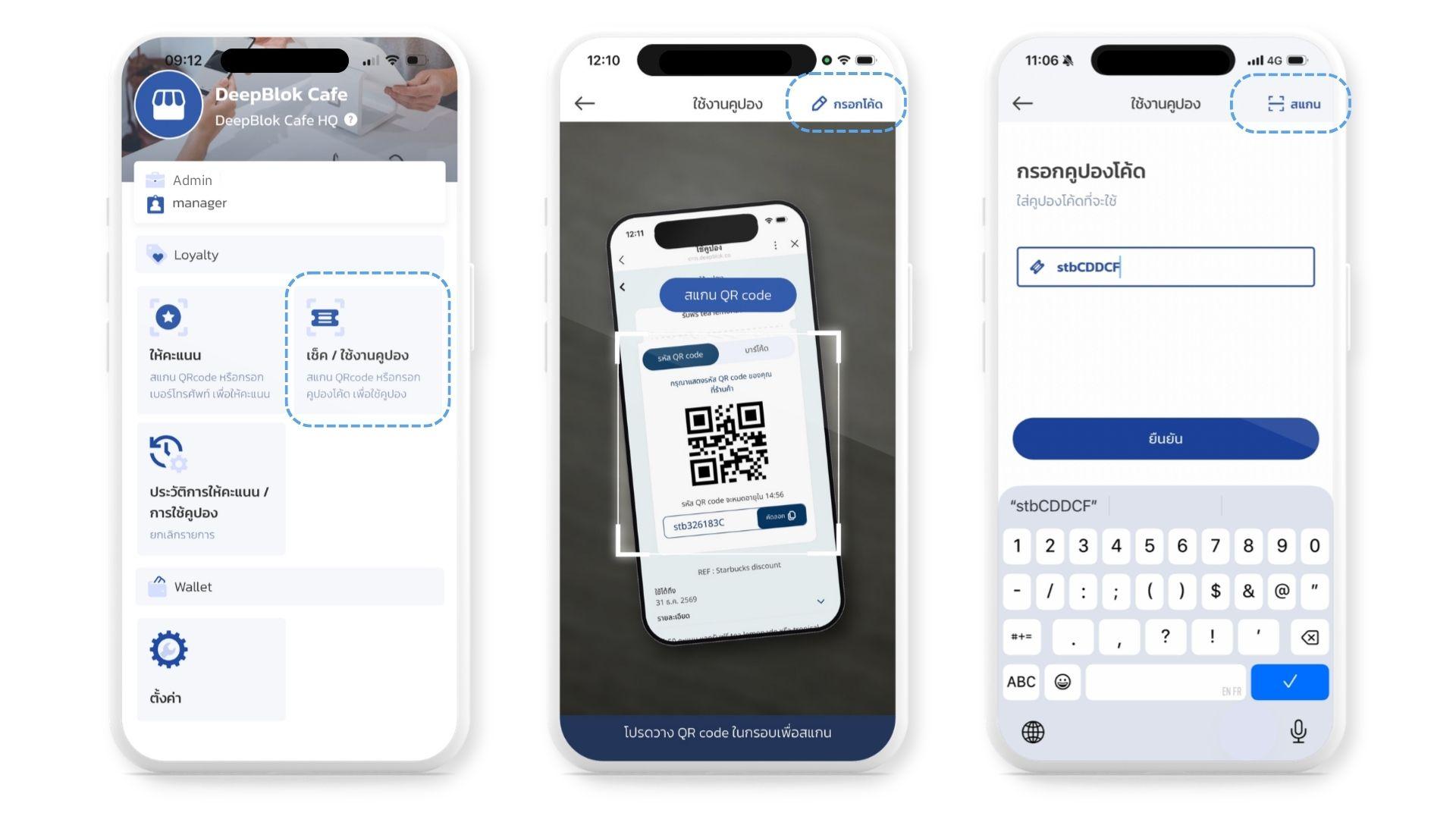
On the home screen, under Loyalty, tap the Redeem Coupon tile — to the right of Earn Point, with a ticket icon and the sub-line Scan the QR code or enter the coupon code.
The camera opens and the screen title changes to Check / Use coupon (Redeem coupon).
Step 2: Bring the coupon in — pick one route
Route 1 — scan the coupon's QR code
Ask the customer to open the ใช้คูปอง (Use coupon) page in their membership account and hold the QR code inside the frame. Their screen shows the coupon name, QR code and Barcode tabs, the coupon code in a box, and the valid-until date.
Route 2 — type the coupon code
At the top right of the scanning screen, tap Enter code (enter code). The screen changes to Enter Coupon code. Type the code into the Coupon code field and tap Confirm — the button stays grey until the field has content. To go back to scanning, tap Scan at the top right.
Step 3: Check the coupon status before spending it
The app shows the coupon detail screen: the coupon image and name with its Date Expire at the top, plus a More information link for the complete conditions. Below that is a block headed Status — read it in full.
If everything checks out, tap the navy Confirm to mark use coupon button at the bottom.