

When a customer calls to say their details changed without being told, or your own team wants to know who made an edit, the history is already there — on the Admin Log tab of that member's page. The table gives you the date and time, the type of change, who performed it, and what the value changed from and to.
⚡ Quick Path:
Account→Search / Detail→ open that member →Admin Login theACCOUNT DETAILmenu on the left
This history belongs to one member, so every check starts by finding the member first.
Requirements before you start
- Access to the member detail page — in the permission table, the
Search / Detailsub-feature under theAccountmodule is the line that opens it. If you can't get in, ask someone with theAdminrole to grant access per the article on changing the role on an existing admin account. - Something to search the member by — a phone number, email address, member account number, or name.
- The approximate date in question — if the customer says "last week", note the rough date first, because the table is ordered by date and time and you'll find the row far faster.
- Clarity on what you're actually looking for — if the question is about missing or unexpected points, the
Points Historytab is the one you want; it's a different history.
Open the Admin Log in 4 steps
1. Open the member search page
In the left menu, open Account and choose Search / Detail. The individual member search page appears.
2. Find the member you're checking
Search with whatever detail you have and open that member. The system takes you to the Account Detail page.
The card on the left shows the member's name, ACCOUNT ID and ACCOUNT NUMBER — confirm you have the right person before reading any history.
3. Choose Admin Log
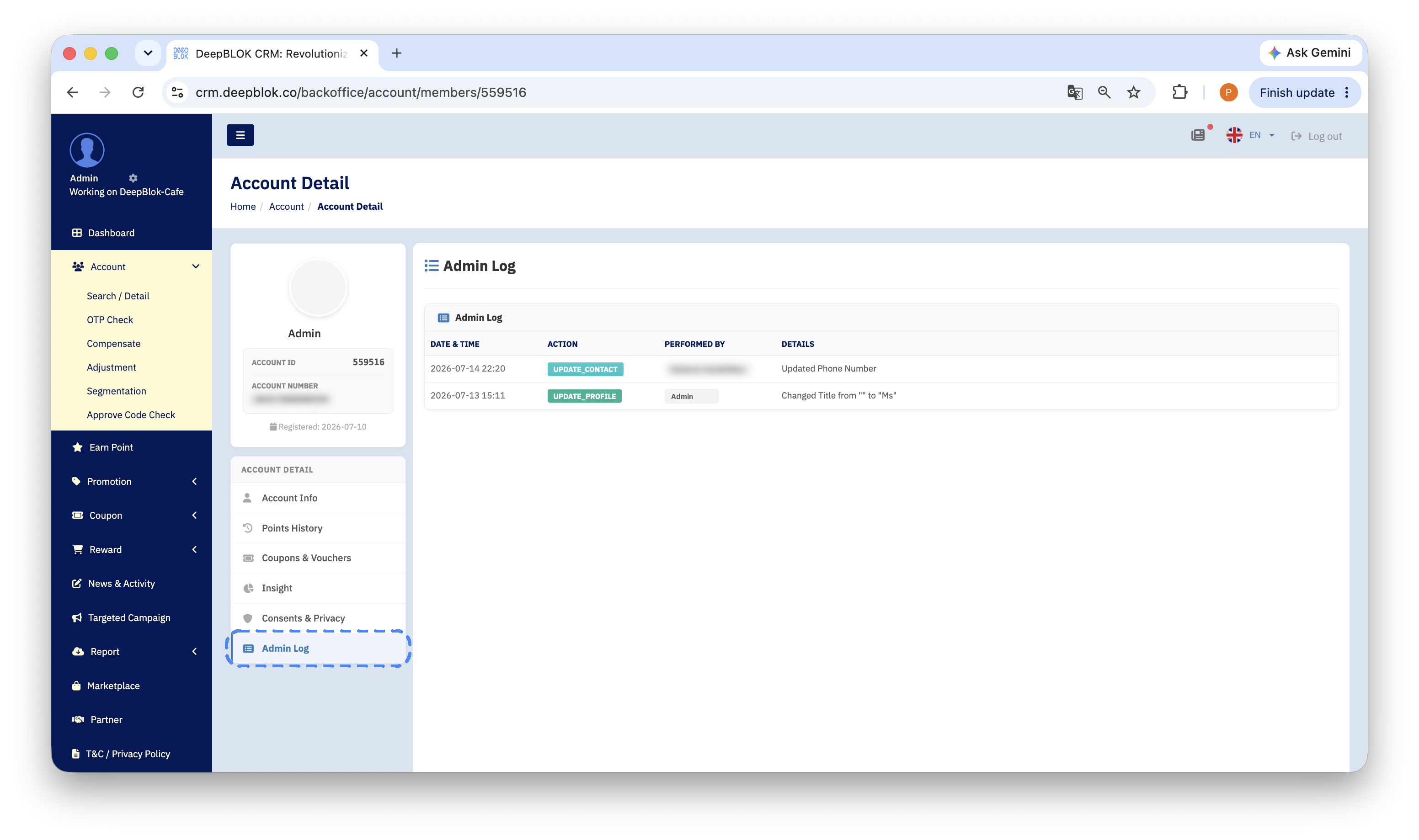
Below the member card is the ACCOUNT DETAIL menu, listing 6 items vertically: Account Info, Points History, Coupons & Vouchers, Insight, Consents & Privacy and Admin Log, which is the last one.
Click Admin Log and the history table appears on the right.
4. Read the row that matches the date in question
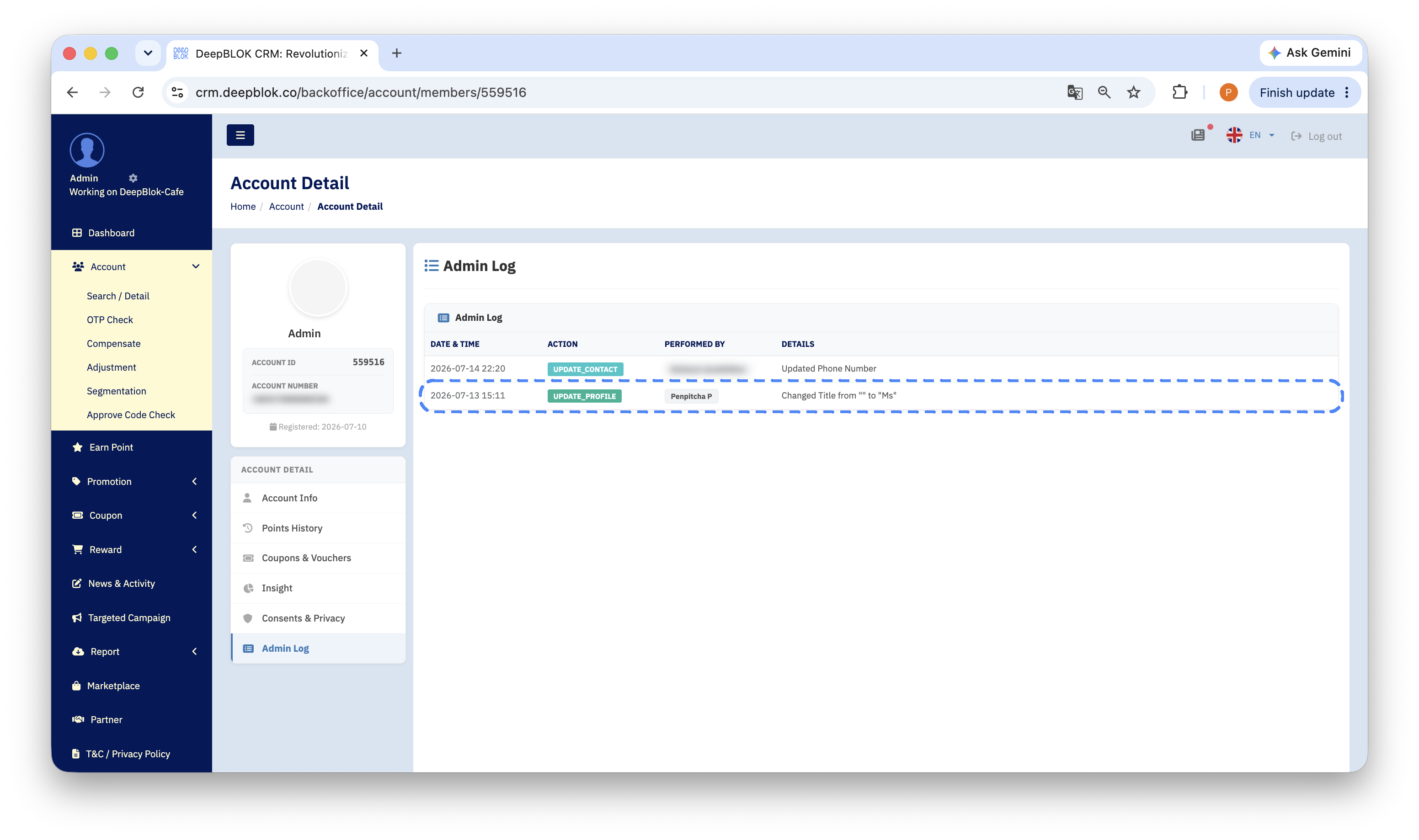
The table is ordered newest first. Work down until you reach the date the customer gave you, then read all 4 columns of that row together.
✅ Confirm it worked: from a single row you should be able to answer 3 things — when the change happened, who made it, and what the value went from and to. If you can't answer one of them, you haven't read all 4 columns of that row yet.
Reading All 4 Columns
3 ACTION badges appear commonly, and the badge name tells you the scope of the change straight away.
1. UPDATE_PROFILE A change to the member's own details, such as their title or an internal reference your team uses.
2. UPDATE_CONTACT A change to contact details such as the email address. This is the first one to look for when a customer says they aren't receiving news or system emails.
3. INTERNAL_COMMENT An internal note added against that member's record — something your team wrote for itself, not a change to the customer's data.
How to read the DETAILS column: the system writes a sentence in the form from old value to new value — for example Updated Email from "" to "name@example.com" means the email field was empty and has now been filled in. A pair of empty quotation marks means there was no value there before — not that data was lost.
A note on scope: Admin Log and Points History answer different questions
Both tabs sit in the same ACCOUNT DETAIL menu, next to each other, but they hold different things. Picking the right tab first is what saves the most time on this job.
How to check you're on the right tab: if the heading on the right reads Admin Log and the table has a PERFORMED BY column, this is the change history.
One more thing worth knowing before you start: this history always belongs to a single member. If you want an overview of how many members one member of staff edited this month, you'll be opening them one at a time from your list of interest — and if you need that overview regularly, tell the DeepBLOK team that looks after your account.
3 Real questions this answers
"My details changed and nobody told me" Open this tab, find the row nearest the date the customer gave you, read the DETAILS column for the old value, then confirm the correct value with the customer before changing anything back.
"I'm not receiving your emails or news" Look for an UPDATE_CONTACT row first — if the email address was changed to something incorrect, the symptom matches exactly. Then check the consent status per the article on checking a member's consent status.
"Internal audit has asked for evidence" PERFORMED BY together with DATE & TIME is what auditors want. Capture a screenshot with the member card on the left in the same frame, so it's clear whose record the history belongs to.
Common Problems
Frequently Asked Questions
Q: Does the Admin Log record every change that happens to a member?
A: It records entries against the member's record — changes to their own details, changes to contact details, and internal notes. Point movements have their own history on the Points History tab. So when you're checking one thing, open the tab that matches it and you'll get the answer fastest.
Q: Can a row in this history be edited or deleted?
A: The table is there to be read; there are no edit or delete controls on the rows. That's what makes it usable as supporting evidence when a customer or an internal audit asks a question.
Q: Can a customer ask to see the change history of their own record?
A: This history sits in Backoffice, which is your team's side of the product. If a customer asks what has been changed on their record, have your team read this tab and summarise it back to them in line with your brand's privacy policy. How to handle requests like that is the article on handling consent withdrawal and data deletion requests.
Q: Can the table be filtered or searched?
A: Work down it by date — it runs newest first. Noting the approximate date the customer gave you before you open the page is what makes the row quickest to find.