

When a customer calls to ask why they're still getting messages, or marketing wants to know which channels are open for a particular customer, the answer is on the Consents & Privacy tab of that member's page. It shows 2 separate things: per-channel consent to receive news and promotions, and acceptance of your terms and privacy policy, with version numbers.
⚡ Quick Path:
Account→Search / Detail→ open that member →Consents & Privacyin theACCOUNT DETAILmenu on the left
The page is there to be read, and it answers both a customer question and a pre-campaign check straight away.
Requirements before you start
- Access to the member detail page — in the permission table, the
Search / Detailsub-feature under theAccountmodule is the line that opens it. If you can't get in, ask someone with theAdminrole to grant access per the article on changing the role on an existing admin account. - Something to search the member by — a phone number, email address, member account number, or name.
- Clarity on what you're checking — "why am I still getting SMS?" is the news consent panel; "has this customer accepted the latest terms?" is the document panel.
- The current version numbers of your documents — open
T&C / Privacy Policyand note the row carrying the green check in theUsecolumn per the article on adding terms and conditions, so you can compare against the member's version immediately.
Open the consent status in 4 steps
1. Open the member search page
In the left menu, open Account and choose Search / Detail.
2. Find and open the member
Search with whatever detail you have and open the member. The system takes you to the Account Detail page — confirm from the card on the left that the ACCOUNT ID and ACCOUNT NUMBER are the right ones.
3. Choose Consents & Privacy
In the ACCOUNT DETAIL menu below the member card, click Consents & Privacy — the fifth of 6 items. 2 panels appear on the right.
4. Read both panels together
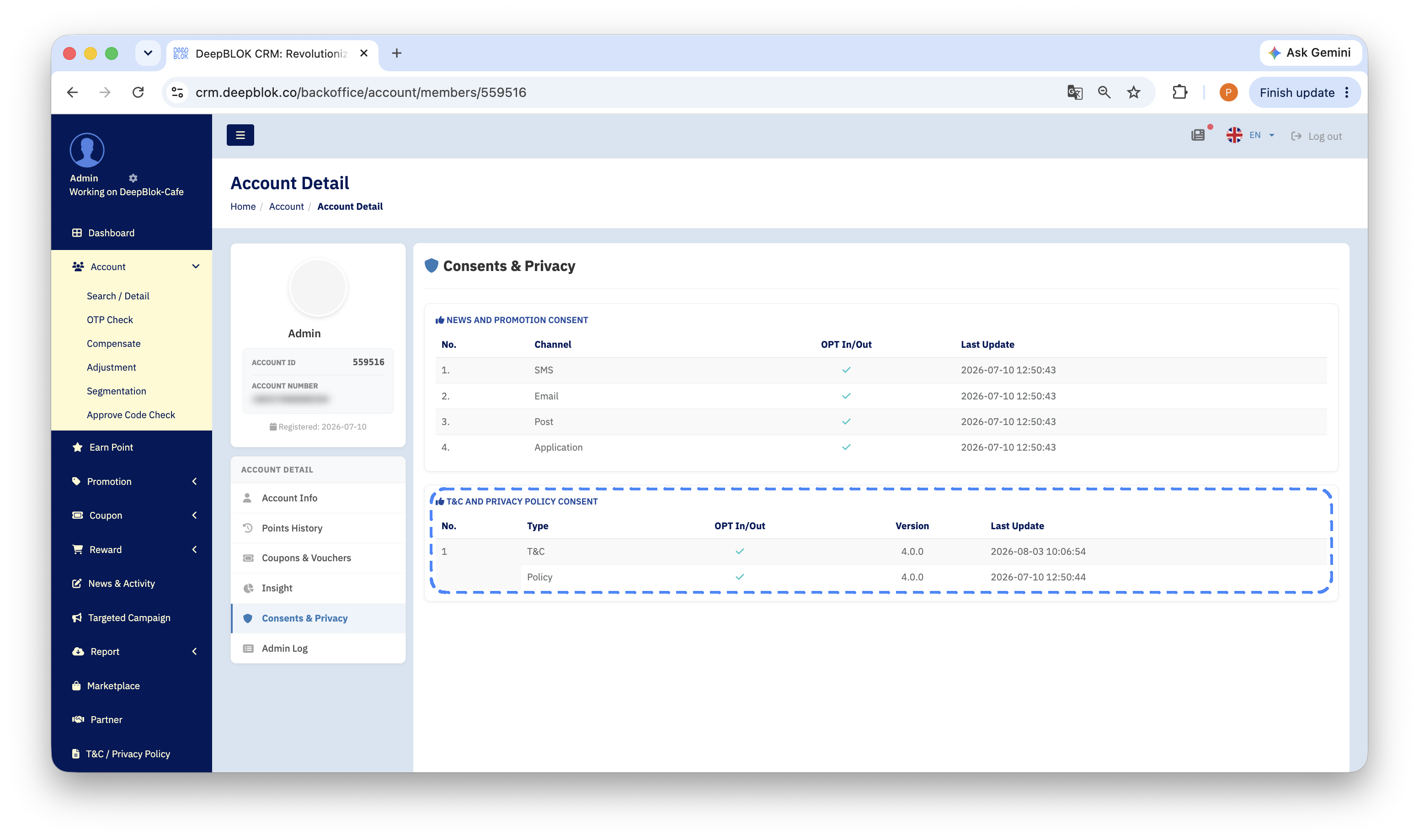
The upper panel is NEWS AND PROMOTION CONSENT, the per-channel consent to receive news and promotions. The lower panel is T&C AND PRIVACY POLICY CONSENT, document acceptance with version numbers.
✅ Confirm it worked: from one screen you should be able to answer 2 things — which channels this customer has agreed to be contacted on, and which document versions they accepted and when. If you can't answer one of them, you haven't read both panels.
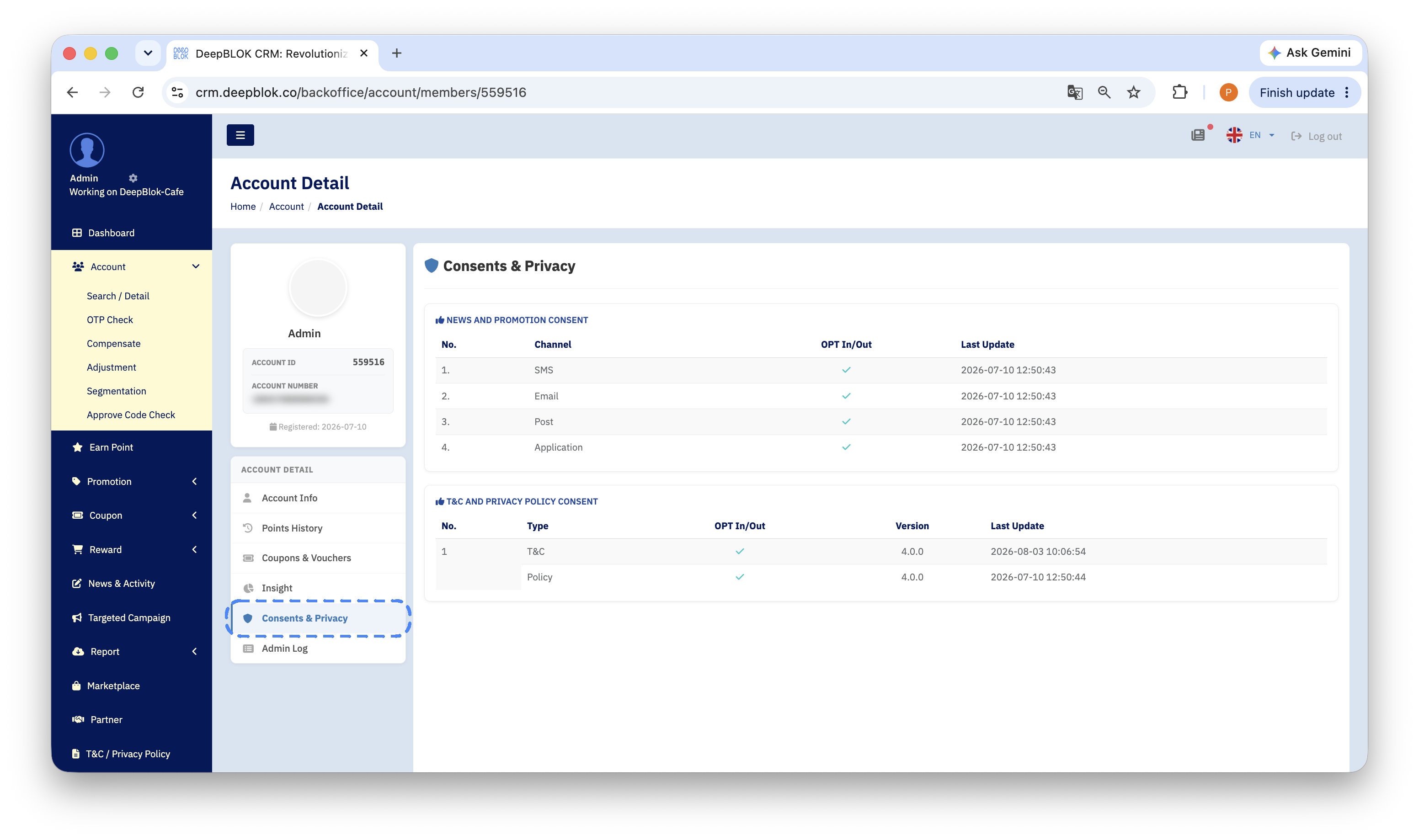
Reading the per-channel news consent panel
NEWS AND PROMOTION CONSENT shows one line per channel — SMS, Email, Post and Application — with 3 columns each.
Each channel is independent. One customer can consent to email but not to SMS, and it's entirely normal for the 4 lines to differ.
📌 Good to know: before sending a campaign to an individual customer, read the line for the channel you're about to use. Sending on a channel the customer hasn't consented to is something your team should avoid, and it's one of the most common causes of complaints.
Reading the document panel, and what the version number tells you
T&C AND PRIVACY POLICY CONSENT has 2 lines — T&C and Policy — with 4 columns.
The Version column is the most useful thing on this panel, because each document is versioned separately and the number stored against a member may not match the version you have live.
How to read it for an immediate answer: compare the number here with the version carrying the green check in the Use column under T&C / Privacy Policy.
- They match — this member has accepted the current edition.
- The member's number is lower — they accepted an earlier edition, and they'll meet the consent screen for the new one next time they use the membership programme.
A note on 2 kinds of consent: accepting a document is not the same as agreeing to marketing
The 2 panels on this one screen answer different questions, and this is the easiest place for them to be confused.
A member who has accepted both documents but consented to no marketing channels is a valid, common state. They're a member and can use their benefits normally — they simply don't want marketing messages.
How to check you're reading the right panel: a Channel column means news consent; a Version column means document acceptance.
Common Problems
Frequently Asked Questions
Q: Can I change a customer's consent from this page?
A: This page shows the status. When a request comes in to change consent or delete data, your team receives it and follows the steps in the article on handling consent withdrawal and data deletion requests — which cover logging the request, stopping marketing to that customer, and coordinating with the DeepBLOK team that looks after your account.
Q: What does Application mean in the channel list?
A: It's one of the 4 channels the system stores a consent status for, alongside SMS, Email and Post. Whenever marketing plans to send on a channel, read that channel's line first.
Q: Why do some members have different version numbers for T&C and Policy?
A: The 2 documents are versioned independently, and you can issue a new edition of each at different times, so different numbers are normal. What you compare is the member's number against the live version of the same document.
Q: Can I see the consent status of several members at once?
A: This page shows one member at a time, because it's part of the individual member's record. If your team needs an overview regularly — to plan campaign channels, for example — tell the DeepBLOK team that looks after your account.