

Your privacy policy tells customers what data you collect, what you use it for, and how they can reach you. The system keeps it on the same page as your terms and conditions, separated by a tab and by a radio button on the form.
⚡ Quick Path:
T&C / Privacy Policy→ thePrivacy Policytab →+ Add New→ setTypetoPrivacy Policy→ fill in both language tabs → tickActive→Save
The work inside the system takes under 5 minutes. What actually takes time is having complete, approved wording ready first — so this article starts with a checklist for the wording, then the steps.
Requirements before you start
- Wording signed off by an authorised approver in your company — a privacy policy is the document you'll point to when a customer or a regulator asks a question, so it should go through your legal team or data-protection adviser before it goes into the system. This article covers how to publish the wording, not what the wording should say.
- The text in both Thai and English — the form has a separate tab per language.
- A version number — for example
1.0.0, incremented whenever the wording changes, because that number is recorded against each member as the edition they accepted. - Access to the
T&C / Privacy Policymenu — if you can't see it, ask someone with theAdminrole to grant access per the article on changing the role on an existing admin account.
Check the wording before it goes in
Use this alongside your legal team's review, not instead of it. Its purpose is to let whoever publishes the wording see quickly whether a section is missing.
- Names the company or brand collecting the data
- States what data is collected — name, phone number, email, purchase history and so on
- States what it's used for — points, member benefits, analysis to improve the service
- States whether data is disclosed to anyone else, and in what circumstances
- States the rights of the data subject and how a customer exercises them
- Gives a contact channel that genuinely exists and is genuinely monitored
- States an effective date matching the version number you enter in the system
📌 Good to know: the contact channel in your policy is where customer requests will actually arrive — withdrawal of consent, or a request to delete data. Agree with the team receiving them before you publish. How to handle those requests is the article on handling consent withdrawal and data deletion requests.
Add your privacy policy in 5 steps
1. Open the menu and switch to the Privacy Policy tab
In the left menu, click T&C / Privacy Policy, then click the Privacy Policy tab next to Terms & Condition.
That tab lists every version of the policy you've created, with the same Use, Version, Status, Date Modify, Admin Modify and Actions columns as the first tab.
2. Click Add New
Click the blue + Add New button at the top right. The create form opens.
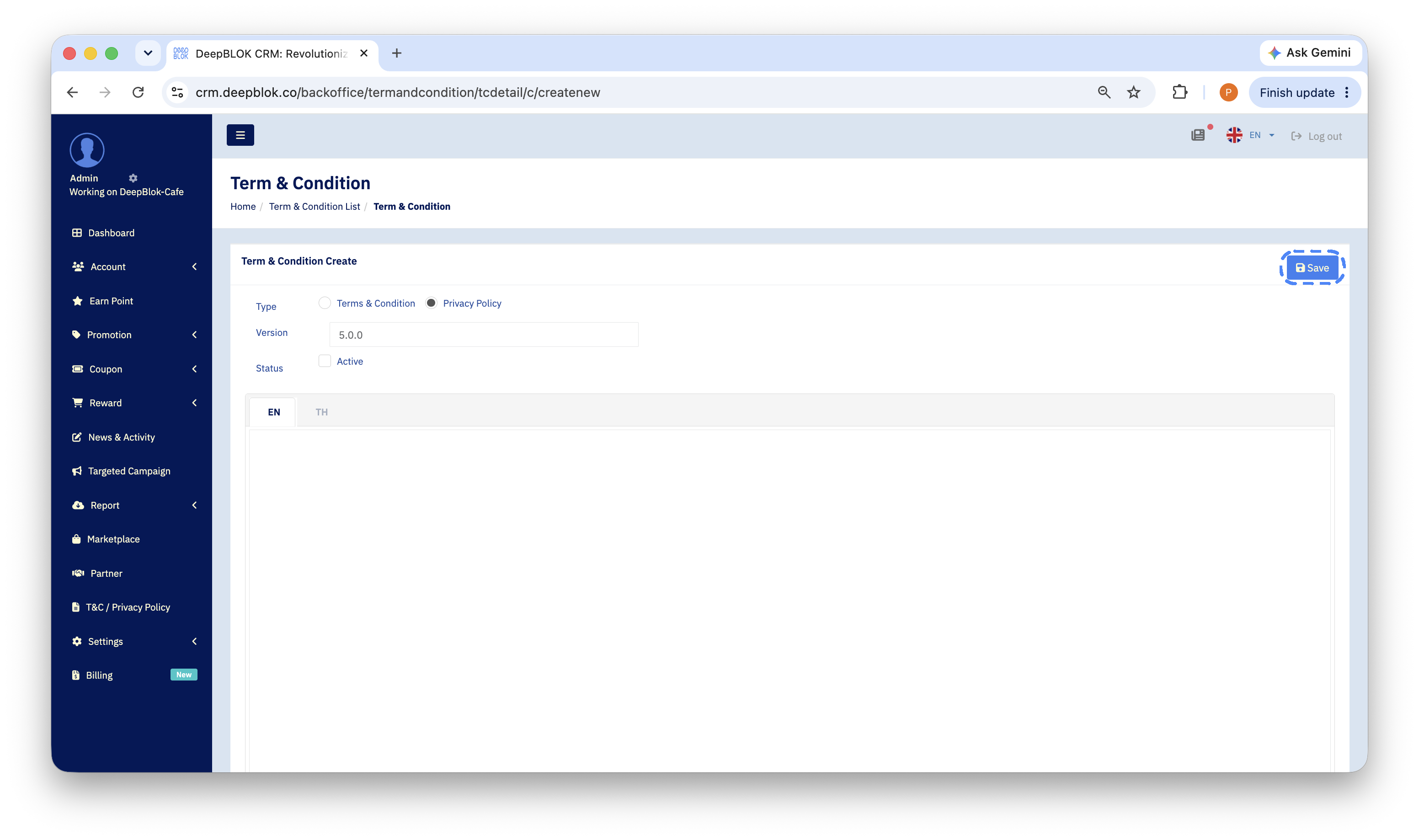
3. Set Type to Privacy Policy and enter a version
On the Type line, select the Privacy Policy radio button, then type the version number into Version.
The Status field has an Active tick box. Tick it when you're ready to publish. If the wording is still waiting on a final approval, leave it clear and save it as an inactive edition — that way it's prepared in advance without customers seeing it.
4. Fill in both languages
Switch between the TH and EN tabs and paste the wording into both. Members see the text from the tab that matches the language they use.
5. Save, then check the result in the table
Click the blue Save button at the top right of the form, then return to the Privacy Policy tab.
✅ Confirm it worked: the new row must appear under the
Privacy Policytab, notTerms & Condition— and if you tickedActive, that row should carry the green check in theUsecolumn. Which tab the row lands in is the fastest confirmation that theTyperadio was set correctly.
A note on the 2 switches that decide what customers see
For a document to reach customers, 2 things have to be right at once, and they sit on different lines of the same form.
How to check you're on the right page: the form is titled Term & Condition Create for both document types, because it's one shared form. What confirms you're creating a privacy policy is the selected radio on the Type line, and the new row appearing under the Privacy Policy tab after you save.
Common Problems
Frequently Asked Questions
Q: Do I need both a privacy policy and terms and conditions?
A: Both appear together on each member's consent record, which lists a T&C line and a Policy line with separate version numbers. Having both ready before your membership programme goes live is what keeps your consent records complete from day one.
Q: Can I save a policy without customers seeing it yet?
A: Yes — leave the Active box clear when you save. The edition is stored in the list while customers continue to see the current one, and when you're ready to publish you open it and tick Active. That suits wording still waiting on a final approval.
Q: Does every wording change need a new version?
A: When the substance changes — a new purpose for using data, or a different contact channel — a new version reads back most clearly, because the system records which version number each member accepted. The steps for issuing one are in the article on adding terms and conditions, which uses this same form.
Q: Can I see which version of the policy a member accepted?
A: Yes — on the individual member's page, in the Consents & Privacy tab, which shows a Policy line with its version number and timestamp. How to read it is the article on checking a member's consent status.
Next Step
With both documents published, the next thing to know is how to check what an individual member has agreed to — you'll need it every time a customer asks about the messages they receive, and every time marketing plans a campaign.
Read Next