

The Dashboard always opens on the current month, and the next question is almost always how last month went. The month field at the top right changes that in under half a minute — though if all you want is this month against last, you never need to touch it.
⚡ Quick Path:
Dashboard→ click the calendar icon at the top right → pick a year, then a month →Search
Requirements before you start
- Access to the
Dashboardmenu — it is the first item in the left menu bar. If you cannot see it, ask an administrator on your team to grant access first. - Being able to read the cards already — particularly the 3 lines on a stat card, because the third line is the shortcut this article is about.
- Knowing which month you want — the picker takes one month at a time, not a date range, so it helps to settle this before opening it.
Switching months in 3 steps
Step 1: Click the calendar icon at the top right
At the top right of the page is a month field in MM-YYYY format, such as 08-2026. To the left of it is a small calendar icon. Click it to open the picker.
That field does not always print the month the board is currently showing, so do not use it to tell which month you are looking at. Go by the month label in the right-hand column and the date printed under each figure instead.
Step 2: Pick a year, then a month
The picker shows the year across the top and all twelve months laid out in a four-column grid. Click the month you want. To go back a year first, press the « arrow at the top left of the picker, then pick your month.
Months that have not arrived yet appear greyed out and cannot be clicked. If it is currently September, then October, November and December will all be grey.
Step 3: Press Search
Nothing on the board moves until you press the blue Search button to the right of the month field. This is the step people skip most often, and then conclude the filter is broken.
✅ Confirm it worked: scroll down to the month label in the right-hand column. It should now read the month you picked, and the dates printed under the figures should fall inside that month. If everything still shows the old month, Search has not been pressed.
The effect of switching months
The month label in the right-hand column updates to the month you picked, and the daily charts redraw their date axis across the days of that month.
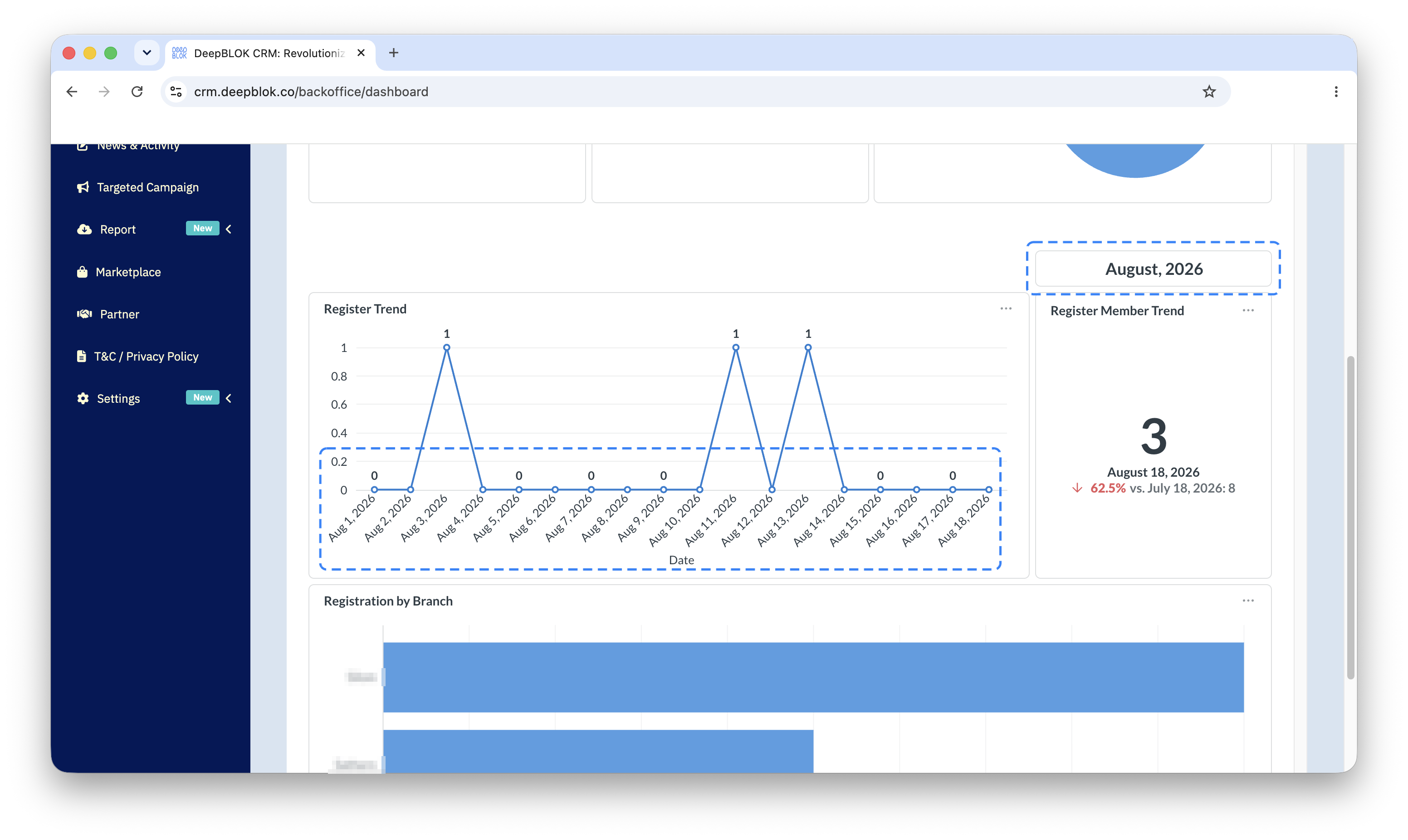
⚠️ Note on the cards labelled Today: the board mixes groups tied to the selected month with groups labelled Today, which are a snapshot of a single day. The reliable move after switching is to read the date printed under each figure, because every card prints its own. Do not go by the label above the group alone.
2 ways to compare months
If the question is simply whether this month beat last month, do not touch the month field at all — every card already prints the answer on its bottom line. A line reading ↓ 62.5% vs. July 18, 2026: 8 says last month stood at 299 and this month is up 3.01%: the old value and the change, in one line.
The month field is there for questions that reach further than that — what March came to, say, or how this month compares against the same month a year ago.
📌 Good to know: the board shows one month at a time and has no side-by-side mode. If comparing several months at once is a regular job, the report files on the Report Center page suit that far better, because you can open them in a spreadsheet and lay the months out in columns.
Common Problems
Frequently Asked Questions
Q: Can a start date and end date be picked instead?
A: The field takes a month only, in MM-YYYY format — it is not a date range. For day-level detail, read the daily charts within that month instead; they already print a value above every point.
Q: How far back can you go?
A: The picker steps back a year at a time with the « arrow with no obvious stop, but what actually appears depends on when your shop started using the system. Months earlier than that will have no data to show.
Q: Do the cards labelled Today follow the selected month too?
A: Every card prints its own date under the figure, and that is the reliable answer — read it after every switch.
Q: What should I check first when I come back to this page?
A: Read the month label in the right-hand column and the dates under the figures before anything else — not the month field at the top right, since the 2 need not agree.
Next Step
Once you can switch months, the next thing to read is the ranking cards at the foot of the board. They follow the selected month too, and they are where the difference between 2 months shows up most plainly — which customer or which branch has taken whose place.
Read Next