

Is the coupon you hand out your own brand's or a partner's? The answer changes exactly one thing — who can manage the codes. Who burns the coupon at the counter is a separate setting, in a different section.
⚡ Quick Path:
Reward→Reward Group List→View Rewards→Editon that reward → theReward Settingstab → theCoupon typefield → pick the option named after your brand, orPartner coupon→Save
📌 Good to know: Coupon type carries a red asterisk and is one of the fields the publish gate checks. A reward with this field unset will not publish, and it appears on the list of things to fix in the Cannot publish yet dialog.
Requirements before you start
- A reward that already exists — open it with the
Editbutton on its row, from the group'sReward Listpage - A decision on where this batch of codes comes from — your brand generates them, or a partner sent you a file. That is what decides which option to pick.
- The partner already recorded in the system, for a partner coupon — because the
Brand / Partnerfield in theReward Infotab has to match the reward's owner too
The job of the Coupon type field
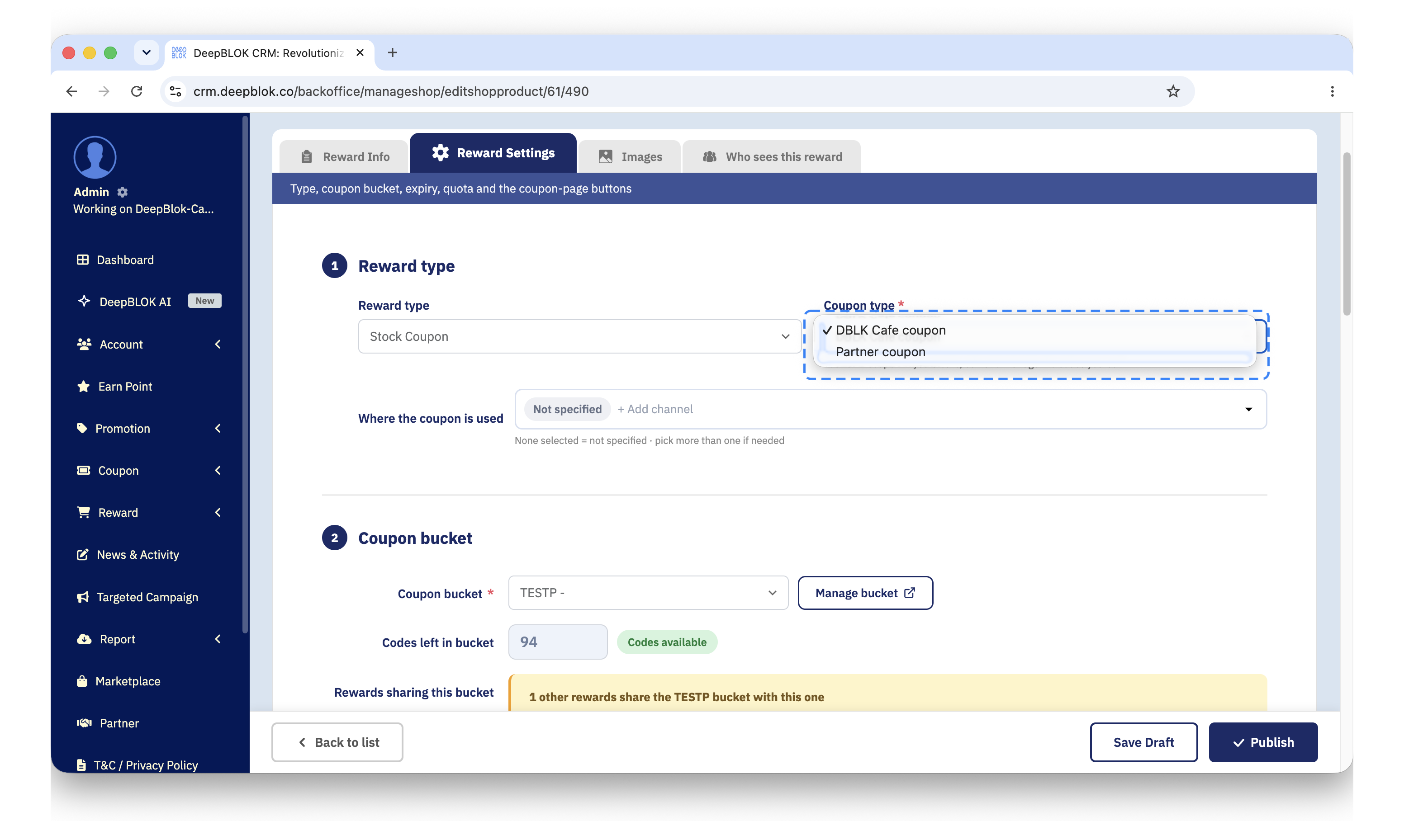
Coupon type sits in Reward type, the first section of the Reward Settings tab. Above it is the Reward type field, which currently holds one value only, Stock Coupon.
Coupon type takes a single value and the list holds exactly 2 options. The brand-side option is shown as your own brand's name — the test brand shows DBLK Cafe coupon rather than the words Brand coupon — and the other reads Partner coupon.
The real difference is who manages the codes
The difference between the 2 options comes down to one thing: the brand side manages its own codes, the partner side does not. The line under the field spells out what your own brand's coupon can do.
The usage channel is a separate field
Next to Coupon type is Where the coupon is used, which is a tag field rather than a dropdown and answers a different question: where this coupon gets used, not who owns the codes.
The field starts with a Not specified chip, which is a state rather than an option, so it cannot be removed — but it disappears once a channel is chosen. Press + Add channel and pick In-Store (Offline) or Online; more than one can be chosen.
Burning the coupon is set on the coupon-page buttons
The common misreading is that Coupon type decides who burns the coupon. It does not. Burning is set separately, in the Buttons on the coupon page (LINE LIFF) section — the fifth section of this same tab — and it is set independently of Coupon type.
That section holds a Show a "Mark as used" button for store staff tick box, meant for brands whose POS is not connected to the system. It shows a confirmation step and cannot be undone. Leave it off and the coupon is burned through the brand's existing route, such as a scan at the POS.
So when deciding, split it into 2 questions: whose codes are these, answered by Coupon type, and who burns them, answered in the coupon-page buttons section.
Setting the Coupon type field in 3 steps
Step 1 Open the reward you want to change
From Reward → Reward Group List, press View Rewards on the card of the group that reward sits in, then press Edit on its row. Then open the Reward Settings tab.
Step 2 Pick a value in the Coupon type field
In the Reward type section, open the Coupon type field and pick the value that matches where this batch of codes came from. If the codes are your brand's own, pick the option named after your brand. If a partner sent them, pick Partner coupon.
⚠️ Note on the option names: both read a lot like the Brand / Partner field, but the 2 fields answer different questions. Go by where the codes came from, not by the wording of the option — a partner's reward whose codes your brand issues itself can still take the brand-named option.
Step 3 Press Save
Press Save on the action bar at the foot of the page. The page has one action bar. If the reward is in Draft, the button reads Save Draft.
✅ Confirm it worked: reload the page and open the Reward Settings tab — Coupon type should hold the value you just picked, and pressing Publish should no longer list this field as something to fix.
Common Problems
Frequently Asked Questions
Q: What is the difference between Coupon type and Brand / Partner
A: Brand / Partner lives in the Reward Info tab and says which brand or partner owns the reward; the value appears in the reports that summarise point redemptions. Coupon type lives in the Reward Settings tab and says where the codes came from. Both are required before publishing, and they can legitimately disagree — a partner's reward whose codes your brand issues itself, for instance.
Q: Can both values be picked at once
A: No. This is a dropdown that takes a single value. If one reward genuinely draws codes from 2 sources, split it into 2 rewards with separate coupon buckets — stock and reporting both come out cleaner.
Q: Can this field be changed after the reward is published
A: Yes, but check first that the bucket attached still matches where the new codes came from. If both the bucket and the type need changing, press Unpublish first, finish the edits, then publish again.
Q: Does Where the coupon is used change what the customer sees
A: No. It is a tag recording where the coupon is used; what the customer sees comes from the Buttons on the coupon page (LINE LIFF) section, which is a separate thing.
Next Step
Next, get the codes ready to match the type you picked. If you picked the brand-named option, the next step is creating a coupon bucket and either having the system generate codes or importing a file of your own. If you picked Partner coupon, the next step is loading the file the partner sent into the bucket.
Read Next