

When you hold no coupons yet, there is no need to invent them. The system will generate them to the quantity you give, using the format set when the bucket was built, so every coupon in the lot comes out consistent. This article covers the dialog, the per-run maximum, and how to confirm the coupons reached the bucket. It takes under a minute per run.
⚡ Quick Path:
Coupon→Coupon Bucket→the plus icon in that bucket's
Actionscolumn → enterCoupon Quantity→Request To Generate
📌 Good to know: this dialog holds no format fields, because the format comes from the Coupon Setting in this Bucket panel set when the bucket was created. To change how the coupons look, edit the bucket first, then come back and generate.
Requirements before you start
- A bucket that exists, with its code format already set — that format is what decides the shape of the codes you get.
- The quantity you need — base it on the redemptions the campaign intends to offer rather than a round number, because coupons generated in excess simply sit in the bucket.
- A bucket configured to allow generation — that is,
YESon theAre coupons allowed to generate in the System ?line when the bucket was built.
Generating coupons in 3 steps
Step 1 Press the plus icon on the bucket's row
Open Coupon → Coupon Bucket and find the row of the bucket you are filling. In the Actions column, press the plus icon, the second of the 6. The system opens a dialog titled Generate Coupon in Bucket.
Step 2 Check the bucket, then enter the quantity
The dialog holds 2 lines.
1. Bucket Code Shows the code of the bucket you are working in, as read-only text. This line is the check that you pressed the right row. Read it against the bucket you intended before entering a quantity, because coupons generated into the wrong bucket stay in that bucket.
2. Coupon Quantity How many coupons to create in this run. A red line beneath states that the maximum for one generation is 20,000.
For more than that, split the work across several runs, each within the maximum.
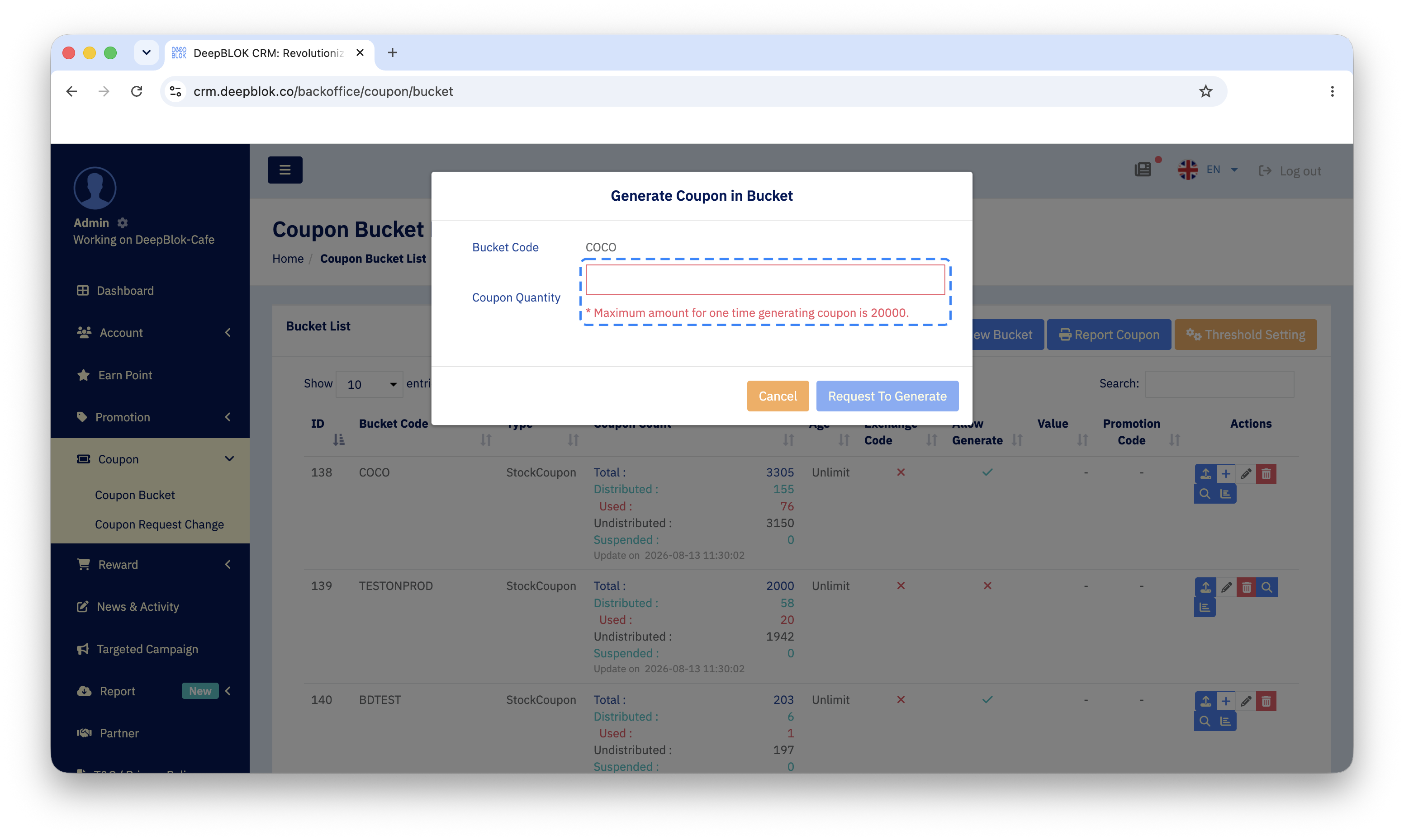
Step 3 Press Request To Generate
Press the blue Request To Generate at the bottom right. The orange Cancel beside it closes the dialog without generating.
📌 Good to know: the button says Request rather than Generate outright because it queues the work rather than finishing it on the spot. The bigger trap, though, is that the Coupon Count column in the bucket table is not calculated when the page loads. Look at the last line inside that cell: it reads Update on followed by a timestamp — the moment those figures were last computed — and every bucket in the table shows the same timestamp. Reloading therefore changes nothing until the next calculation runs. A bucket that has never been counted shows Waiting for update data in place of the timestamp.
✅ Confirm it worked: do not look at the Coupon Count column — those figures are waiting on a calculation run. Press the bar-chart icon on the same row instead, which opens Stock Coupon List. The batch you just requested appears as a new card with a lot number of its own, its Description reading Generated by backoffice followed by the bucket code, and its Date set to the moment you requested it. Then press the magnifier icon to look at the codes themselves and check their shape matches the format you set — the length and character set.
The 2 ways to fill a bucket, and which to use
The first and second icons in the Actions column do the same job — putting coupons into a bucket — but the coupons come from different places.
 The upload icon
Both routes can fill the same coupon bucket, and coupons from either count towards that bucket's Total.
Common Problems
Frequently Asked Questions
Q: Can coupons be generated into the same coupon bucket more than once?
A: Yes, and they all count towards that bucket's Total. Splitting the work across runs is the normal approach when you need more than the 20,000-per-run maximum.
Q: Can the system generate a code that duplicates one already in the bucket?
A: What reduces the risk is setting Coupon Code Length long enough for the number of coupons you intend to create.
Q: Can a request be cancelled once submitted?
A: We recommend reading Bucket Code and checking the quantity before pressing Request To Generate, and trying a small quantity in a test bucket before a real lot.
Q: How many coupons should be generated?
A: We recommend taking the figure from the quota set on the reward, since that quota is how many redemptions the campaign actually offers. If several rewards share one bucket, add their quotas together.
Next Step
With coupons in the bucket, the next step is checking their status and stock, because that is where you confirm the whole lot arrived as requested, and where you see how many have gone out since.
Read Next