

Building a Gamification game takes 3 components: Coupon Bucket (the pool of coupon codes) → Reward (what the customer receives) → Game (built in the News & Activity menu). It connects to the PUPUP system, which opens as a new browser tab.
📌 Good to know: the PUPUP game system is not localised. Its left sidebar is English (
Dashboard,Prizes,Big Prizes,Prize Pattern,Game Preview) and so are theDashboardfigures, but every page heading, dialog and field label inside it is Thai, and there is no language switch. Those labels are quoted below exactly as PUPUP shows them, so you can find them on screen. Everything in the DeepBLOK Backoffice is in English as usual.
⚡ Quick Path
Requirements before you start
- An account that can see all 3 menus —
Coupon,RewardandNews & Activity. If any one of them is missing, ask an Admin on your team to grant access to that menu. - Manage permission on the Reward menu — with view-only access the add-reward button and every save and publish button are hidden, leaving only the status badge. Ask an Admin on your team to grant it
- Access to the PUPUP game system. The game system is separate and opens from a button inside the Content page. If that new tab asks you to log in or says you have no access, contact DeepBLOK support directly.
- The prizes you will give away — you can attach 3 to 6, and 6 is what we recommend preparing, because the wheel always has 6 segments and any you leave empty show the system's default gift-box image. Bring the code count for each, and how many plays a customer gets per day.
- Terms & Conditions text in both Thai and English. The terms and conditions of the game you are about to build.
- All 7 images ready — sizes and details are in the table below (the reward's own 2 image files are prepared while you build the reward in step 2).
Image sizes to prepare
Every DeepBLOK upload field states the same limits: 1 MB maximum, JPEG or PNG.
📌 Good to know: Hero banner or Homenews? The correct Thumbnail/Banner size depends on the News Tag you'll pick in Part 4 at the very end. For a full-width banner at the top of the LINE home screen, prepare 780 × 690 and tag it
Herobanner. For a card in the news list, prepare 430 × 220 and tag itHomenews.
Why the 3 steps run in this order
Each step references something built in the step before it. Skip ahead and the next dropdown will simply be empty.
What happens when a customer spins: the system pulls one code out of the linked Coupon Bucket and drops it into that customer's coupons. So when the Bucket runs dry, that prize runs dry with it.
Step 1: Get a Coupon Bucket with codes in it
The coupon bucket is the pool of codes the game draws from when a customer wins. With no bucket, or a bucket whose codes have run out, the game cannot hand a prize over.
This step happens in the Coupon menu, and 2 separate articles cover it in full.
- Creating the bucket — the How to Create a Coupon Bucket article
- Having the system generate codes into it — the How to Generate Coupon Codes article
✅ How to confirm you can move on: on the Coupon Bucket List page, the Coupon Count column for your bucket has to show a real number — not 0, and not the Waiting for update data message. For a closer look at what is left, read the Checking Codes Remaining and Codes Used article.
Step 2: Have a reward waiting in the Gamification group
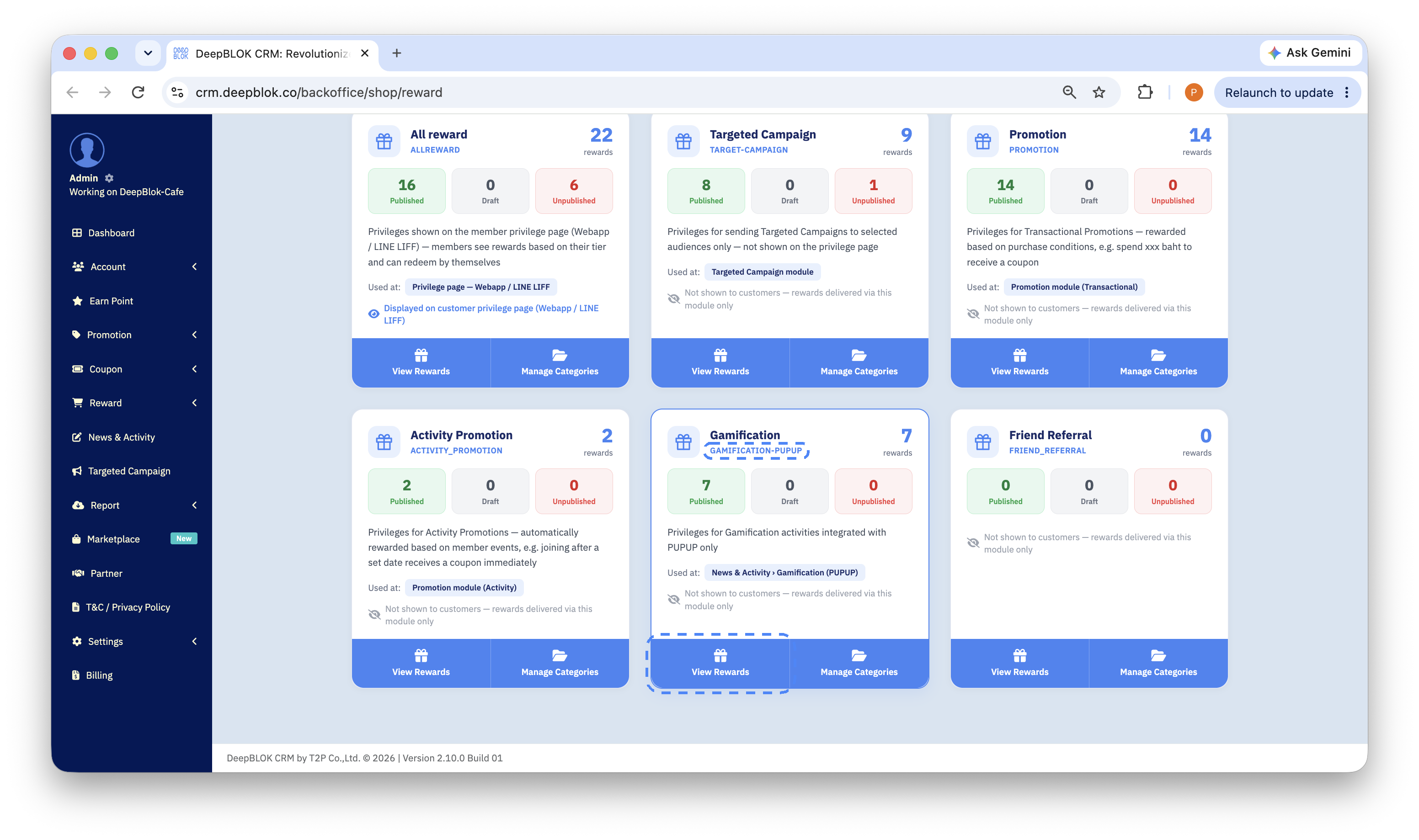
The reward is what the customer receives when the wheel lands on a prize. The How to Build Your First Reward article walks through building one — but a game reward carries one extra condition an ordinary reward does not: it has to be created inside the Gamification group, because PUPUP reads rewards only from the group whose code is GAMIFICATION-PUPUP. A reward sitting in any other group will not appear in the dropdown when you attach prizes in step 3.7.
⚠️ Watch out: always go in through the Gamification card. Click Reward in the left menu, then
View Rewardson the Gamification card, and only then+ Add Rewardon the page that opens.
Beyond the group, 3 values have to match the game.
✅ How to confirm you can move on: the status badge beside the reward name has to read green Published. A reward still sitting as a draft, or one that has been unpublished, will not appear in the dropdown when you attach it to the game in step 3.7.
Step 3: Build the banner and the game itself
This is the longest step, and the one where you'll move back and forth between 2 systems — DeepBLOK Backoffice and PUPUP.
3.1 Create a new item in News & Activity
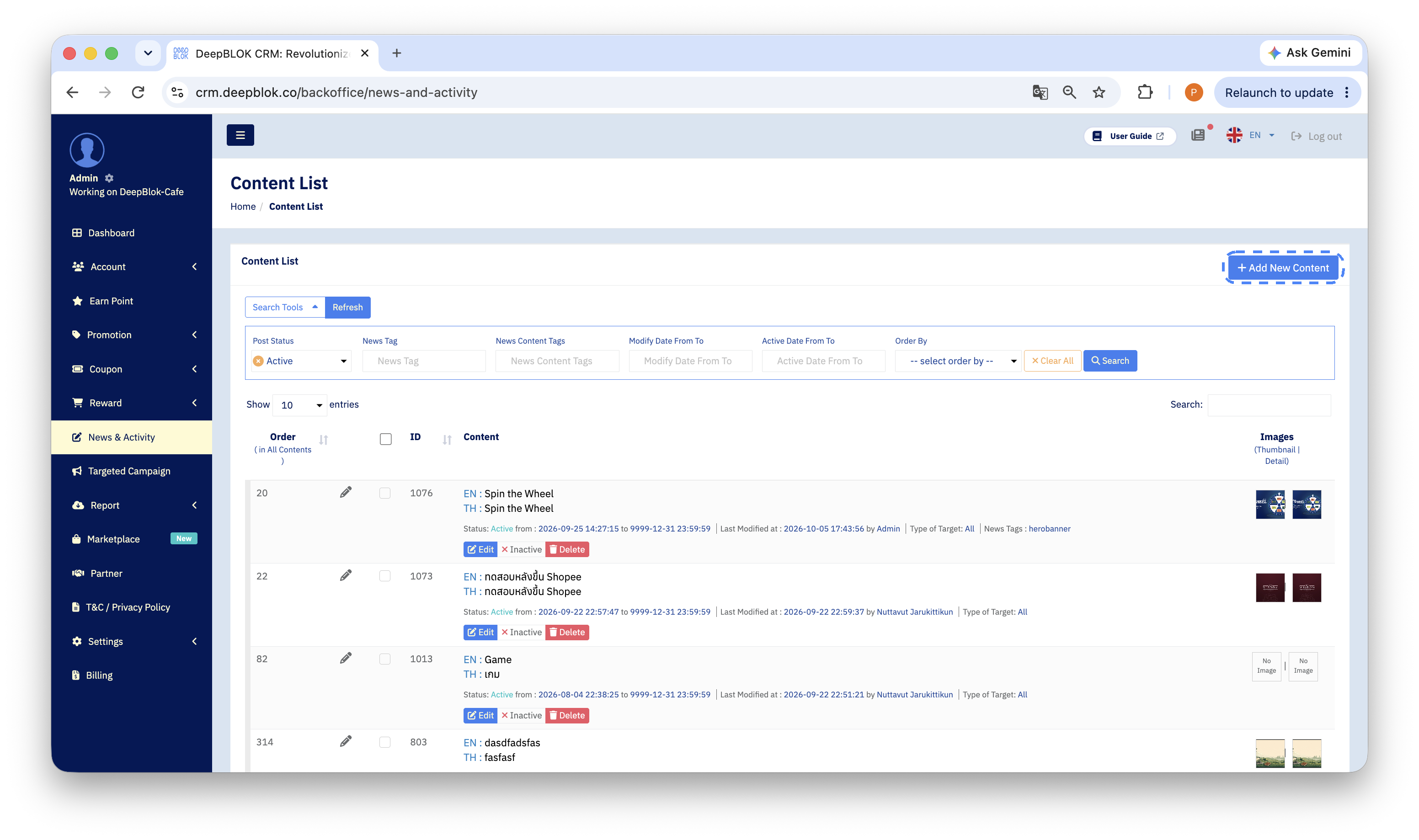
Click News & Activity in the left menu to reach the Content List page, then click the blue + Add New Content at the top right.
The content editor is split into 4 parts (Part 1–4). Each part has its own blue SAVE button, and a part shows a green check mark in its heading once it's complete.
3.2 Part 1: title and content, in both languages
Part 1 : Title and Content carries 2 language tabs, English and ไทย. Fill in Title and Description on both.
💡 Good to know: if the 2 languages are close, click the
Copy from | ไทยlink at the top right of the Description field to pull the other language across and edit from there.
Click Part 1's SAVE before moving on.