4 Methods to earn points on an order
Choose the ones that fit how your brand sells:
💡 Good to know: for other channels you connect over the API, such as your own website or a kiosk, you can talk to one of our specialists on DeepBLOK Line Official.
This article covers method 4. It is earning points through the Marketplace channel, and it takes 2 linking steps:
- Your brand connects its own official marketplace store to DeepBLOK (read the Connecting to Lazada / Shopee article)
- Each customer links their own marketplace account from the member page on LINE (live today with Lazada)
Once both steps are done, points on an order land automatically — the customer never has to report anything again, and nobody on your team imports a file. This article explains how the channel works and where your team reads the result.
⚡ Quick Path: the member page on LINE → the
Othertab → theLink accounts to earn pointscard →Link account→ enter theOrder no.→Confirm, once → your team reads the result underMember Account→Account Info→E-COMMERCE LINKING
Requirements before you start
- Your brand's marketplace store is already connected to DeepBLOK. This is a one-time job when you start using the channel; the steps are in the Connecting to Lazada / Shopee article. Until it is connected, points won't land even for customers who have linked their own account
- An official Lazada store, because the linking screen states plainly that it counts orders from your official store only
- The feature has to be switched on for your brand first. If the member page shows no
Link accounts to earn pointscard, it isn't enabled yet — ask the DeepBLOK team that looks after your account - The customer must already be a member. Linking happens inside the member page; it isn't a sign-up route
- The customer needs at least one delivered order, because that order's number is what the linking step asks for
- Access rights: read access to member records is enough, because the Backoffice side of this article is read-only
3 Things to understand before you explain it to a customer
1. The customer links once, and points land every time after that The customer goes through the linking step one time. From then on, later orders earn points on their own — no report, nothing to enter again. That is the sentence to use when a customer asks whether they have to do it every time.
2. Points don't land instantly The linking screen states that points are added automatically within 1 day of successful delivery and verification. This line matters on a support call: a customer who has just linked and can't see points yet is normal, not a fault.
3. Both steps have to be done Your brand connects the store to DeepBLOK, and the customer links their own account. If either step is missing, no points land. When a customer reports missing points, check both steps, not just the customer's.
📌 Good to know: linking applies to orders from the moment it happens onward. Earlier orders are not awarded retroactively. If you want to cover them, use the CSV import.
How the customer links their own account, in 4 steps
Linking happens inside the customer's own member page — there is no button in the Backoffice for your team to link on their behalf. These 4 steps are what the customer sees and does, so they work as a script on a support call.
Step 1: Open the Other tab on the member page
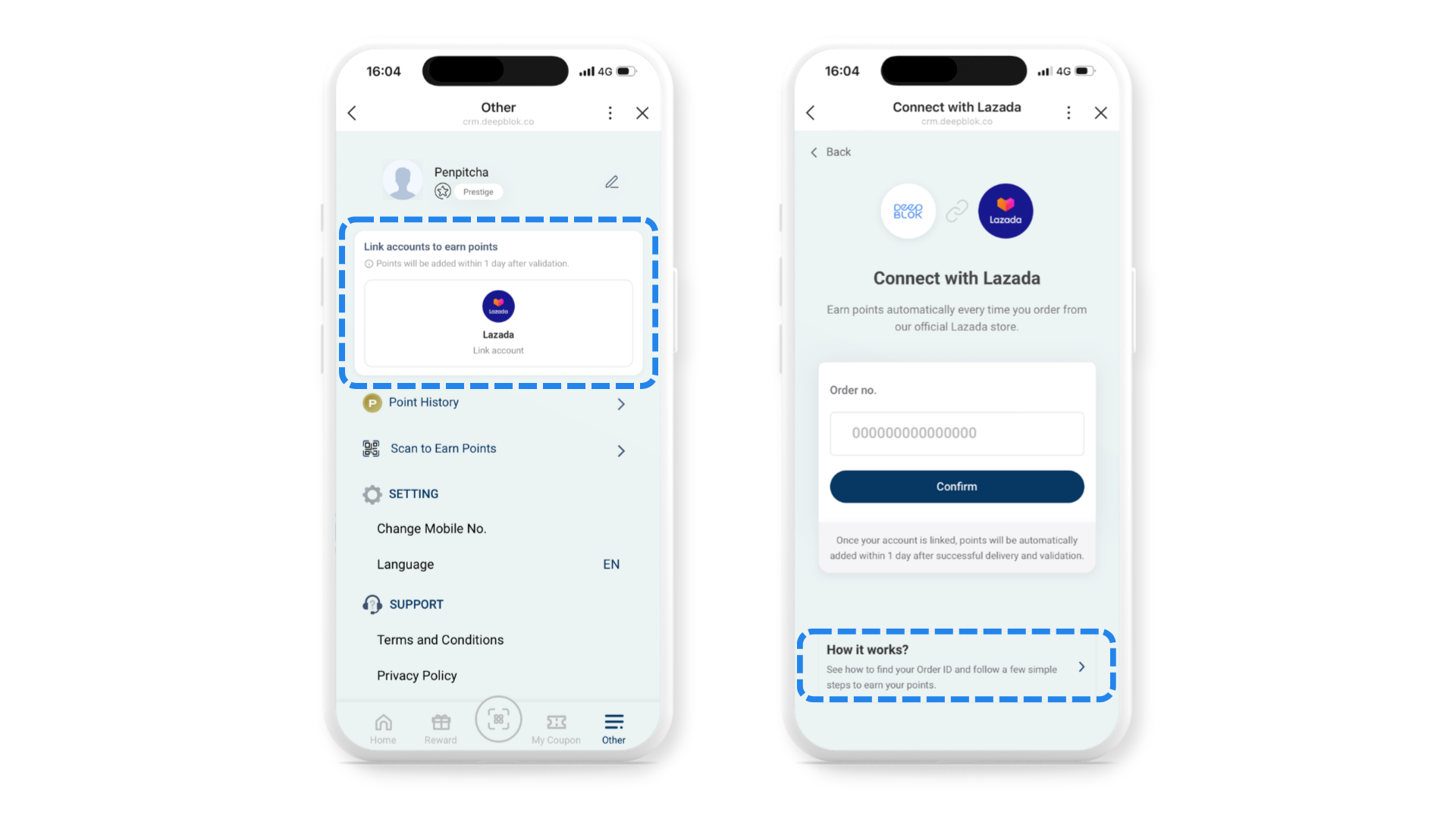
Have the customer open the member page from your brand's LINE chat, then tap the last tab on the bottom bar, Other.
Their own name and tier sit at the top, and below that is the Link accounts to earn points card, with the line Points will be added within 1 day after validation. and a button for each channel that is switched on. Each channel's button carries the words Link account under the channel name.
Step 2: Tap Link account on the channel
Tapping a channel's button opens the Connect with Lazada screen, which shows the DeepBLOK and Lazada logos linked together at the top and the line Earn points automatically every time you order from our official Lazada store.
There are 3 things on this screen the customer needs.
- The
Order no.field, for the number from an order that has already been delivered - The
Confirmbutton, in dark navy - The
How it works?card at the bottom, for customers who can't find their order number
Under the button, the screen states Once your account is linked, points will be automatically added within 1 day after successful delivery and validation. That sentence is your ready-made answer when a customer asks why no points have landed yet.
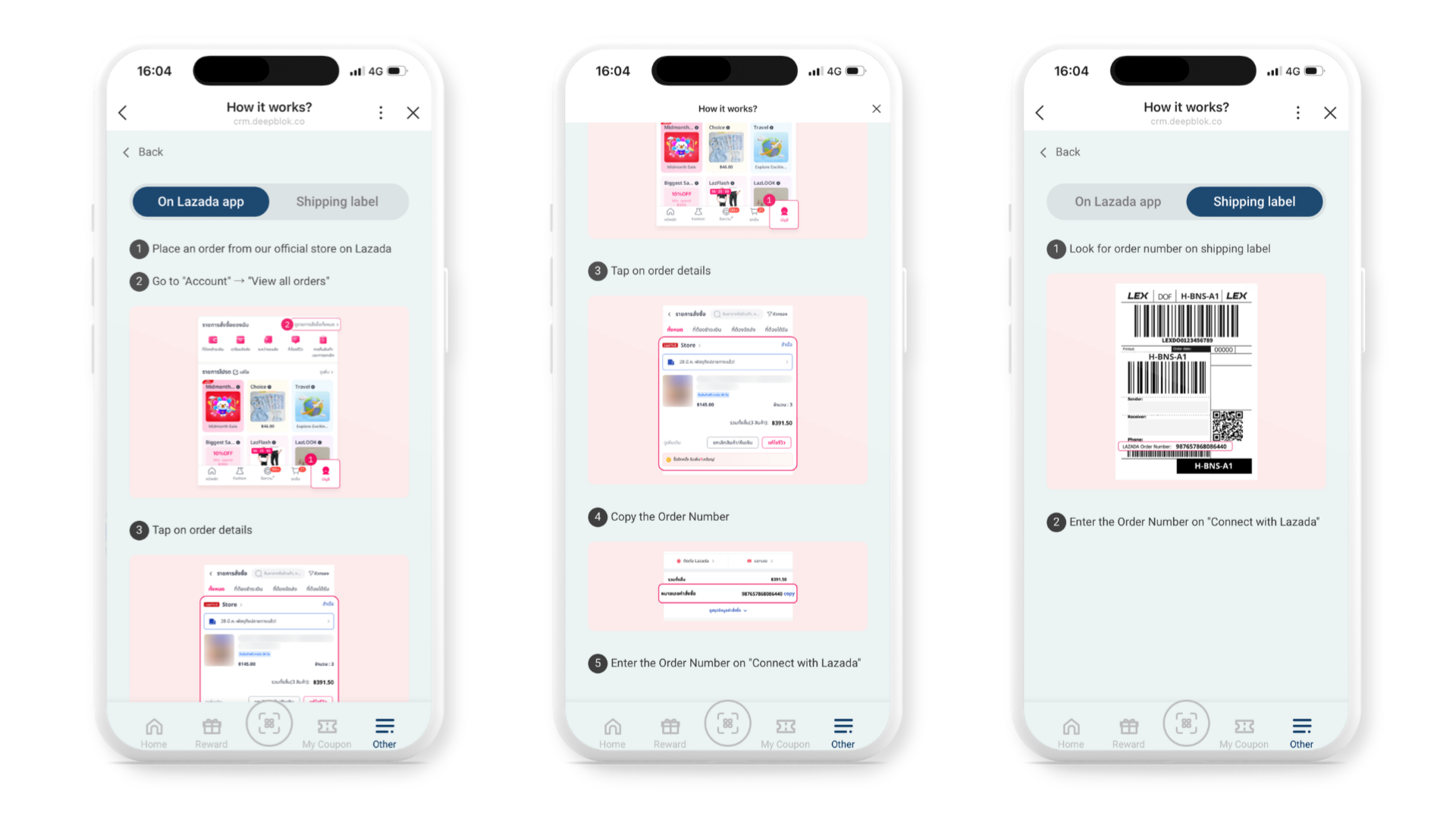
Step 3: Find the order number, 2 options
The How it works? card opens a screen split into 2 tabs, so the customer can take whichever route suits them.
The first route is the better one, because copy means the customer never types the number — and typing it is where it goes wrong.
📌 Good to know: the number needed is Lazada's
Order Number— not a member id, and not a tracking number. A shipping label also carries the courier's own barcode at the top; the line to use is the one that readsLAZADA Order Number.