

4 Methods to earn points on an order
Choose the ones that fit how your brand sells:
💡 Good to know: for other channels you connect over the API, such as your own website or a kiosk, you can talk to one of our specialists on DeepBLOK Line Official.
This article covers method 1, the channel that happens at the counter as the customer pays. They open the earn-points screen in LINE and hold out their member code for staff to scan, and the points land straight from that transaction.
⚡ Quick Path:
Settings→Earn Point Mechanic→ theEarn Point Mechaniccard → theQR code / Barcode Settinggroup → pickDynamic→ clickSaveon that card
Requirements before you start
- Access to the
Settingsmenu — it sits at the very bottom of the left menu bar. If you cannot see it, ask an Admin on your team to grant it; the system settings pages are generally reserved for the Admin role - Check the brand name at the top left — the
Working on …line must be the brand you intend to configure, because this setting belongs to that brand - A promotion already in
Activestatus — switching a mechanic on here opens a channel for customers to earn; the number of points comes from the promotion you built per the How to Create Advanced Rule-Based Promotions article. With no promotion, staff can scan and no points arrive - Counter staff with something to scan with — staff scan the customer's code from the Merchant App on a phone. If your shop has no Merchant App account yet, see the How to open a merchant app account for your shop article
The 3 cards on the Earn Point Mechanic page
The page is a settings page made of several cards stacked vertically. Each card is a different way of earning, and each is configured completely separately.
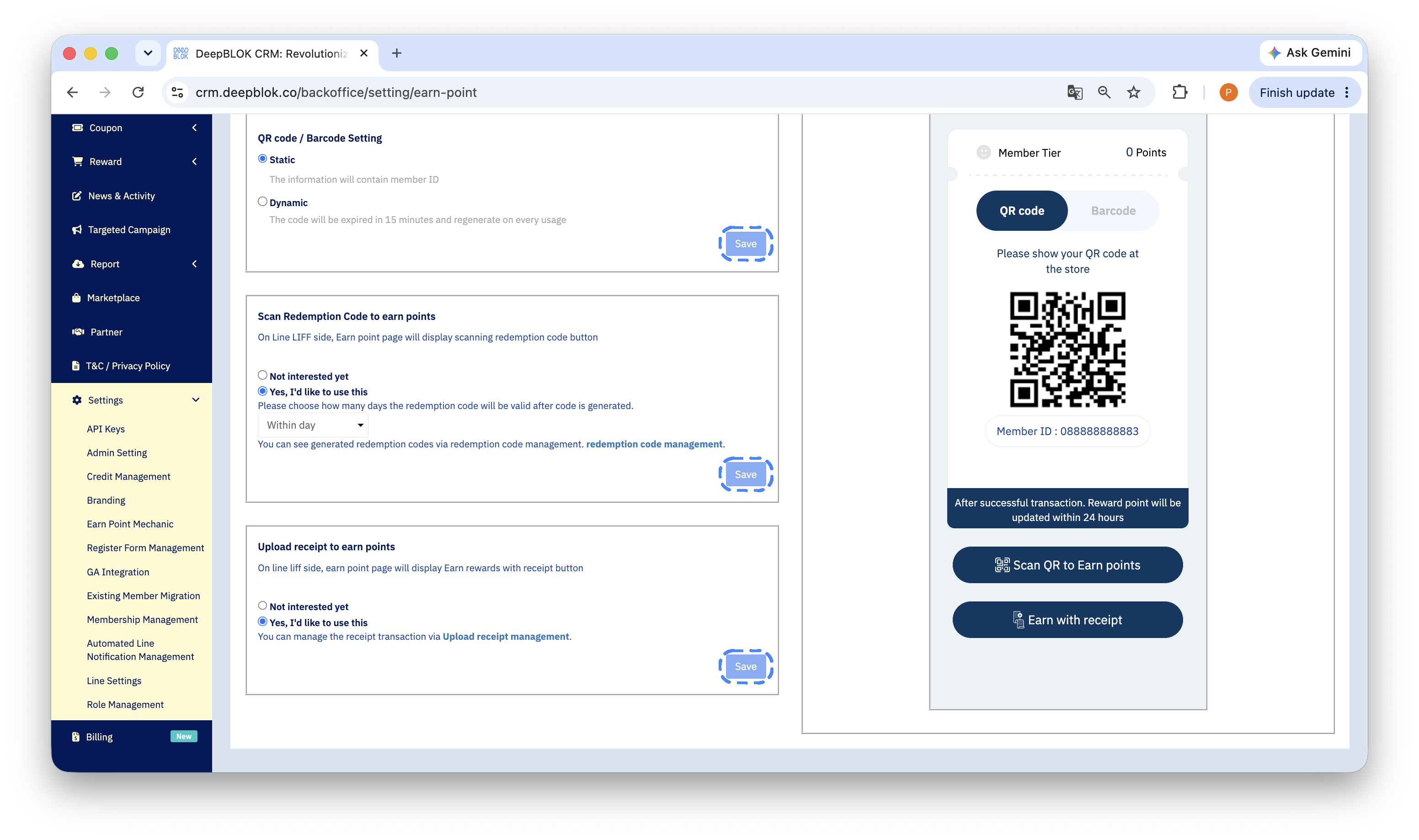
1. Earn Point Mechanic — the member's QR code or barcode The first card, with a blue description under the heading reading Earn point page will display QR code or Barcode for letting members use to earn points via storefront. It controls which kind of member code the earn-points screen shows in the customer's app, for counter staff to scan when the customer buys. This is the card this article is about.
2. Scan Redemption Code to earn points — a redemption code, or the QR code on a receipt The second card works the other way round from the first: the customer scans a code the system generated from a payment, instead of staff scanning the customer. Setup and use are in the How to award points with a redemption code or a receipt QR code article
3. The card for receipt uploads The third card lets customers photograph a receipt and send it in to earn points, which suits businesses whose sales system is not connected to DeepBLOK yet. Setup and the daily review round are in the How to award points from uploaded receipts article
📌 Good to know: switch on only the cards you will actually use. Every card you enable adds a button or a code for customers to see in the app, and enabling them all while the counter is not ready leaves customers using a channel that awards nothing. Scroll the whole page before concluding how many cards there are, because the count can differ per brand's configuration. The one rule that holds for every card is the same — configure a card, click
Saveon that card.
Switch it on in 2 steps
Step 1: pick the code type on the Earn Point Mechanic card
Scroll the left menu to the bottom and click Settings. The menu expands in place with a pale yellow highlight; click Earn Point Mechanic. The page opens with the Earn point mechanic heading and the Home / Earn point mechanic breadcrumb beneath it.
On the first card, Earn Point Mechanic, find the QR code / Barcode Setting group. It offers 2 options, each with a grey description under its name. Pick the one you want.
Step 2: click Save on the card
Click the blue Save button at the bottom right of the Earn Point Mechanic card.
⚠️ Watch out: every card on this page has its own
Savebutton and there is no page-wideSave. ClickingSaveon a different card leaves what you just picked unsaved — the number one reason people configure this page and find nothing was stored.
✅ Confirm it worked: reload the page with F5, or click
Earn Point Mechanicin the left menu again, and read the card back. The option you picked must still be the one selected. If it reverted, that card was never saved — set it again and clickSaveon that specific card.
Static and Dynamic differ on security
📌 Good to know: unless you have a specific reason to need
Static, pickDynamic. Awarding points moves something of value into a customer's account, so a code that is reusable forever is the equivalent of a code that never expires. The trade-off is that customers have to open the app at the counter rather than use a saved screenshot, and that is a trade worth the security you get back.
What the customer sees, and how staff scan it
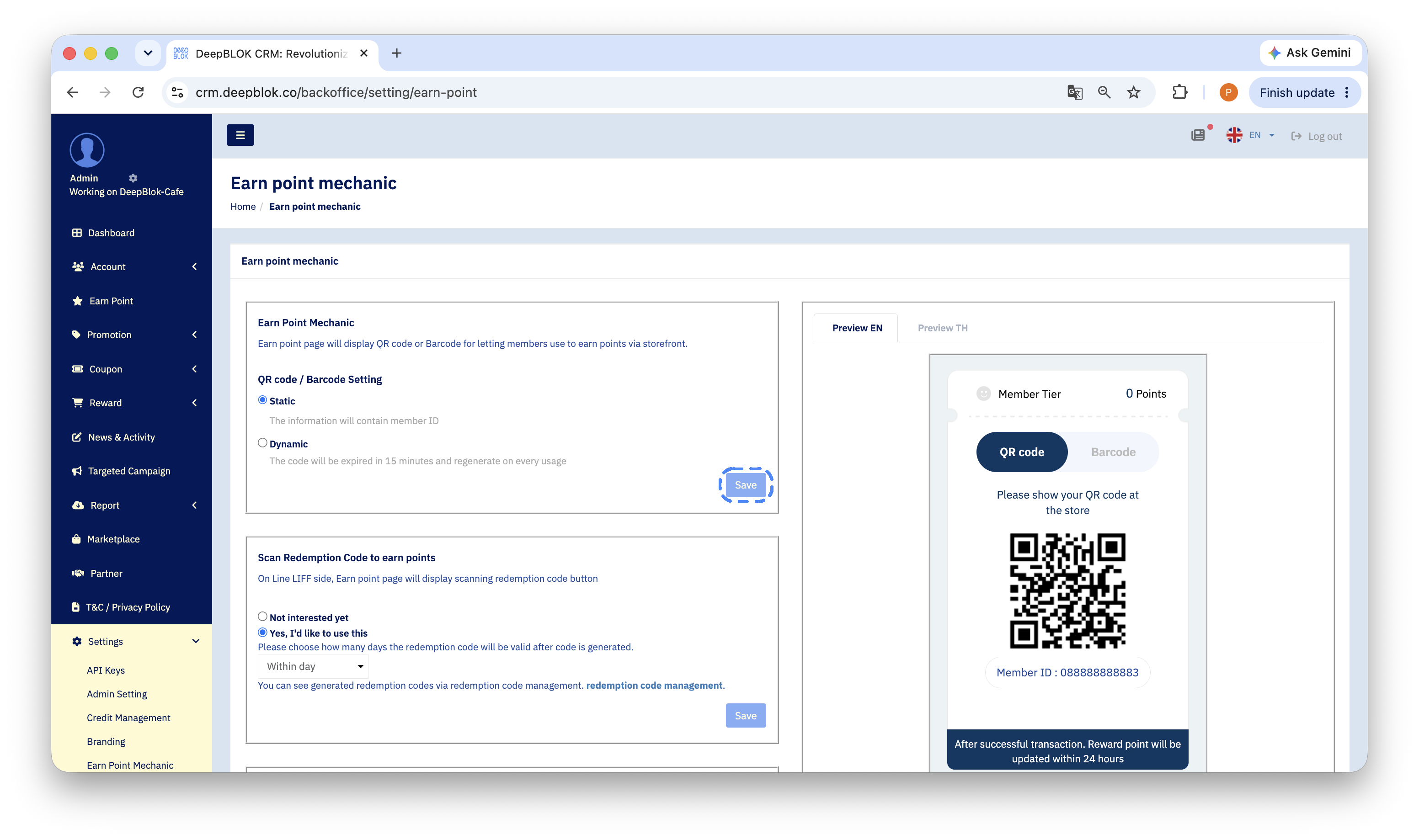
On the customer's side. The customer taps the round QR button in the middle of the bottom bar to reach the Earn points screen. It shows their tier and point balance at the top, and in the middle their member code with QR code and Barcode tabs to switch between, the line Please show your QR code at the store, and their Member ID underneath. All the customer has to do is hold that screen out to the staff member when they pay.
On the staff side. Staff open the Merchant App on a phone and scan the code from the customer's screen. The detailed steps are in the How to award points to a customer in the merchant app article
📌 Good to know: the earn-points screen carries a banner reading
After successful transaction. Reward Point will be updated within 24 hours. Use that same sentence when a customer asks why their balance has not moved yet, and check the member's points history to confirm the entry landed.